




It’s a fact of life that since the Web was born, Web sites have only grown in complexity. A state-of-the-art site today involves so much technical know-how that you practically have to be Q to master it all. Adobe acknowledged this in Dreamweaver CS3 by including many new features to help those of us who aren’t part of the Continuum.
The standalone version of Dreamweaver CS3 is $399, and you can upgrade for $199. Here’s what you’ll get for your gold-pressed latinum:
I Have One Word for You: Roswell
Until aliens descend upon Earth and compel us all to use only one version of one Web browser on one operating system and one platform, there will be differences in how browsers display Web sites. That’s why Dreamweaver CS3 has the new Browser Compatibility Check.
When you run a Browser Compatibility Check on your site, Dreamweaver locates CSS-related issues that may cause problems and describes each issue, noting which browser is affected by the issue, and even judging the likelihood of that issue causing a display problem (Figure 1).
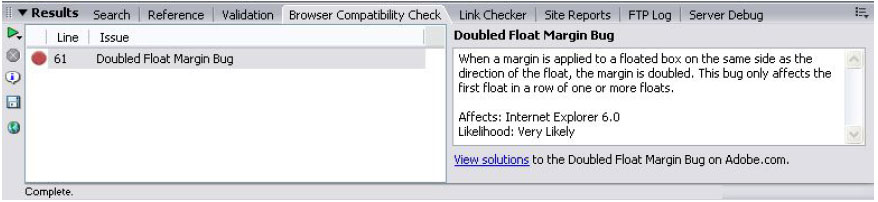
Figure 1. The Browser Compatibility Check error panel identifies CSS-related issues in different operating systems. Click on the image to see a larger version.
Dreamweaver flags issues in code view with green underlining, and you also get an error list that includes line numbers of problem code.
Like Deanna Troi for CSS
The Browser Compatibility Check is a handy addition to Dreamweaver, I’ll grant you. But what if you don’t know how to fix the problems it find? That’s where the CSS Advisor comes in. It’s still in its infancy, and it’s actually a Web site, not something built into Dreamweaver. But it has enormous potential.
Adobe initiated the CSS Advisor Web site and populated it with some information on CSS and issue workarounds. However, you, me, and other Web workers are expected to keep the site current by adding issues and workarounds we know about (Figure 2). You can also comment on other posts.
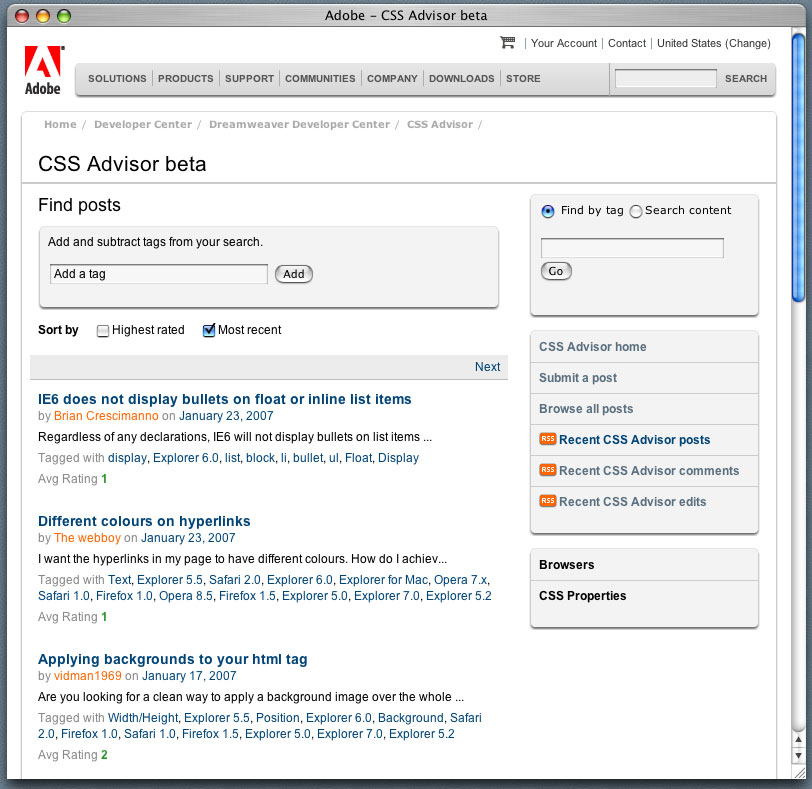
Figure 2. The CSS Advisor Web site. Click on the image to see a larger version.
To actively participate in the site, you’ll need a free Adobe or Macromedia ID, but lurking is simple — once you see the Browser Compatibility Check’s error panel, click the View Solutions link at the bottom and you’ll bring up the CSS Advisor site with the solution to your problem.
Cadet-Level CSS Help
If you skipped the previous two sections because you don’t use CSS, you may want to read this. Dreamweaver CS3 includes 32 CSS cross-browser compatible, customizable templates (Figure 3).
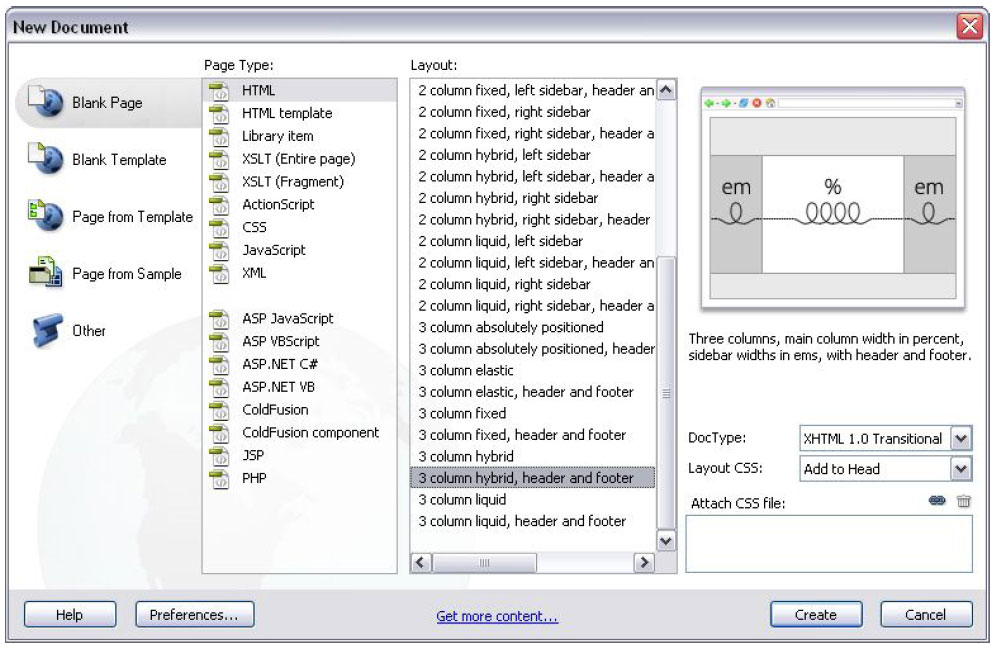
Figure 3. Adobe says its 32 templates reflect the key patterns of modern Web sites. Click on the image to see a larger version.
Not only does each template define the document’s colors, fonts, and layouts, but it also includes helpful comments that explain how the layout is constructed (Figure 4).
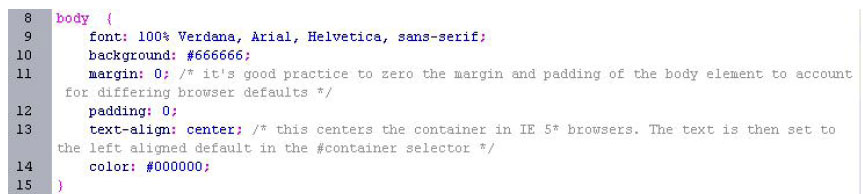
Figure 4. Look at the comments in the CSS templates for explanations and advice. Click on the image to see a larger version.
Better than the Holodeck
Static Web sites may not hold site visitors’ attention, which is why dynamic and interactive content is so popular nowadays. That content is often powered by Ajax (Asynchronous JavaScript and XML). Adobe has tried to make Ajax more accessible by including its Spry framework for Ajax in Dreamweaver CS3.
The Spry framework is a JavaScript library; when you drag and drop its data into your page, you add visual effects, such as making an image appear to shrink and fade, or interactivity, as you see in Figure 5.

Figure 5. You don’t need Q’s smarts to add user interface components like the expandable areas in this example’s Event information (open) and Event Directions (closed) regions.
More Improvements and Additions
Better Photoshop support. Many Web designers use Photoshop to mock-up sites. Dreamweaver CS3 aids that workflow by letting you copy from Photoshop and paste into a Dreamweaver page. Dreamweaver recognizes multiple Photoshop layers, and it retains a link to the image so that if you double-click it, you’ll open the original in Photoshop for editing.
Device Central. Increasingly, clients are asking Web designers to create sites that work well on mobile devices. Adobe’s new Device Center helps you visualize how your design will hold up on an array of devices (Figure 6).
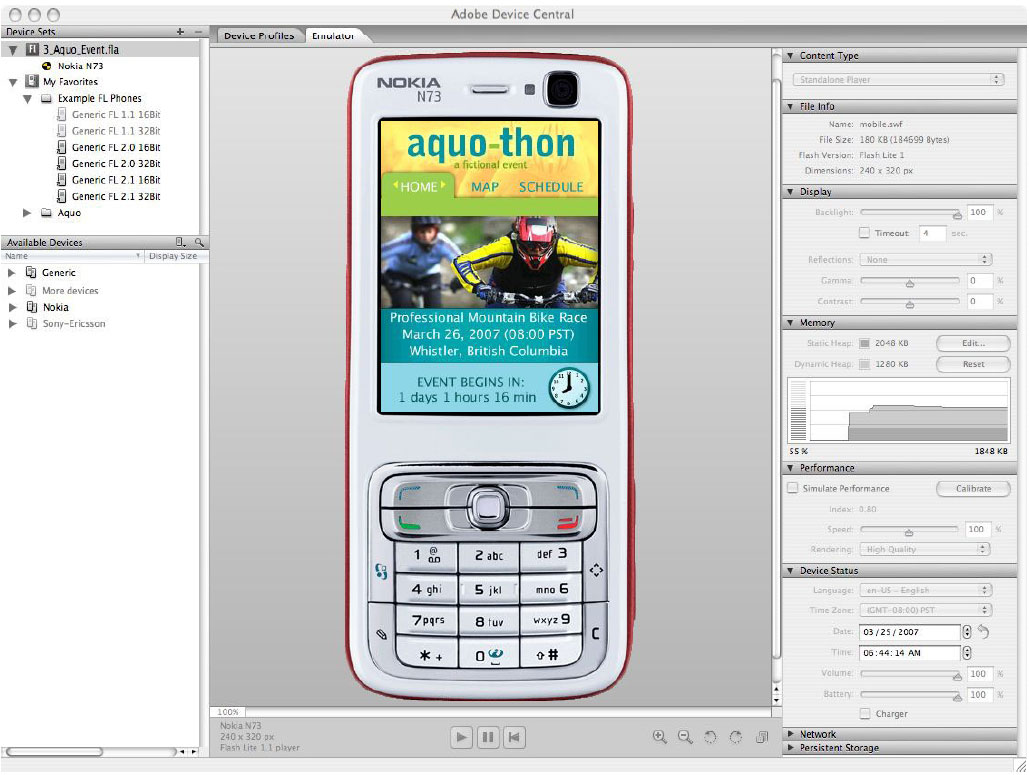
Figure 6. Adobe will add many more devices to this list. Click on the image to see a larger version.
Go to other pages in the CS3 Overview:
This article was last modified on January 8, 2023
This article was first published on March 27, 2007
Commenting is easier and faster when you're logged in!

Recommended for you

New Adobe PDF Print Engine Powers Next Generation PDF Workflows
Adobe Systems Incorporated (Nasdaq:ADBE) today announced the Adobe® PDF Pri...
Sign & Fill In PDFs On the iPad
Press Release Readdle is pleased to announce the release of PDF Expert for iPad...

Here’s What We Love about InDesign CS6
Adobe announces InDesign CS6 today! Read all about it!