


Draw On It: Corel’s Latest Graphics Suite Packs Powerful Punch


Paint It
We try hard to like Photo-Paint and we’ll admit that its tools and features are almost on par with Adobe Photoshop’s. The biggest problem we have with Photo-Paint is it just feels clumsy compared to its major rival. Performance-wise, it lags behind Photoshop 7 — in our beta version there were perceptible delays between, say, moving a layer (or object, as it’s called in Photo-Paint), and seeing the result on the screen. This performance hit may disappear in the final version, but we have found earlier versions of Photo-Paint suffering from the same dawdling pace and is especially evident with larger files (those greater than 50 MB). For example, it took 2 minutes 12 seconds to load a 180 MB file on a 1.2 GHz machine with 512 MB RAM; Photoshop loaded the same file in 15 seconds and didn’t freeze the computer while doing so. We had hoped that the performance would improve in the released version, but it’s still really slow, even with small files. As a result, Photo-Paint can’t realistically be used to production print work.
If you can get used to the slightly awkward feel and hesitant performance though, Photo-Paint has a lot to offer, especially for more consumer-oriented projects such as photo retouching and quick and easy special effects. For example, Photo-Paint has a red-eye tool for fixing retinal glare caused by camera flash; an object sprayer for laying down sequences of objects (similar to Painter’s image hose); a dynamite filter preview dialog box and lots of built-in creative filters; and a cool interactive drop shadow tool for producing instant — and customizable — special effects.
New in version 11 is a Cutout masking tool — similar to Photoshop’s Extract command (see figure 4). You trace the outline of the object you want to isolate, fill in the selection, and Photo-Paint will do the rest. Unfortunately, this feature is underpowered compared to Photoshop’s, which contains controls for smoothness, specifying the foreground color, and basing the extraction on a previously saved selection. On the other hand, the lighting filters, which have been tweaked for better control and a wider range of adjustable parameters, are as good as the competition (see figure 5).
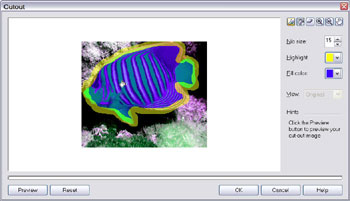 Figure 4: Photo-Paint’s Cutout feature is basic, but works well on objects that don’t have fine detail such as fur.
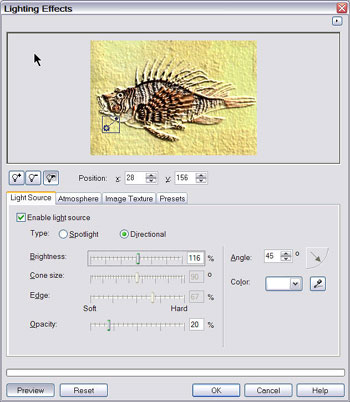 Figure 5: Photo-Paint’s Lighting Effects dialog box is quite powerful and includes a new spot filter and plenty of presets for the time-pressed designer.
One of the most frequent tasks we perform in an image editor is stitching together scanned sections of an oversized image. We usually do this in Photoshop by dropping all the sections into a single image as individual layers, setting the top layer to Difference mode, and then lining them up with the cursor keys. When the alignment is correct, the overlapping area turns black (because of the Difference mode setting). Photo-Paint includes a nice stitching function for piecing together two separate images that functions like my Photoshop workaround: When the two images are correctly aligned in Photo-Paint, the overlap area turns black (see figure 6). Photo-Paint’s dialog box is useful for beginners who don’t know how to handle layers, but it’s nowhere as nice as Picture Publisher’s stitching function where you can specify individual pixels common to the two files, resulting in an absolutely precise alignment.
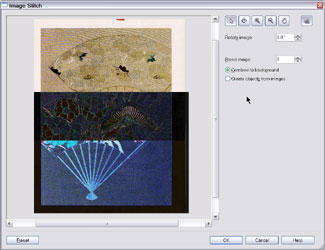 Figure 6: The Stitching function relies on the Difference mode to cue you when the images are correctly aligned.
Photo-Paint includes a few new features specifically for Web graphics: rollovers, better JPEG and GIF optimization, and the ability to slice images into smaller units so they load more efficiently in a browser. These features worked quite nicely and we liked the fact that they are integrated into the program — to accomplish these actions in Photoshop, you have to switch to the companion ImageReady application.
We also loved Photo-Paint’s new JPEG 2000 export filter. This new format is impressive, allowing lossless compression as well as the ability to apply a different compression factor to a selected section of the image. This feature comes in handy when you need to super-optimize an image for the Web.
This program is a good adjunct to Draw and for most image editing tasks, can substitute in a pinch for the pricier Photoshop. But given its performance problems, we won’t use it for production-level work.
This article was last modified on January 18, 2023
This article was first published on August 13, 2002
Commenting is easier and faster when you're logged in!

Recommended for you
Creating Tilt-Shift Effects in Photoshop
The Tilt-Shift effect makes aerial views of landscapes look like model villages....

CreativePro Video: Using the Touch Type Tool in Illustrator
In this week’s CreativePro video, Mike Rankin demos how to adjust type with Illu...
Photoshop Week 2014
Any time is a great time to expand your Photoshop knowledge, but you might want...