


Digital Pop Art: Unleash Your Inner Warhol


Illustrator
- Step 1: Decide on an image
In order to create your own pop art in Illustrator you first have to find or create a black and white line art image to work with. It can be something very simple and modular or it can be something with a little more detail, like our image shown in Figure 9. Once you’ve selected or created an image, open it in Illustrator. Now you’re ready to transform your image into pop art.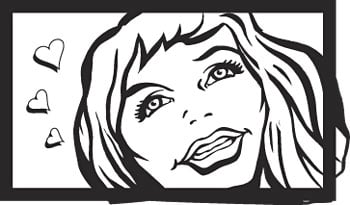
Figure 9 - Step 2: Fill your image with color
The next step is to add color to your image. To do so, simply select an area of your image. Then go to the Color palette and click the Set Foreground Color swatch. Select a color to fill the area in with. Then drag the swatch into the Swatches palette so that you have it handy. Select any remaining areas of your image that you want to make the same color and fill them in as well. Continue adding color until your image looks the way you want it to. At this point your image should resemble ours, shown in Figure 10.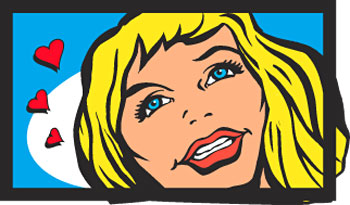
Figure 10 - Step 3: Create the dots
The last step in the process is to turn some of your color fills into dots, as shown in Figure 11.
Figure 11To do so, first select a part of your image. Then choose Effect > Pixelate > Color Halftone. In the resulting dialog box, shown in Figure 12, adjust the Max. Radius setting to a number between 8 and 20. Click OK. Keep in mind that the larger the number is, the larger your dots will be. Now, repeat these steps on any other areas of your image that you want to add dots to.
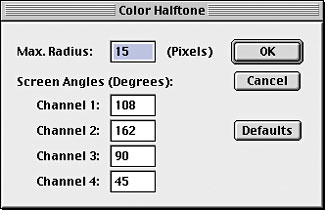
Figure 12Note: When using the Color Halftone effect your results will vary depending on what color mode you’re working in. In RGB mode the dots will appear translucent, whereas in CMYK mode the darker dots will cover the lighter ones. Also, note that process colors can’t be made into halftones.
This story is taken from “The Design Authority” (Element K Journals).

Creativepro.com readers can subscribe to Element K Journals at a discount. Click here to learn more.
This article was last modified on January 3, 2023
This article was first published on May 24, 2002
Commenting is easier and faster when you're logged in!

Recommended for you

A Photoshop Script to Delete Empty Layers
As a Photoshop user, one of the kindest things you can do for anyone who has to...

Alien Skin Software Brings the Look of Film to iPhone with Alt Photo
Press Release Raleigh, North Carolina –Alien Skin Software has announced the imm...
Top Tips for Illustrator Book Now Available!
Our most popular Illustrator tutorials collected in a convenient PDF book format