




In my last post, I outlined how to create individually named PDFs from a Data Merge using:
- bookmarks from a table of contents; and
- bookmarks from document structure
I had mentioned that at the time of writing, I had been considering the use of a script to take a specific paragraph or character style to convert to bookmarks, and that Ukrainian scripter Kasyan Servetsky had a script that came close, but only created text anchors that were hidden instead of bookmarks.
Since that post was written, a third method now exists to create individually named PDFs from an InDesign Data Merge that has been merged into one file (or any InDesign document for that matter):
A script to make bookmarks based on a paragraph style
For this technique, you will need the “addbookmarksfromparagraphstyle.jsx” script. Add this script to your Scripts panel (for more information on installing and using scripts, see this post).
Once again, we’ll create a set of business cards and the PDFs will be named exactly as the names on each business card. The first two steps are identical to the previous article.
1. Prepare the base file – the merge fields do not have to be on the master pages. Make sure that the names have a unique paragraph style – in this example the style is called “consultant”.
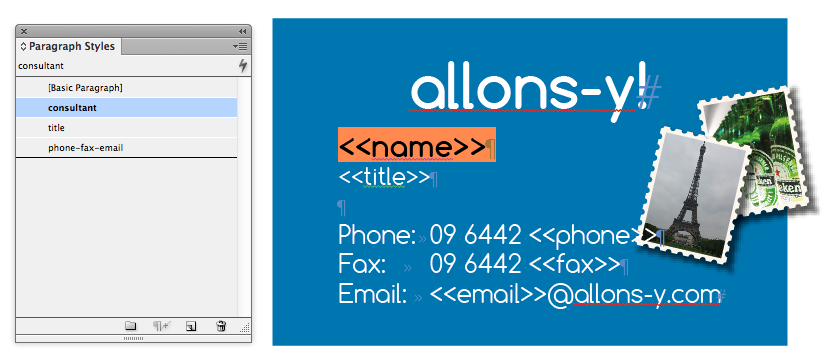
2. Merge to a new InDesign file, making sure that the overset text warning reports no overset text.

3. Once the new merged InDesign file is created, navigate to the Scripts panel and run the addbookmarksfromparagraphstyle.jsx script.

4. A prompt will ask what paragraph style to choose. Select the desired style from the dropdown menu and click OK.

The script will then run and on completion, a “completed” dialog box will appear. In the bookmarks panel, all of the names will now be assigned bookmarks.

From here, steps 5 and 6 are identical to the previous article:
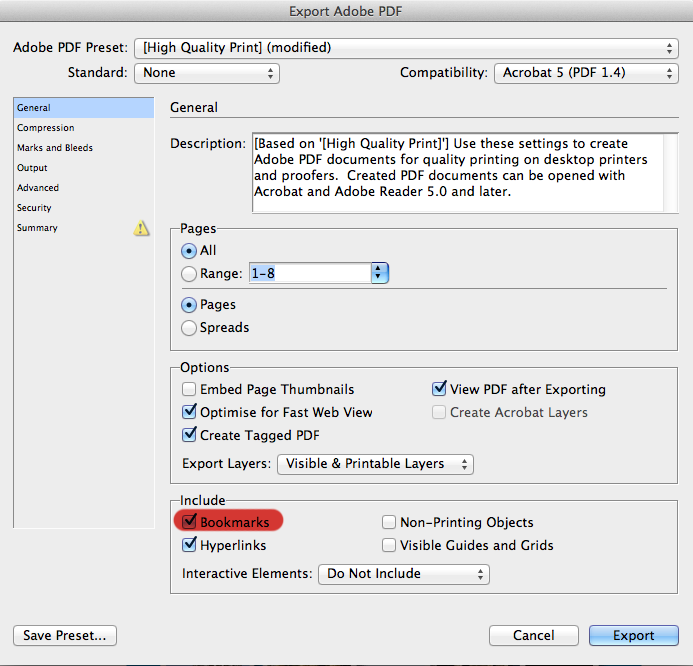
5. Export the InDesign file to a PDF, with bookmarks turned on.
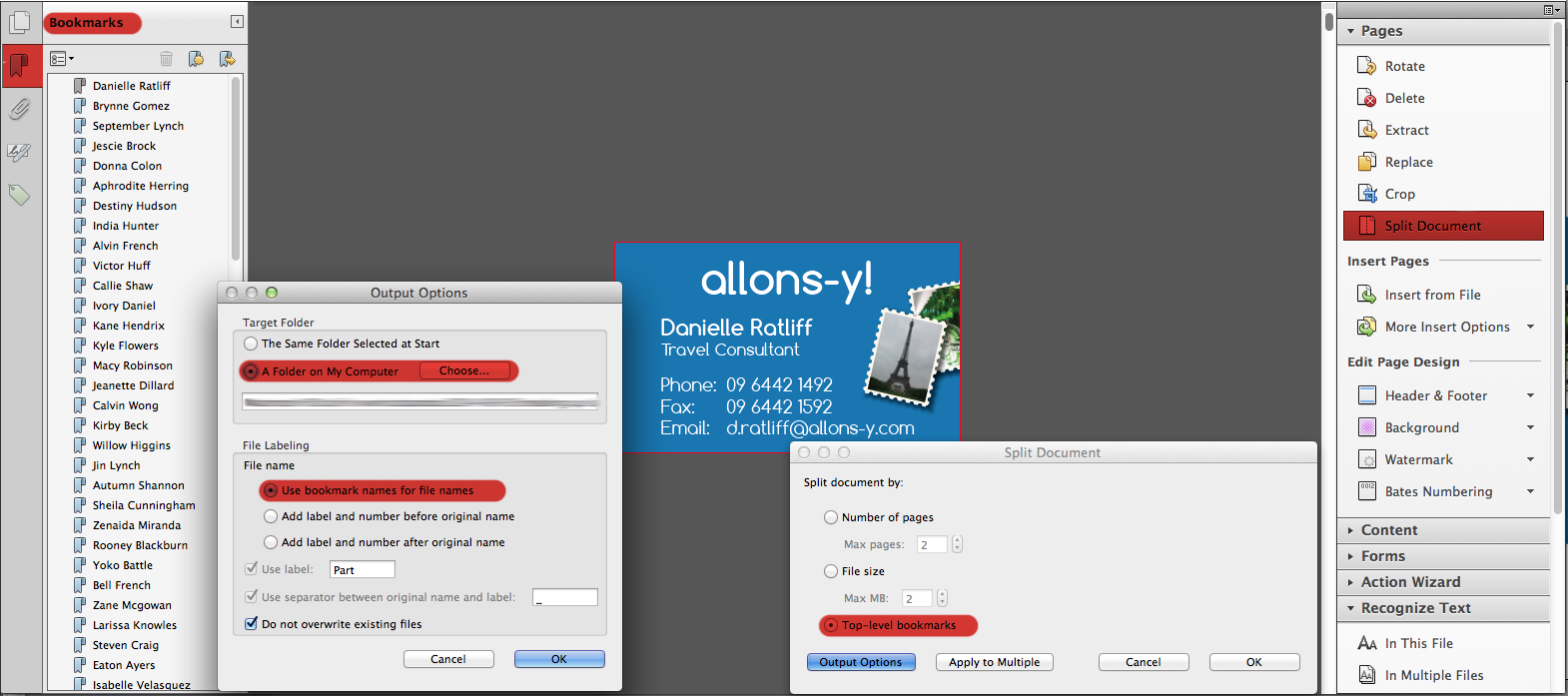
6. Open the PDF in Adobe Acrobat. Go to the Bookmarks panel and make sure that the bookmarks have been created. If so, go to the Pages tools and select Split Document. In the new dialog box, check the radio button Top-level bookmarks and click the Output Options button. In this dialog box, choose a new folder to save the resulting PDFs (if necessary) and in the File Labeling portion of the dialog box, check the Use Bookmark Names for File Names radio button.
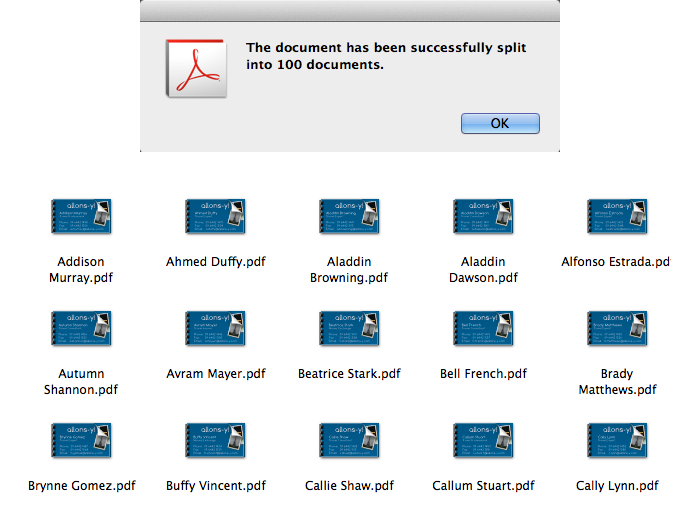
As with the previous methods, this technique will not work if the merge contains records that have the same name.
If you would rather use a character style instead of a paragraph style, there is an alternate version of the script that allows bookmarks to be made from character styles instead.
True thanks and credits should go to:
- Sundara Moorthy’s original script ; and
- Ariel Walden’s script to select a paragraph style.
My contribution was to simply stitch the two scripts together.
One final note: just as I was finishing this article, I saw that Austrian designer and scripter Roland Dreger has released a Beta version of his script that will also make bookmarks from Paragraph and Character styles. Check out his script here.
This article was last modified on July 25, 2019
This article was first published on October 8, 2014
Commenting is easier and faster when you're logged in!

Recommended for you

Accessibility Plug-ins for InDesign
Generate PDFs that are more accessible with more ease by using these two new plu...

How to Extract a Table from a PDF in Acrobat
Get your data out of a PDF and into an Excel Workbook with this quick Acrobat tr...
Create PDF Bookmarks in Acrobat for Easier Navigation
Navigate your PDF files with ease using bookmarks!