




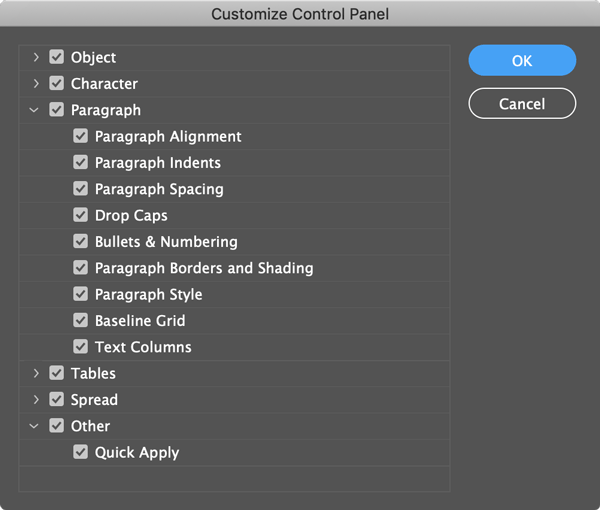
After the introduction of the Properties Panel in InDesign CC 2019 we have another context sensitive panel that shows many functions and options depending on which objects the user selects. So this might be a good time to free up some space in the good old Control Panel. In the top right corner just below the Search Field you will find a “cog wheel” that lets you access the customization of the Control Panel. It shows 6 categories:
- Object
- Character
- Paragraph
- Tables
- Spread
- Other
In every category you can choose from many options and tools that are shown or hidden in the Control Panel. Just tick or untick a box and you will can customized the Control Panel to your needs.
This article was last modified on June 28, 2023
This article was first published on March 4, 2019
Commenting is easier and faster when you're logged in!

Recommended for you

InQuestion: Making Colors Match Between Photoshop and InDesign
Q. My company is printing promotional brochures for an upcoming trade show. Beca...

Resizing InDesign Layouts
Erica Gamet details the techniques to use when you need to change pages sizes af...

How to Duplicate Objects Precisely Using the Control Panel in InDesign
Hidden inside the Control panel — arguably the most important panel in InDesign...