




This CreativePro Tip of the Week on deciding Adobe Illustrator’s Target Icons was sent to CreativeProse email subscribers on December 28, 2016.
Sign up now and every week you’ll get a new tip, plus roundups of new articles, and exclusive deals sent right to your Inbox!
Just scroll down to the bottom of this page, enter your email address, and click Submit! We’ll take care of the rest. Now, on with the tip!
You can tell a lot about an item in Illustrator from its target icon in the Layers panel. The target icon is the circular icon that appears to the right of an item in the panel.
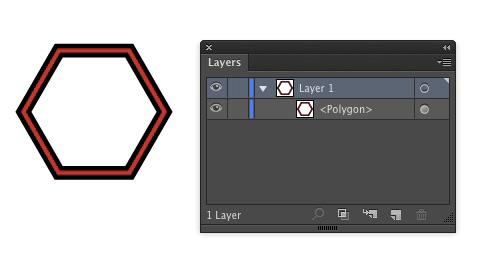
• A single empty circle means the item is not targeted and has no appearance attributes beyond a single fill and a single stroke.
• A double empty circle means the item is not targeted and has no appearance attributes beyond a single fill and a single stroke.
• A single shaded circle means the item is targeted and has no appearance attributes beyond a single fill and a single stroke
• A double shaded circle means the item is targeted and has appearance attributes

Also note that you can shift-click target icons to select multiple items, which can be easier than selecting them on the artboard in some cases.
This article was last modified on January 9, 2017
This article was first published on January 9, 2017
Commenting is easier and faster when you're logged in!

Recommended for you

Mastering Photoshop Smart Objects: Layer Comps
If you need to develop several versions of a composition in Photoshop, Layer Com...

CreativePro Week Conference Speaker Spotlight: Von Glitschka, the Thug Bunny
Welcome to our Speaker Spotlight series, designed to highlight some of our Creat...

CreativePro Conference Speaker Spotlight: Michael Ninness, Designer, Dad & Beachcomber.
Welcome to our new series of posts called Speaker Spotlight, designed to highlig...