




This article appears in Issue 8 of InDesign Magazine.
Any of us who have used InDesign’s table features know that they can make working with data in rows and columns a downright pleasant experience. With alternating fills and strokes, the ability to import Word tables or Excel spreadsheets, and a host of other well-designed features, InDesign’s table features allow a creative touch to be added to the most mundane data or worksheet (Figure 1).

Figure 1. A typical table formatted with InDesign’s Table Option for Alternating Fills. Rounded corners are achieved by copying the table and using the Paste Into command to position it within a new frame, this one with rounded corners.
But in addition to achieving dazzling displays of rows and columns, there are other ways in which InDesign’s table features can be used to great advantage. To make the most of the power and flexibility of the table feature, it’s important to understand some of its basic characteristics:
- A table is always contained inside a text frame.
- A table is always edited with the Type tool.
- A table is actually an inline frame.
- Prior to 2012, a table cell was the only type of frame in InDesign that could grow as you typed or added text to it!
These capabilities can be used in ways that aren’t always obvious in rows and columns. Because cells can be so easily split or merged, almost any text in any kind of grid pattern within a layout can be incorporated into a table.
And it may seem obvious, but tables don’t have to use any strokes between the cells—or any fill, for that matter—so they can be useful for text or graphic objects that are just visually in alignment but not necessarily lined up in uniform rows and columns.
Because table cells are so easy to select, they are especially useful for text that gets changed frequently. One common example is the slug information used at the bottom of advertisements and other layouts. Slug information is changed almost every time it’s used, and tables make it much easier to edit than simply using a series of text frames or worse, falling to the ills of using a complicated tabbing scheme to achieve the same look (Figure 2).

Figure 2. A slug that might be used by an advertising agency. All the information that has to be input (boldface) sits in its own cell, so it’s easy to select and edit.
Text in a table can be formatted just like any other text, including applying Paragraph or Character styles, and controls in the Table > Cell Options > Text dialog box allow you adjust text insets, vertical alignment, and the first base- line position, similar to the Text Frame Options dialog box. With this flexibility, the possibilities are endless!
The following recipe illustrates some of the ways in which tables can expand your repertoire of InDesign dishes.
Any of us who have used InDesign’s table features know that they can make working with data in rows and columns a downright pleasant experience. With alternating fills and strokes, the ability to import Word tables or Excel spreadsheets, and a host of other well-designed features, InDesign’s table features allow a creative touch to be added to the most mundane data or worksheet (Figure 1).
But in addition to achieving dazzling displays of rows and columns, there are other ways in which InDesign’s table features can be used to great advantage. To make the most of the power and flexibility of the table feature, it’s important to understand some of its basic characteristics:
- A table is always contained inside a text frame.
- A table is always edited with the Type tool.
- A table is actually an inline frame.
- Prior to 2012, a table cell was the only type of frame in InDesign that could grow as you typed or added text to it!
These capabilities can be used in ways that aren’t always obvious in rows and columns. Because cells can be so easily split or merged, almost any text in any kind of grid pattern within a layout can be incorporated into a table.
And it may seem obvious, but tables don’t have to use any strokes between the cells—or any fill, for that matter—so they can be useful for text or graphic objects that are just visually in alignment but not necessarily lined up in uniform rows and columns.
Because table cells are so easy to select, they are especially useful for text that gets changed frequently. One common example is the slug information used at the bottom of advertisements and other layouts. Slug information is changed almost every time it’s used, and tables make it much easier to edit than simply using a series of text frames or worse, falling to the ills of using a complicated tabbing scheme to achieve the same look (Figure 2).
Text in a table can be formatted just like any other text, including applying Paragraph or Character styles, and controls in the Table > Cell Options > Text dialog box allow you adjust text insets, vertical alignment, and the first base- line position, similar to the Text Frame Options dialog box. With this flexibility, the possibilities are endless!
The following recipe illustrates some of the ways in which tables can expand your repertoire of InDesign dishes.
Ingredients
- Text or title that falls in a visual grid
- Table features
- A frame with rounded corners (optional)
Directions: Anytime you have text that visually falls in a grid, you can use a table. Formatting text using a table is especially useful when you edit the text frequently, as in our example involving interest rates.

By placing this text in a table, you make the values that change frequently easy to update.
Start with the Table > Insert Table command, and create a table that is 2 columns by 3 rows. In the first column, merge the cells in Row 1 and 2. That cell holds the interest rate (“2.61” in our example).
Next, merge both cells in Row 3, which holds the last line of text. Select the entire table, and remove all strokes.
Using the Cell Options > Strokes and Fills command, set the weight of the strokes to 0. Format the text, using paragraph or character styles, if desired.
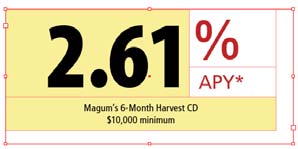
The table cells revealed: The yellow tint highlights table cells that were merged to create one cell.
For a finishing touch, create a frame with rounded corners. Tables themselves can’t have rounded corners, but there’s an easy workaround: Draw a frame with rounded corners and then Copy or Cut the table and use the Paste Into command to position it inside the rounded-corner frame.
This article was last modified on December 18, 2024
This article was first published on October 1, 2005
Commenting is easier and faster when you're logged in!

Recommended for you

Scanning Around With Gene: Suntans, Slurpees and a Pink Cadillac
A recent sighting of a 1959 Cadillac Sedan de Ville sent me to the closet in sea...

Interview with Julie Terberg, Presentation Design Expert and Author
Q&A with Julie Terberg, who is presenting at the 2026 Presentation Design Confer...

PictureArts Expands Collection Offerings with IBid Partnership
PictureArts, the leading provider of specialty images for professional communica...