




Gatefold spreads contain more than two adjoining pages and are commonly used for large brochures or ad designs. To create a gatefold spread in InDesign, select a page (single-sided document), or a spread (facing pages document) by clicking their respective thumbnails in the Pages panel. Then choose Allow Selected Spread To Shuffle from the Pages panel flyout menu. Doing so disables this option, which is on by default; therefore, a check mark should no longer appear next to it in the menu.
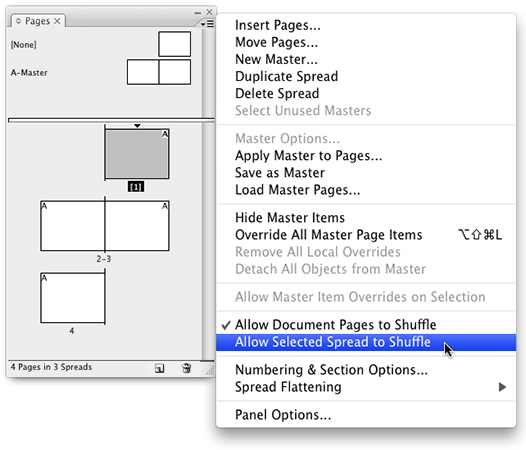
Notice the page number(s) for this page or spread now appear in brackets in the Pages panel thumbnail display. In the Pages panel, click and drag a document page or master page icon into the bracketed spread (sometimes called an “island” spread). Using this method, continue to add additional pages to the spread as needed.

This article was last modified on April 12, 2023
This article was first published on June 23, 2008
Commenting is easier and faster when you're logged in!

Recommended for you


Index Fixes: Multiple Indexes in an InDesign Document
InDesign documents can contain only one index. But when you need more than one i...
Sort Cross References
Cross-references are printed in the order in which they were added to the docume...