


Creating a “Fold Back” Heading Effect in InDesign with a Paragraph Style
Create a fun "fold back" text effect without using anchored objects or custom fonts
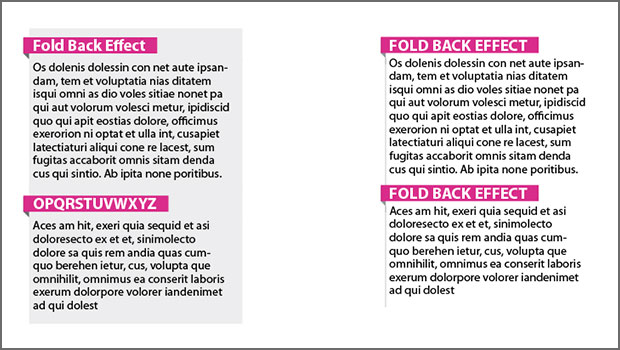
For quite some time InDesign users have been able to achieve a fun “fold back” effect like the one shown below, through the use of anchored objects or custom fonts.  But now we have a much easier and more elegant method, shared with us by Dinesh Wagh.
  Dinesh achieved the same look (and a second option where the body text appears on a white background) through a clever combination of paragraph rules, paragraph borders, and paragraph shading applied to the heading and the following body text.
Option 1: Text on a Shaded Background
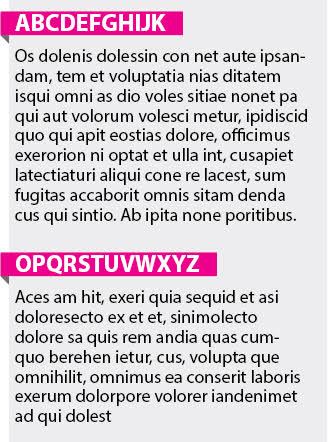 For the text to appear on a shaded background, the body paragraph style includes paragraph shading in a light tint of Black.
 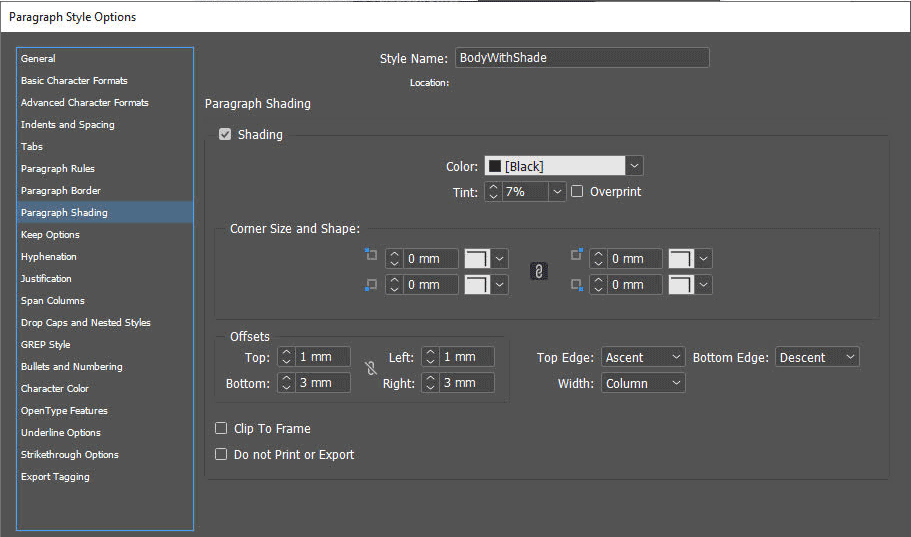 The heading paragraph style includes one paragraph rule to create the color behind the heading text.
 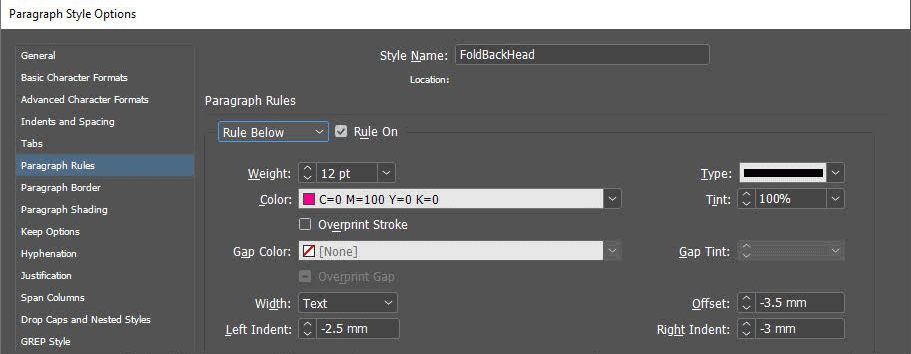 Paragraph shading with a dark tint of Black and a beveled corner to create the triangular fold.
 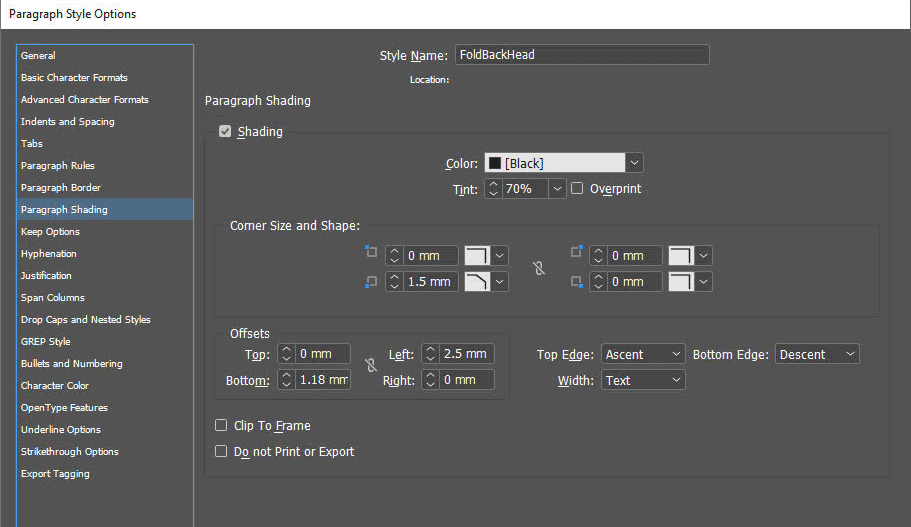 And a second paragraph rule that matches the light body text shading. This serves two purposes: it makes the heading appear inside the same “box” as the body text, and it hides most of the darker shading applied to the heading, revealing just the triangular area that simulates the fold.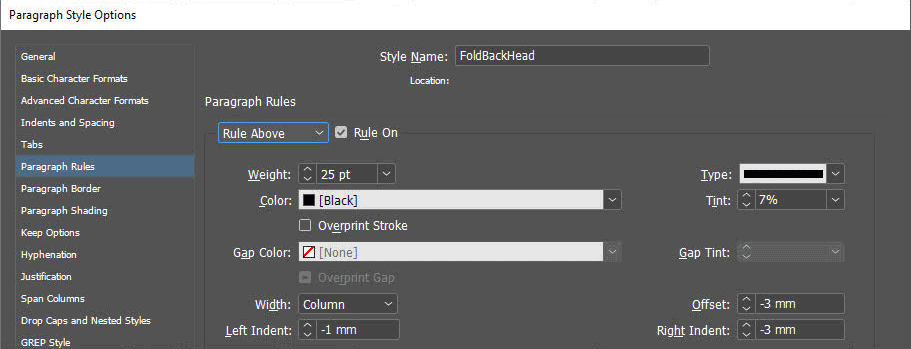
Option 2: Text on White Background
 You can create a similar look with the text on a white background, by
tweaking a few of the settings. The line to left of the body text comes from a paragraph border applied to that side only. 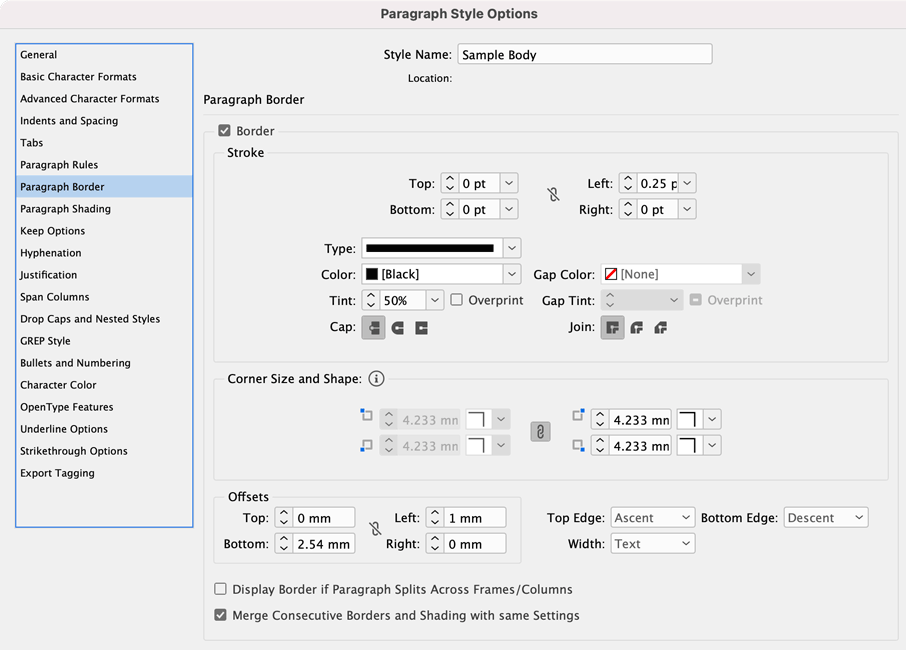 A similar paragraph border is applied to the heading to make the vertical line below it.
 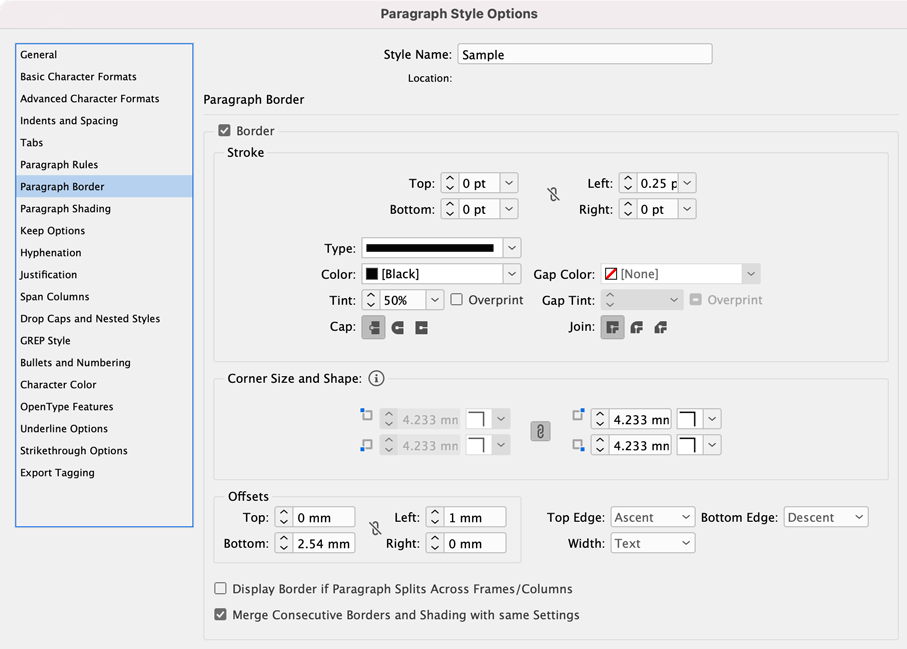 Paragraph shading with a beveled corner creates the gray area below the heading text that simulates the fold.
  One paragraph rule creates the color behind the heading text.
  And a second paragraph rule covers up most of the gray shading with white to reveal only the triangular “fold” on the left side of the heading.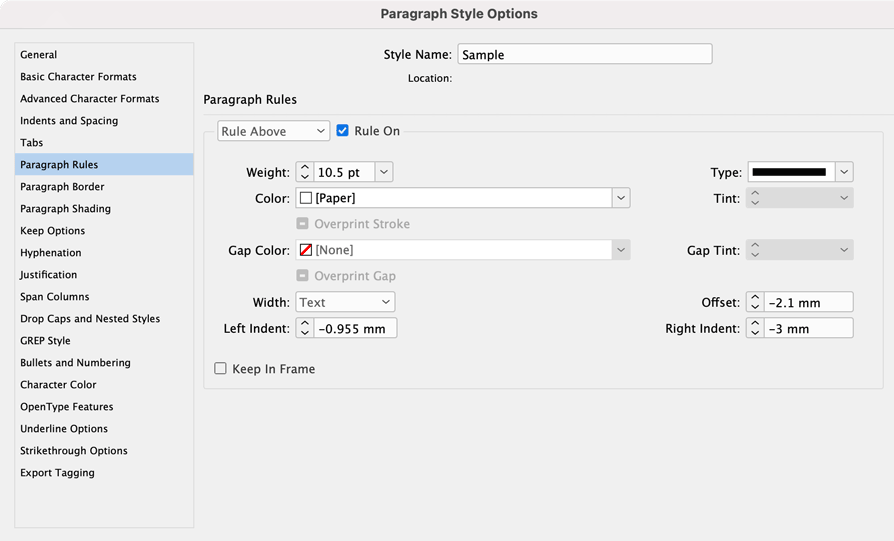
Download the Styles
Even with all the style settings clearly documented it can be tricky to replicate this technique the first time around, so Dinesh also supplied an InDesign file with these styles already set up that you can download here. Thank you, Dinesh!
Commenting is easier and faster when you're logged in!

Recommended for you
Help Squash This Bug: Placed Images Showing Outside the Frame
Here’s an annoying little InDesign bug that maybe we can get Adobe to finally sq...

Create a List of Linked Files
You'd think creating a simple list of all the links in your layout would be easy...

Bafflingly Bold
Applying a bold font is the fastest, simplest way to emphasize text in InDesign…...