




In Adobe Bridge, a collection is an arbitrary set of files you need to have quick access to in one place. The Collections panel (Figure 1) is where you gather them.
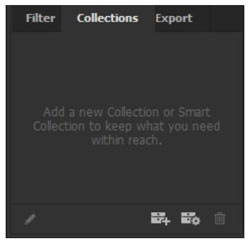
The items in a collection can be anything—images, InDesign or Illustrator files, videos, text files, and more—and they can be anywhere on your system or network (but not the cloud). Whether you’re pulling together items for a mood board or managing a complex project, using collections is a great way to cut down on folder navigation and reduce the clutter on your screen and in your creative mind.
When you’re in Review mode, you can press C to create a new Collection.
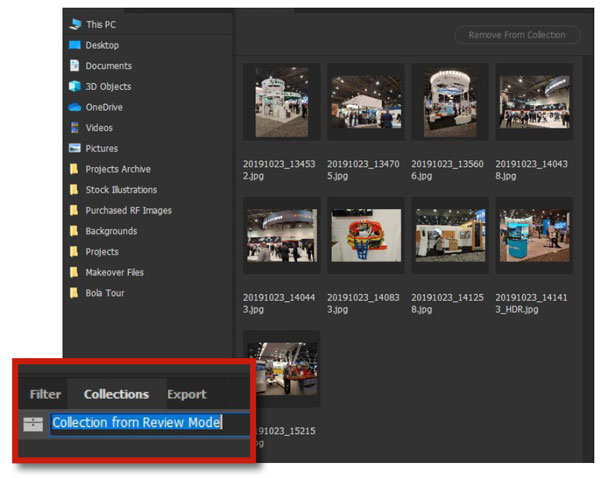
Focus shifts to the Collections panel, where you can name the collection for easy identification, and the Content panel shows only the items that you have collected. I called this Trade Show Booth Ideas, and then I navigated to a different folder with more images and dropped some of them onto the collection. It now has 16 images, all accessible in one place (Figure 3).
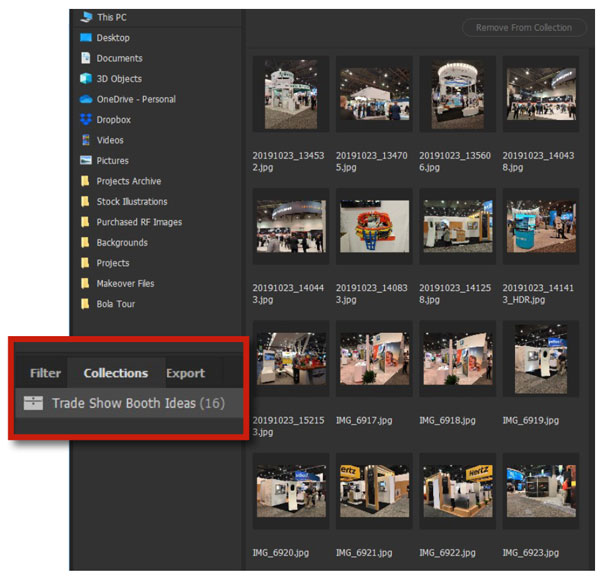
Whether you create a collection from Review mode or by clicking the New Collection icon in the Collections panel, you end up with a custom-made repository for a project that can save you a ton of time.
As a project evolves, you can add to a collection anytime simply by dragging files onto the collection name in the panel.
Automating search with a Smart Collection
If you have frequent need to do a specific type of search, a Smart Collection is a good way to make it a one-click action. A Smart Collection is really just a saved search query.
Click the New Smart Collection icon to get started. The dialog box looks (and is, in fact) identical to Bridge’s Advanced Search. It will even populate automatically with whatever search you last entered. The one difference, and it’s a useful one, is that you can specify Use Current Folder in the Look In field, so you can perform the same search on any folder you choose.
In the example, I want to see only JPEG or Photoshop images (Figure 4). Once this Smart Collection is saved and named (I called it Image Files), I can navigate to any folder and click the name in the Collections panel to reveal all the JPEG or PSD files in that folder and all its subfolders.

Commenting is easier and faster when you're logged in!

Recommended for you

Saving Thumbnails of InDesign Pages
Keith does a "deep dive" into saving thumbnails for Bridge in InDesign.

Export a PSD File as an Image Without Opening Photoshop
Export a JPG or PNG from a Photoshop file—no need to even launch Photoshop!

Mastering Metadata
Learn how to wield the descriptive data embedded in your files to work more effi...