



The beauty of InDesign’s Publish Online feature is its simplicity. Click the big Publish Online button, answer a few short questions in a dialog box, and boom—your document is online with pixel-perfect appearance.
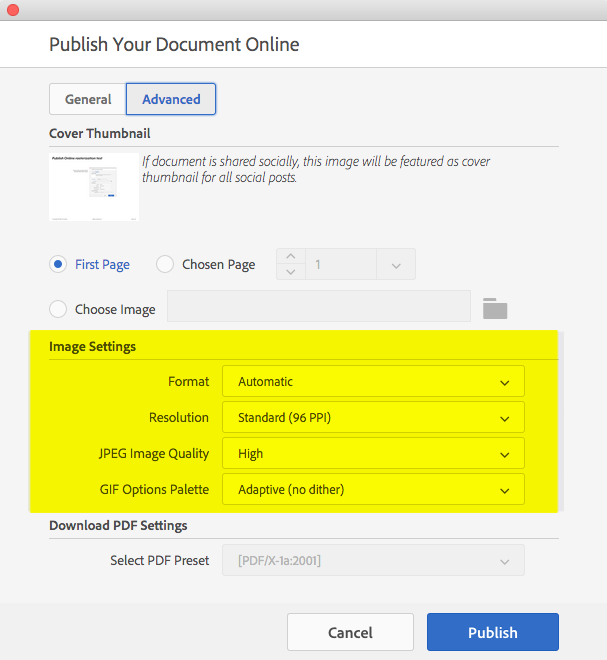
The Publish Online dialog box gives you the opportunity to globally change the format, resolution, and quality of all the images in your document. And, for most documents, the default settings of 96 ppi and High JPEG Image Quality provide a good balance of quality and download speed.
But what if your document contains a scan of a detailed map, or fine lines drawn in InDesign, and you want users to be able to zoom in and see everything clearly? Wouldn’t it be nice if you could specify that just a single image or two be embedded in the Publish Online output at a higher quality than the rest? You can do this with InDesign’s Object Export Options.
Select a single InDesign-drawn object, a group of objects, or a placed graphic. Choose Object > Object Export Options. In the dialog box that appears, click on the EPUB and HTML tab, and choose Preserve Appearance From Layout: Rasterize Container. Then choose your desired Format, Resolution, and Quality settings.
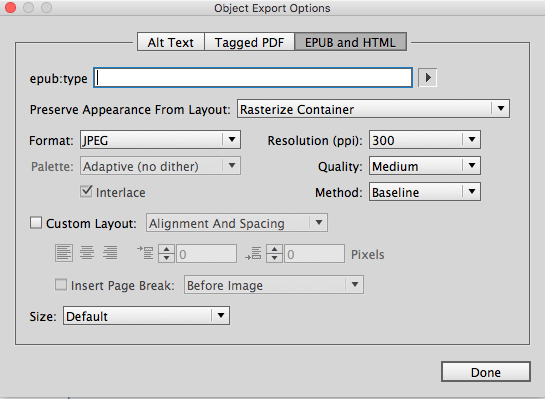
Even though this dialog box was intended for use with EPUB and HTML output, many of these settings also affect Publish Online output. I’ve done some testing with different types of images and settings, and you can see the results in this Publish Online document.
For InDesign-drawn objects such as lines, ellipses, etc., the Format, Resolution, and Quality settings all apply. For placed vector Adobe Illustrator files and placed raster JPEG files, choosing Rasterize Container and changing the format to either JPEG or PNG is useful, as it causes the image to appear at approximately 300 ppi. But changing the Resolution and Quality settings in the Object Export Options dialog box doesn’t seem to affect the output quality for these types of images.
So the bottom line is that you can use the Object Export Options dialog box to boost the displayed resolution of individual objects on your pages, but not all the settings in the dialog box are supported for Publish Online output.
This article was last modified on July 20, 2021
This article was first published on January 27, 2017
Commenting is easier and faster when you're logged in!

Recommended for you


Why Does My High Res Image Look Low Res?
Learn how to choose the Display Performance settings you need in InDesign.
Tip of the Week: Show Your Options
The best way to access import options in InDesign when placing an image