



Paul wrote us,
Well I am still fairly new to using InDesign, but after listening to your podcasts, it all becomes clear… well most of it. Coming from a Quark background it’s taking a while to adjust!
Here is one problem I can’t find a solution for: I work on catalogues supplied from France which have french formatted text, sometimes using para/char styles sometimes not! I import/copy/paste english supplied text into them and sometimes create my own text frames when going through the documents. When finished it’s time to spell check, but the problem I have when doing this is the dictionary skips between English and French because some text frames have one or the other definition allocated to them. I don’t want the dictionary to switch to French just because it has that applied to the frame… even though the text inside is English.
So my question is how can I quickly change every text frame to be defined as English without going through each text frame and doing it manually. Please remember I am still a newbie so be gentle.
Paul, welcome to InDesign!
First, let me gently tell you that the language dictionary associated with text is not a frame attribute; it’s a character attribute, like typeface or size.
What may be tripping you up is a feature in InDesign that QuarkXPress lacks: If you select a text frame with the Selection tool and then choose a text formatting option (from any menu or panel, or with a keyboard shortcut), that formatting gets applied to all the text in the frame. It’s a shortcut, an alternative to switching to the Type tool and choosing Select All. And it means you can shift-click multiple text frames to apply the same formatting to all the text in the selected frames.
Now that we’re clear on that, let me tell you the way you should be handling switching the language dictionaries, then I’ll tell you the quick-and-dirty way for your particular project.
Use Styles
Normally for multilingual publishing, designers use Paragraph or Character Styles to specify the language. In Style Options you’ll find the language dropdown menu in the Advanced Character Formatting section.

So you start with a Paragraph style called Body-French (or just “Body”) and apply it as usual. Then for English text that will replace it, duplicate the style and just change the language specified in the style to English. Rename the duped style Body-English, and base it on Body-French so any refinements you make to the “primary” Body style ripple through to the ones based on it. Do the same for caption styles, headline styles, etc. With CS3 you can group same-language styles into their own folders to help keep things organized.
But you have to remember to apply the new style to English text as you translated it or pasted it in. Or use Find/Change Formats to search for Body-French and change to Body-English (and Caption-French to Caption-English, and so on).
That’s the ideal way to handle these kinds of projects. Using styles gives you the most control and flexibility. But of course it takes a fair amount of upfront work.
Quick and Dirty
In your case, where a) The file is not set up with language-specific styles to begin with (and it’s not worth the effort to do so for whatever reason); and b) You want *all,* or at least most of the text to be associated with a specific language dictionary; and c) All or most of the existing text is associated with only one other language dictionary, the fastest way to effect the change would be with Find/Change Formatting of the character attribute itself.
Open the Find/Change dialog box (Edit > Find/Change). Make sure that “Document” is set as the scope so it will change all the text in the layout, not just the current story. Don’t enter anything in the Find What: or Change To: fields; but go directly to the the Find/Change Formatting area (revealed when you click the More Options button).
Click inside the Find Format section to open the Specify Attributes dialog box, and choose “French” from the Advanced Character Format section. Click inside the Change Format area and choose “English” (whichever English variant you want) as the language from the same section. When you’re done, Find/Change should look like this (it’s from InDesign CS3 but it’s the same for CS2):
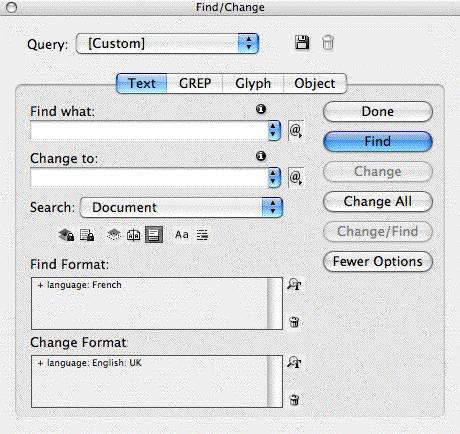
Now just click the Change All button, and you’re done. InDesign finds all text in the document currently associated with the French spelling/hyphenation dictionary and changes the association to the English: UK one (in this example). If some text should remain in French, you’ll have to change those instances manually. Or you might be able to figure out another Find/Change that will do that for you – for example, set Find Format to look for text in a specific typeface or linked to a specific style, and set Change Format back to French.
This article was last modified on December 18, 2021
This article was first published on August 17, 2007
Commenting is easier and faster when you're logged in!

Recommended for you

Why Red Boxes Instead of Blue?
Chris wrote in with a perplexing mystery: We just moved from QuarkXPress to InDe...
Creating a Horizontal Page View in InDesign
Need to get a big-picture overview of your document? This Pages panel trick offe...
Changing InDesign’s Default Ruler Measurements
Answering one of the most commonly-asked questions: How to change the ruler valu...