




Andy wrote:
We have a long document with numerous paragraphs. We would like to select certain paragraphs (every 3rd one for example) and use these to automatically produce another document, so that later, when the large document changes, the smaller document changes, too.
Well, InDesign isn’t really set up to do this, but here is one workaround that may help anyone who is trying to build subsets of longer documents based on some condition. For example, let’s you imported a document with three types of paragraphs: questions, answers, and notes. You want to build a document that is just for questions, another for answers, a third for notes. One way to do this is to copy-and-paste like mad. Another way is to use InDesign’s table of contents feature.
Most people mistake table of contents feature (under the Layout menu) as something for building a table of contents. Well, I suppose you could use it for that, but there are so many other cool uses for it! For example, conditional text. In this case, we want to create a “condition” called “Questions” that will display only the paragraphs with that paragraph style.
First, put the whole long story in a frame on some layer and hide that layer (no need to see the whole story anymore). It’s okay if the story is too long to fit in a single frame; just leave it overset.
Next, open Layout > Table of Contents and set it up to capture just the paragraphs you’re interested in. Here, I’m grabbing all the Questions:
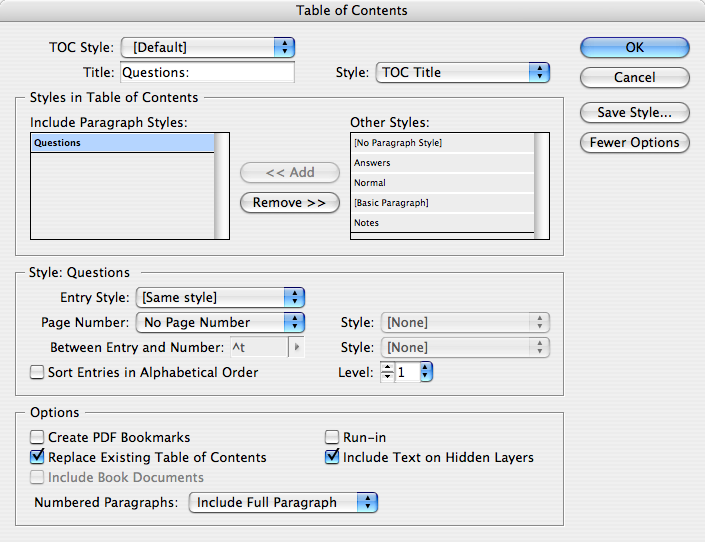
Note that I’ve selected “Include Text on Hidden Layers” because I want to grab text from that long story. I’ve also set the Page Number pop-up menu to No Page Number, and the Entry Style is set to Same Style, which means the final paragraph will look just like the original. (If you don’t see some of these controls, be sure to click the More Options button.)
When I click OK, InDesign asks if I want to include text in overset frames. Yes, of course. Et voila, InDesign grabs all those paragraphs and loads them into the text cursor (or places them into the current frame).
Some older versions of InDesign could only grab the first 256 characters of the paragraph, but I believe that changed in CS2 and CS3, which grabs the whole enchilada.
Later, when we want to create the “Notes” document, we just have to repeat the steps, but specify the Notes paragraph style in the Table of Contents dialog box (and possibly deselect Replace Existing Table of Contents, depending on whether you want the first one anymore). Even better, click the Save Style button first, so you can save a Questions style, an Answers style, and a Notes style. Then you can pull them up quickly to switch from one “condition” to the next.
Even better, if the original story (in that text frame on the hidden layer) changes, you can always just put the text cursor in the “table of contents” frame and choose Layout > Update Table of Contents to “sync” it.
Unfortunately, if you’re looking for character-level conditions (like the conditional text some folks lust after in FrameMaker), this trick won’t help. But it’s a step in the right direction, eh? Moral of the story: Don’t let the name of a feature convince you that that’s all it’s good for.
This article was last modified on December 19, 2021
This article was first published on August 5, 2008
Commenting is easier and faster when you're logged in!

Recommended for you
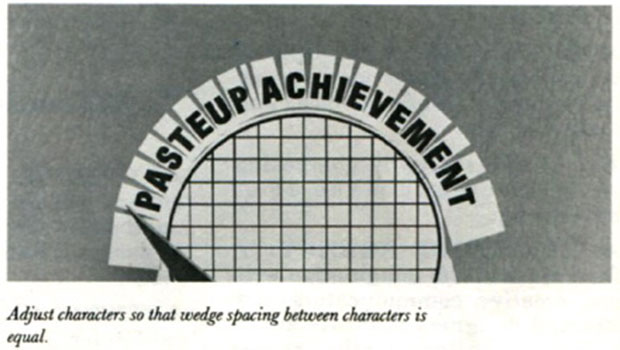
Scanning Around with Gene: Paste-up Limericks
I’ve written many times about old-school paste-up techniques and I always get a...

Santa Cruz Software Enhances BrandingUI with Advanced Ad Design Automation
BrandingUI Automates Time-consuming Task of Rendering Banner Ads for Popular Pla...

Scanning Around With Gene: Front-of-the Napkin Wisdom
There’s a great new book by Dan Roam called The Back of the Napkin – Solvi...