



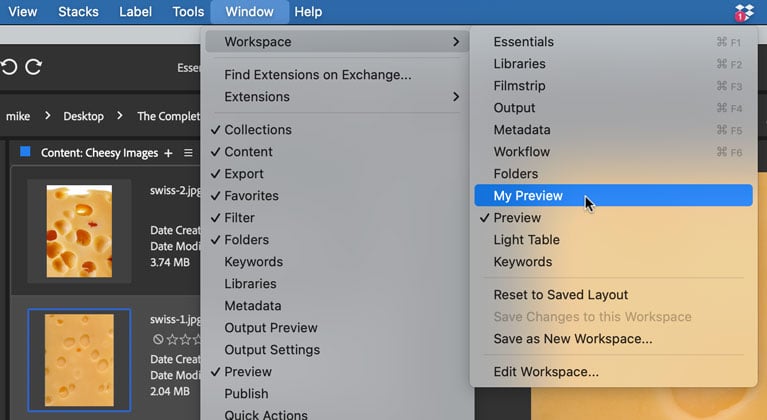
Adobe Bridge makes it easy to customize the interface to suit your needs and work habits. It comes with several built-in arrangements of panels, called workspaces. You can switch between workspaces by choosing one from the Window menu, or the Tools area at the top of the main window.

If you customize any of the workspaces by resizing or rearranging panels, Bridge will remember and keep things as you left them, even if you switch between workspaces or quit and restart the program. If you want to reset a workspace to its default appearance, choose Window > Workspace > Reset to Saved Layout.
To create a custom workspace, rearrange the panels in one of the built-in workspaces to your liking, then choose Window > Workspace > Save as New Workspace.

Then, you can switch to it at any time by choosing it in the Window menu or Tools area.
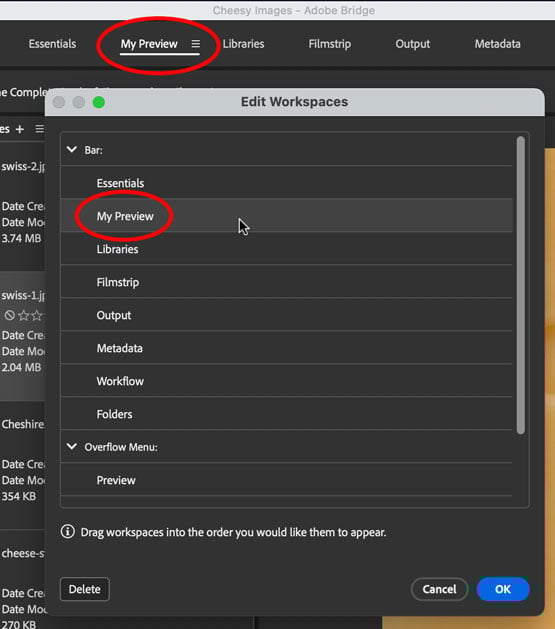
You can also control the order of listed workspaces in the Tools area by choosing Window > Workspace > Edit Workspace. In the dialog, drag the workspaces in the order you want them to appear.
Commenting is easier and faster when you're logged in!

Recommended for you

20 Obscure Features
David Blatner shares his favorite 20 obscure features that every InDesign users...

Where Did My InDesign Menu Items Go?
Where do you go when features start disappearing from your menus? Workspaces are...

Create File Collections with Adobe Bridge
In Adobe Bridge, a collection is an arbitrary set of files you need to have quic...