



Pet peeves. We all have ’em. And if you spend enough time using any software program you’ll assemble a collection of peeves about the the way that program works. One InDesign peeve that I’ve had since, well, forever, is the way that collapsed undocked panels get screwy if you click on their icon or name.
Case in point: here’s the Paragraph Styles panel, floating solo on my screen.
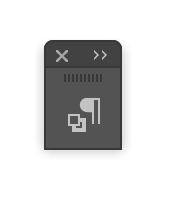
You might think that to expand the panel and use its controls you’d click on the icon, as you do when it’s docked to the side of your screen.
But no! This is a trap. Clicking the icon does expand the panel, but it leaves the icon sticking out like UI hangnail causing irritation every time you glance at it.
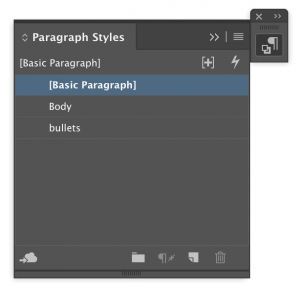
When a floating panel is collapsed down to is name, clicking that name does something even worse. It grows a full panhandle that collapses the panel the moment you touch it.

And depending on the size and position of the panel, it may sprout a new appendage anywhere along the side.

The horror, the horror…
To get out of any of these messes, click the tiny double arrows on the handle. Doing this when the panel is collapsed will prevent the problem in the first place by expanding it properly.
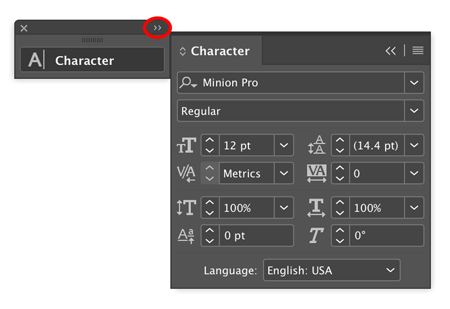
Or click and drag the panel by its name (not the handle).

Either method will restore panel sanity to your screen.
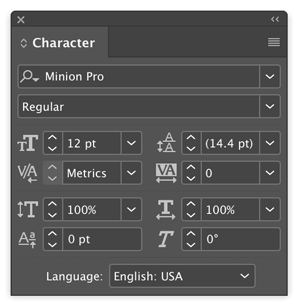
Just don’t use the double arrow method when the panel is anywhere near the right side of your screen or it may slide partly out of view.
There is one scenario where I suppose this panel behavior makes sense, and that’s when you have a stack of collapsed floating panels. Then you can use the icons on the handle to display a panel when its tab is obscured.

Whew. Glad I got that off my chest. Now who wants to talk about those bagels…

Source: Alek Krautmann/Twitter
This article was last modified on July 7, 2021
This article was first published on May 23, 2019
Commenting is easier and faster when you're logged in!

Recommended for you
Moving Text Styles from InDesign to Illustrator and Photoshop
Steve Werner dives into the details of getting your styles "to go."


InDesign Tip: Constrain Unchained!
To force InDesign to constrain proportions when applying X and Y Scale % values...