




The ability to sync Adobe Fonts is one of the biggest benefits of a Creative Cloud subscription. You can choose from thousands of fonts to use in print, PDF, and eBook projects.
However, using Adobe Fonts can cause you problems if your workflow involves sending your files to someone else, because these fonts cannot be packaged. They are “protected” fonts, stored in an invisible folder that you normally don’t have access to. So, if you have to send your file for someone else to work on, they will need to have their own subscription and sync the same Adobe Fonts themselves.
Or, you can just avoid using Adobe Fonts in projects that have to be packaged. Fortunately, InDesign can alert you whenever you add Adobe Fonts to a document, via the Live Preflight feature.
Just create or edit a preflight profile by choosing Window > Output > Preflight. Then from the panel menu, choose Define Profiles (for more details of creating custom preflight profiles, see Kirsten Rourke’s article in issue 61 of InDesign Magazine).
In the dialog box, choose TEXT: Font Types Not Allowed: Protected Fonts
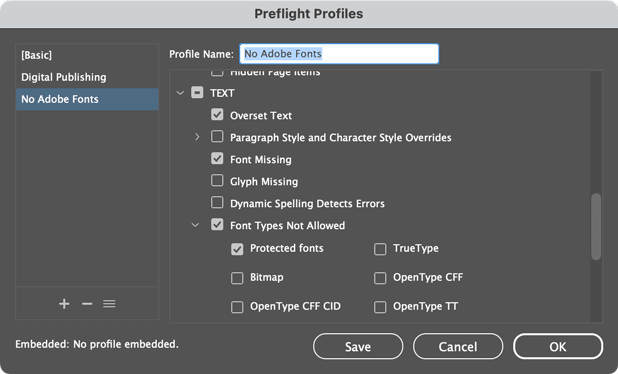
Make sure that profile is active, and then whenever you add Adobe Fonts to a document, you will see an error at the bottom of the document window.

In the Preflight panel, you will see each paragraph formatted with Adobe Fonts listed as a separate error. Click on the page number on the right side of each listing to jump to that paragraph.

This article was last modified on September 5, 2024
This article was first published on June 5, 2015
Commenting is easier and faster when you're logged in!

Recommended for you



Readable by Design: Accessible Type
Typography isn’t just about looks. It’s how you talk to your audience, so make s...