



Recently I was asked for the most efficient way to apply character styles to a bunch of prices in a document.The key to applying a character style to all of the prices is to look for a particular pattern. Depending on what version of InDesign that you are using there are a few different methods.
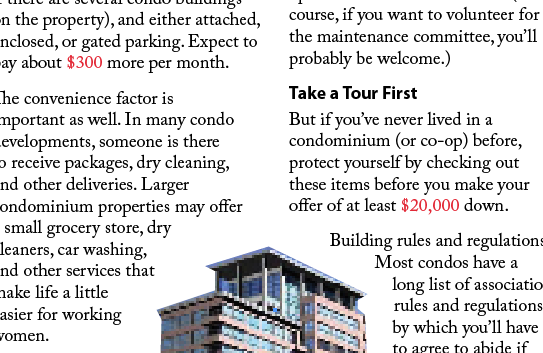
1. Regular find/change
This is the oldest method that I would have used in CS2 or earlier.
Find $^9 – (any digit)
Change – apply Price Character style.

This would find all of the $X prices. Next I would add another any digit ($^9^9) and find all of the $XX prices. Eventually you would get them all. You might have to run it again with $^9^9.^9^9 to change $XX.XX. As you can see this is a bit of a pain. Luckily there are other ways.
2. Nested Styles
Another option is to use nested styles. Edit your paragraph style and put in a new nested style that applies none up to 1 “$”
Then apply your character style through 1 word.
Then repeat the last two styles.
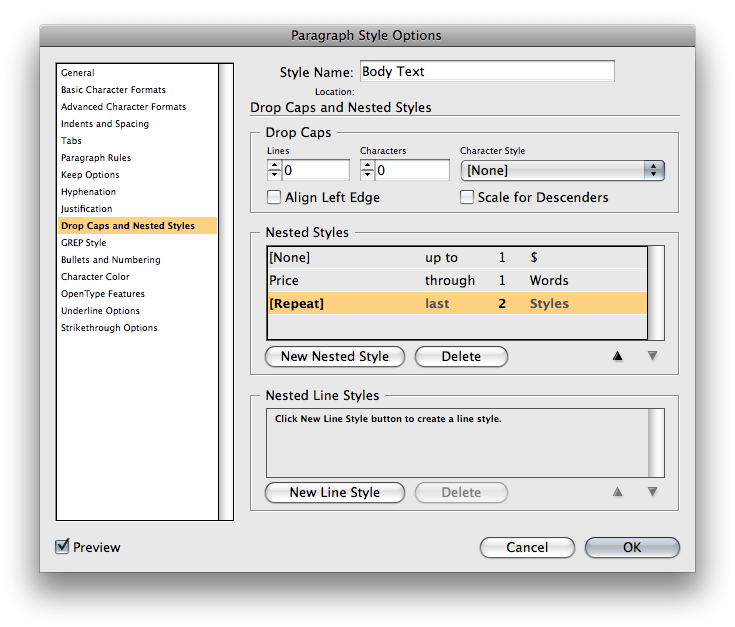
Every price in that particular paragraph style will have the style applied. The downside is that if there is a comma after a price ($XXX,) the comma will become formatted since the comma is considered part of the word.
3. Grep Find/Change
If you are still running InDesign CS3 you can run the following find/change expression to apply the character style. Which will find all numbers, commas and periods after a dollar sign.
\$[.,\d]+
Here is the breakdown of the grep code.
\$ – dollar sign
[.,\d]+ – this will find periods, commas and all digits in the word
If you are going to use this method be aware that if you make any changes you will want to run the operation again to make sure you didn’t miss anything.
4. Grep Styles
If you have CS4, grep styles are your best bet. You can use the same expression that was used in the find/change, but now it will be automatically applied to your text as it is input.
\$[.,\d]+
The only problem with this particular expression is that it will apply the character style to the entire word including any commas that may follow the price. If this is not desired here is another expression which will not apply the character style to any commas after the price.
\$\d+|[.,]\d+
This will apply the character style to the prices, but not a comma after them. This expression will work well over prices in value of one million dollars.

$ dilemma
There is a chance that either of these methods will not work for you because of the \$ character. IF that is the case, Mr. Blatner found a workaround where you can use \x{0024} instead of \$.
Here is what \x{0024} means:
\x – insert this Unicode character”
{0024} – 0024 is the code for the $. You can look up the Unicode symbol by selecting a glyph in the glyph panel and holding your cursor still for a moment.
Regardless of which method that you use it is always a good idea to test your expressions thoroughly before you blindly trust them to work in your document.
This article was last modified on December 17, 2022
This article was first published on September 11, 2009
Commenting is easier and faster when you're logged in!

Recommended for you

Little Things Mean A Lot in CS3
I'm in the middle of a large production project in InDesign CS3, and as I'm work...

Styling Code Snippets with GREP Styles
I received an urgent plea for help from a designer in Romania who’d tracked me d...
Controlling Line Breaks With Data Merge
One of the limitations of Data Merge is its ability to control line breaks withi...