




David’s tip about using custom underlined spaces instead of bullets (in his post, Repeating Nested Styles in a Loop) reminded me of a similar “twisted workaround” I came up with recently. This time, we’ll be bending InDesign’s Rule Above (Paragraph) feature to our will so it automatically adds a bit of graphic interest to the first character(s) of a paragraph as we apply a style. (Though an underline/nested style combo would work just as well, they’re not necessary.) It works the same in both CS2 and CS3.
What Doesn’t Quite Work: Anchored Objects
The idea started like this: A client had asked if there was a way to automatically insert an inline graphic behind a drop cap.
Hmmm. That’s actually two different issues: First, can you make a style automatically add a graphic? (Answer: no.) Second, can you insert an anchored object (inline or custom) so that it appears behind text, instead of in front of it or beside it?
The answer to the second question is “only if it’s an inline anchored object.” Custom anchored objects — the kind you can drag all over the place, even outside of a text frame — always appear in front of text. Inline anchored objects, the “normal” kind, can appear behind text but only if you apply severe kerning between the object and the adjacent text.
An example appears below. The starting graphic and paragraph (with a drop cap) is shown at the top. Down on the left, I’ve pasted the graphic into the previous paragraph, turned it into a custom anchored graphic (Object > Anchored Object > Options > Custom) and dragged it into position in front of the first word of the target paragraph. There’s no way to get the graphic behind the text — I could apply a text wrap to it so the text is forced to its right, but that doesn’t put the text in front of the graphic. On the right, I’ve pasted the graphic before the first character of the target paragraph (so it’s a regular inline anchored object), which automatically pushes the text to its right, then clicked between the object and the “D” and kerned it in mightily:
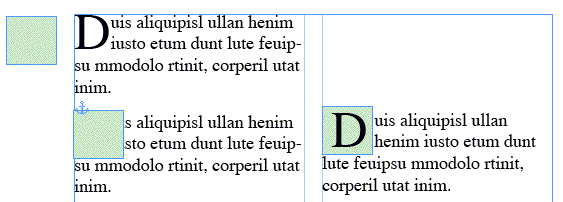
So, while there’s a way to get a graphic behind a drop cap as an anchored object (so it sticks with the character as the text is edited), it’s a fair amount of manual labor.
What Does Work: Rule Above, Twisted
InDesign’s paragraph formatting option, Rule Above or Rule Below (accessed from the Control panel menu when it’s in paragraph formatting mode in CS2, or any text formatting mode in CS3, or from the Paragraph panel menu itself) is normally used to create just that, a horizontal rule appearing above or below a paragraph. These are “inline objects” of a sort because they stick with the paragraph even as the paragraph’s position on the page moves as text is edited. You can choose any of your default or custom Stroke styles for the rule.
What a lot of users overlook in the Rule Above/Below dialog box are the controls for indenting the rule. Whether you set the width of the rule to match the text (as for short subheads) or the column, you can still apply left and right indents to it. You can even apply negative indents — add a minus sign or hyphen in front of the measure — to create an “outdent,” extending the rule instead of contracting it.
“Trippy,” as David would say.
Combine that with the more well-known trick of adjusting the rule’s offset so it appears behind the text (like underlines, rules appear behind text when they’re overlapping), and you now have the recipe for creating automatic backgrounds behind text. And, since a Rule Above/Below can be included in a paragraph style, it can be automatically applied whenever you apply a style.
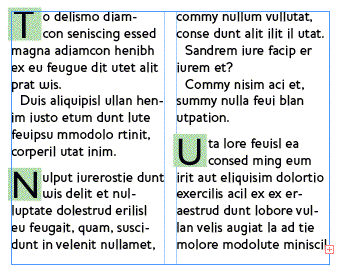
Here’s some text to which I’ve applied a severely indented Rule Above so it only appears behind the drop caps:
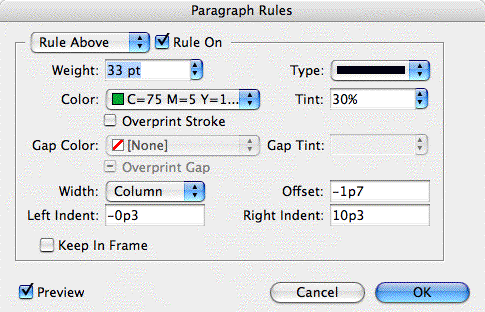
And here’s the Rule Above dialog box showing the settings for those squares behind the drop caps. I added a left outdent to extend the square slightly outside of the left edge of the frame, so the drop caps have some “air”:
Another example … below, I’ve created and applied a paragraph style to a numbered list that 1) Does the numbering automatically, using InDesign’s Numbered List feature; and 2) Applies the blue circle behind the numbers automatically, using a twisted Rule Above — the “Dotted” stroke style, with a heavy right indent so only the first dot appears.

Limitations
One problem with using Rules Above/Below to create these “automatic inline anchored objects” is that you can’t set an absolute length measure for the rule, you can only set indents. Since the indents are always relative to the width of the column (or the text, but I wouldn’t use that setting for this technique), the length of the rule will change as you modify the column width. If I increased the width of the text frame containing the numbered list, I might see two or three dots appear instead of just one.
That means you shouldn’t use this technique until/unless your column widths are set in stone. It also means that if you’re including the Rule Above/Below setting in paragraph style, and you apply that style to text in various places with different column widths, you’ll have to create multiple styles — one for each column width — just to keep the length of the rule the same wherever you use it.
While many publications are fairly static, if yours isn’t, you might consider using a twisted Underline style for the first drop cap or number instead. Remember, underlines appear behind text too. After you increase the underline’s weight and change its offset so it looks like a square or circle behind the character, save that as a Character Style, then have the Paragraph Style automatically apply it via a Nested Style.
The disadvantage with using Underlines, though, is that you can’t increase its width; there’s no “indent” field in Underline Options into which you can add a negative measure for an outdent.
The final limitation of this technique, whether you’re using rules or underlines, is that you can only work with InDesign’s limited selection of Stroke Styles. If you have a fancy piece of artwork you’d like to add behind your drop caps, there’s no way to turn it into a custom stroke style. (I wish you could do something similar to making a pattern in Illustrator.) Where’s that feature request form…
This article was last modified on December 18, 2021
This article was first published on July 6, 2007
Commenting is easier and faster when you're logged in!

Recommended for you

CreativePro Video: Using Text as Graphics in Presentations
In this week’s CreativePro video, Mark Heaps shares a few tips for using text as...

Before&After: Design a Wrap-Around Brochure
A skillfully worded flap on this brochure folds over that appealing face and bec...

Top 10 Type Tips
Nigel French shares his most important hints and techniques for working with typ...