




Be careful when you apply local text formatting to the first word or two of a paragraph using automatic bullets or numbering, because the bullet or number will quietly apply the same override to itself.
It doesn’t happen all the time, which makes it even more difficult to catch. You’ll only see the bullet/number formatting change when a) Local formatting is applied to at least the first character in the paragraph; and b) You didn’t specify a Character Style for the bullet/number when you set up the list (or the one you did specify doesn’t include the local formatting attribute(s)).
Here’s what I mean. In the numbered list example below, the numbers don’t have a Character Style applied:


Looks fine, right? But if I select the first word in #2 and color it red via the Swatches panel — local formatting — the numeral 2 also turns red. Note how the same local formatting applied to the second word in #3 leaves the number alone … as long as the first character in the paragraph is untouched, the numeral or bullet will be as well.

Removing unwanted local formatting from autobullets and numbers is almost impossible, since you can’t select them, at least not while they’re in automatic mode.
One solution is this: Use Character styles instead of local formatting, especially when you’re working in auto-bulleted/numbered paragraphs. Bullets and numbers are immune to Character style formatting, even if it’s applied to the first character:

Another solution is to create a character style for your bullets and numbers (even if you want them to look the same as the text in the paragraph), and specify that style in the Bullets and Numbering dialog box. Now they’ll be “protected” from adjacent local formatting, to the extent the character style includes the same attributes.
Here I’ve created a character style for my auto numbers that specifies the same typeface, style, and fill color as the paragraph text (Myriad Pro, Regular, [Black]):

… And then specified the “plain number” Character style in the paragraph style that I’m using for numbered lists:
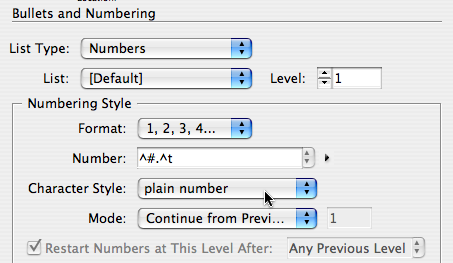
Now I can use local formatting if I want, and the number remains untouched, sort of:

Numbers 2 and 3 are fine, because the character style the numbers are using includes attributes for type color and style.
But the numeral 4 is getting squeezed, just like the words to its right, because the style doesn’t include (it ignores) the setting for Horizontal Scaling, which was used in the local formatting applied to the first few words in the paragraph. To prevent the number from scaling, I’d need to edit the character style so that 100% is specifically entered in the Horizontal Scale field.
The moral of the story is this: Use character styles instead of local formatting! ;-)
This article was last modified on December 18, 2021
This article was first published on April 6, 2008
Commenting is easier and faster when you're logged in!

Recommended for you

InDesign Magazine Issue 99: Automated Publishing
We’re happy to announce that InDesign Magazine Issue 99 (July 2017) is now...

Formatting Tips for Bullets and Numbered Lists
Take control of the look of your lists with these tips on formatting them with p...
TypeTalk: The Ins and Outs of Bullets
Default bullet points aren't your only option. Follow these tips to customize yo...