



How should you format H20 or MC2? Generally, you’d want to subscript the 2 in the first instance and superscript it in the second. There are a number of ways to do this, but I’m working on a manuscript right now that has a lot of superscripted numbers such as “109” (except that 9 is supposed to pop up a bit, to mean “ten to the ninth” or “one billion” in the modern, long form nomenclature).
I really don’t want to manually format all those numbers, and fortunately I don’t have to. I’m using GREP styles instead. In my case, the manuscript uses the typical ascii format for exponential numbers, such as 10^9. The caret means make the following number a superscript.
You can immediately see the pattern, right? “Look for one or more digits after a caret and make them superscript.” As soon as you have a pattern, you can grep-it — create a GREP style that applies formatting to it.
In order to do this for subscript character, we need to come up with a standard to tell our authors. In my case, I’m saying, “use sub2” to mean make this number a subscript. I honestly don’t know if there’s a standard way to type this. Let me know if there is. But “sub” works well. So “Hsub2O” means make the 2 subscript.
But of course, I also don’t want that caret or the word “sub” to appear in the final document! No problem: Just make a character style that makes the text disappear. To do that, make a character style that sets the fill and stroke to None, the size .1 pt, and the horizontal and vertical scale to 1%. That’s “disappeared” enough!
Here, then is the set of grep styles I’ve created:
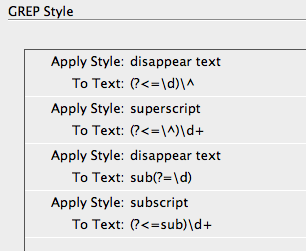
In English, that means:
- Make any caret that falls after a number disappear.
- Make one or more digits that fall after a caret superscript.
- Make any instance of the text “sub” that immediately preceeds a number disappear.
- Subscript one or more numbers that comes immediately after the text “sub”
Nothing magic about it; it’s just seeing the pattern then using the positive lookbehind and positive lookahead features in grep.
The result? Here’s the same text before and after the paragraph style with this grep style in it is applied:

In case you want to try it yourself without all that grep typing, here’s an InDesign snippet you can download and file > place in your InDesign document.
[update, feb 12] Here’s another snippet that you might find useful. It uses some of the same techniques in this blog post, but it has different “smarts” about whether a number should be superscript or subscript. For example, it knows that a “2” after “MC” should be superscript, but a “2” after just “C” should be subscript.
This article was last modified on January 6, 2025
This article was first published on October 8, 2010
Commenting is easier and faster when you're logged in!

Recommended for you

Make a Font “Contact Sheet” in InDesign
Need a specimen sheet for a font? Or a catalog of all your font characters? Chec...

Scanning Around with Gene: You Too Can Be a Famous Artist
A recent thrift store stop netted the source for today’s column, a look back to...

How to Keep AI-Generated Presentations Fully Editable
An AI-assisted workflow that actually works, so your files are beautiful and fun...