




[Editor’s note: This article, originally posted in 2014, has been updated and is current with InDesign 2021, version 16.4.]
I was once asked an interesting question about using animated GIFs in interactive documents exported from InDesign. It’s not a topic that comes up very often, but on the chance that you may have a GIF or two that you want to use in a project, here’s the scoop.
Placing animated GIFs in InDesign
You can of course, place animated GIFs into your documents, but InDesign has (almost) no idea that the images are supposed to be animated. When you place the file, all you get is a static image of the first frame. (Image Import Options only gives you controls for color and transparency.) Since the file is not recognized as a video, the Media panel is empty, and you can’t assign a button action to play the GIF.
So at first, it looks like GIFs are DOA. However, if you look in the EPUB Interactivity Preview panel, you get the first sign of where animated GIFs might work. Preview a spread with a placed GIF and it plays just fine in the panel.
Animated GIFs in iBooks and elsewhere
Sure enough, if you export to EPUB and view in iBooks, you’ll see the GIF play. This shouldn’t be too surprising, since underneath, EPUBs are mostly HTML, and HTML web pages are a GIF’s natural habitat.
But the story is different outside of iBooks, like in Adobe Digital Editions, where I’ve seen GIFs play in fixed-layout EPUBs, but not in reflowable EPUBs. So if you’re going to try using GIFs in EPUB outside of iBooks, definitely do your own testing.
Converting animated GIFs for PDFs
When it comes to other kinds of interactive PDF documents you can make with InDesign, you’re out of luck (at least temporarily)—PDF does not supports animated GIFs. But it does support video, so all you need to do to use the animated content is convert the GIF to an MP4 video file using apps like Photoshop or Adobe Media Encoder, or a service like online-convert.com.
To convert your file using Photoshop:
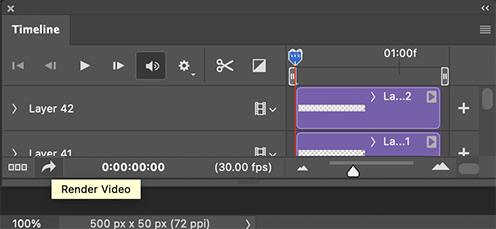
- Open the GIF, then click the button on the Timeline panel to convert to video timeline.

- Then, click the button to Render Video.
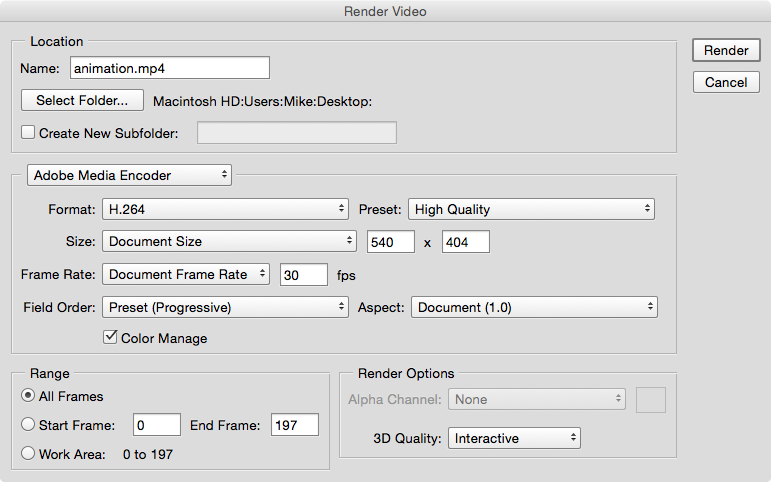
- In the Render Video dialog box, choose the options you want for your MP4.
[Editor’s note: If you are using Photoshop on an Apple M1–based Mac, note that the Convert to video timeline button will not function. A workaround is to run the program using Apple’s Rosetta 2, which runs programs built for Intel-based Macs on the new hardware. Here’s a tutorial from Macworld.]
To convert your file using Media Encoder:
- Open the GIF and use the controls in the Queue panel to select the desired format, preset, and location for the video file.
- Then press return or Enter (or click the Start Queue button) to perform the conversion.

Another option
As a last resort you could use some screen recording software to record the GIF playing and save it as MP4, which you could use in any interactive output, including PDF or EPUB.
And a postscript…
For some inspirational examples of using animated GIFs in iBooks, check out NYC Basic Tips and Etiquette and Appley Dapply. And for general GIF inspiration and hours of time wasting, check out giphy.com.
This article was last modified on September 24, 2021
This article was first published on December 22, 2014
Commenting is easier and faster when you're logged in!

Recommended for you
Animating a Photoshop Document with Premiere
Put your Photoshop files in motion with Adobe Premiere!
Animate a Waterfall Effect on a PowerPoint Bar Chart
Stephy Hogan is back with another eye-catching animated chart design.
How to Make Motion Look Realistic in Premiere
Create a convincing animation in Premiere using the Transform effect.