



SN wrote:
How do you put in bleeds after you have created and saved an InDesign file?
I have three things to say about this.
First, for anyone who doesn’t know, a bleed is a way to get something to print to the edge of the page. You extend an object off the page (past the page boundaries), then print it with trim marks (also called crop marks), then the output provider (bindery or printer or whatever) cuts the edges of the page at those trim marks. The result is some wasted paper, but the colors/images “bleed off” the page.
Second, InDesign offers bleed guides on the pasteboard. To add a bleed guide in the New Document dialog box, click More Options to see the Bleed and Slug guide options. About 1p (or .125 in, or 3 mm) is a reasonable amount to type in. If you have already created your document, you can get the same bleed guides by choosing File > Document Setup, then clicking the More Options button. Once you have bleed guides, you can easily “snap” objects to them so you’re sure they’re bleeding far enough off the page.
Finally, you do not need bleed guides to make objects bleed. You can just eyeball it, extending objects on to the pasteboard. Guides are just guides!
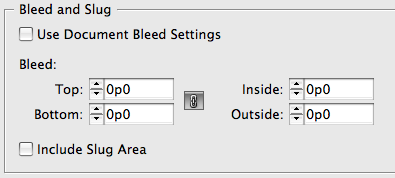
Ultimately, the most important thing to keep in mind when making bleeds is not whether there are guides there, but what you choose in the Marks and Bleed pane of the Print or Export PDF dialog box. If you do have bleed guides set up, you can skip filling in the Bleed fields by simply clicking the Use Document Bleed Settings checkbox. But if you didn’t make bleed guides, it’s no problem — just leave the checkbox off and type in some bleed values yourself. If you leave them set to zero, InDesign will trim the page at the page edge, so you’ll get no bleed at all, even if the objects are bleeding to the pasteboard:
This article was last modified on December 19, 2021
This article was first published on June 26, 2009
Commenting is easier and faster when you're logged in!

Recommended for you

Split Up Data Merged PDF Files into Smaller Files
Splitting up a PDF file into "every N pages" is easy with one of these cool util...

Setting Vertical Text in InDesign
Renee wrote: As our crossword magazines are moving from QuarkXPress to InDesign,...
Multi-Level Automatic Numbering in InDesign
Making multiple levels (like 1A, 1B, and so on) in a list seems confusing at fir...