



Jen wrote,
I am working on a catalogue where every 5 digit item number needs to be changed to reflect a zero in the third spot of the existing number, to make it a 6 digit number. Is there any automated way I can do this?
Sure! As long as you’re using InDesign CS3 or CS4, and the numbers are all editable live text (that is, they’re not part of placed images or anything). You can use the GREP panel in Edit > Find/Change to add the zero.
Let’s say you want to add a zero in the third spot of these SKUs:
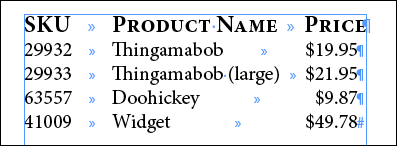
Open Find/Change and click the GREP tab (again, only available in CS3 or CS4). In Find What, we want to find five digits in a row, but since we’re going to want to put something in the middle of the number, we need to split the Find What into two groups of digits. That way, when we do the Change to, we can say “put the first group back, then add a zero, then put the second group back.”
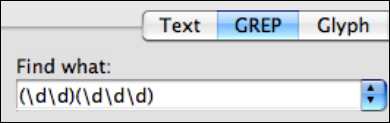
To find “any digit” via GREP we use the simple code \d (backslash d). To group what GREP finds, we wrap each group in parentheses. So to find any five digits in a row, defined as one group of 2 digits immediately followed by a group of three digits, we enter this:
Then in the Change To field, we can refer to each parenthetical group by the shorthand “$1” (no quotes) for the first group, “$2” for the second group, and so on. To add characters in between the two groups, we just enter them literally, or if they’re special characters we escape them with the backslash. So to tell InDesign to add a zero in between the two groups of digits, we enter the code for “first group, zero, second group:”

Running the Find/Change on the example results in this:

… which solved Jen’s problem. She wrote back, “Thank you so much!!! That worked beautifully!”
This article was last modified on December 20, 2021
This article was first published on September 18, 2009
Commenting is easier and faster when you're logged in!

Recommended for you

Store Live Captions in libraries
Learn a handy way to create repetitive Live Captions in InDesign CS5 easily, plu...

GREP Bug Fix for CC 2019
There is a bug in InDesign CC 2019 (14.0.2), affecting GREP searches in long doc...

GREP in InDesign Excerpt: Learning by Example
Get started learning the basics of GREP in InDesign in this free excerpt from Pe...