



Did you ever need to change the shape of an existing object in your layout? Like if you had to change a rectangle into a triangle while keeping all its visual attributes i.e. color, stroke, width, height, and position. Something like this:
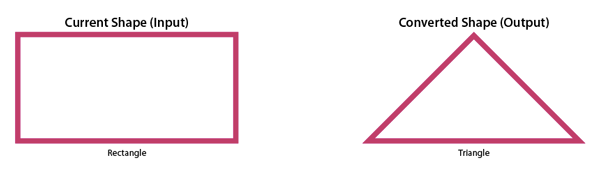
I have seen folks try to accomplish this several ways: using the Pen tool to create a new object then copying the attributes using the Eyedropper tool, using the Pathfinder, using the Polygon tool, etc. But there’s a much easier method than all of these that most folks aren’t aware of: the Convert Shape option in the Object menu.
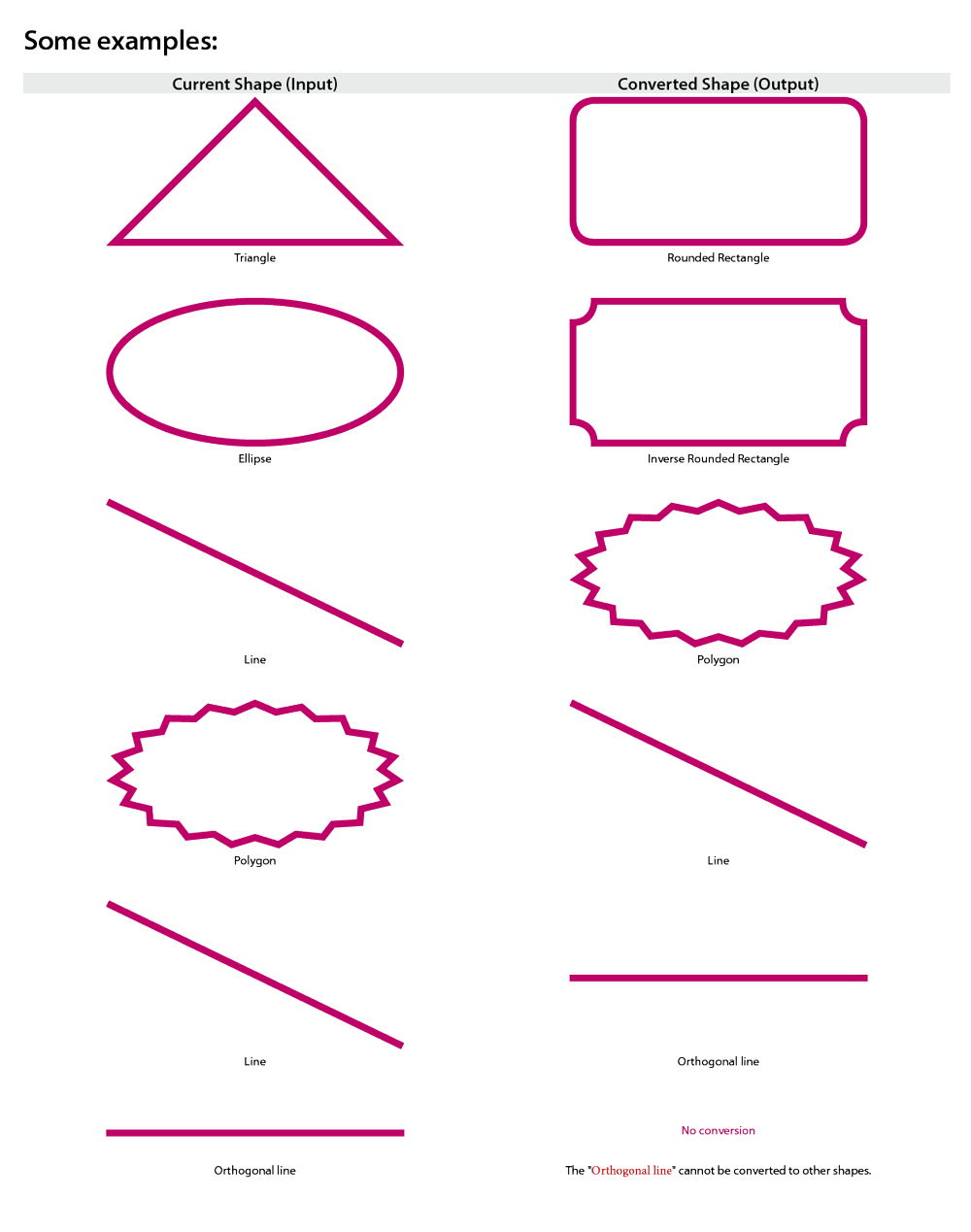
This feature can convert to/from any of the listed shapes while keeping any attributes intact. Only the Orthogonal Line cannot be converted to other shapes.

Just select any object (like the rectangle above), go to Object menu, choose Convert Shape, and click on the desired shape style from the list, (e.g. Triangle). Done! Try it sometime!
This article was last modified on July 20, 2021
This article was first published on July 6, 2017
Commenting is easier and faster when you're logged in!

Recommended for you
Livestream Video: Creating 3D Lettering Using Illustrator’s Inflate Tool
Join Khara Plicanic as she shows how to create stunning 3D lettering with Illust...

Building an Org Chart or Flowchart in InDesign, Part 1
You can make a great-looking flowchart in InDesign if you know what features to...

Tip of the Week: Lock First Line to Baseline Grid
Sign up for the InDesign tip of the week to get a new tip, roundups of new artic...