



MH wrote:
We are doing a series of children’s books and ample space in between words is crucial — but I want the tracking between letters to stay the same.
I know just what you mean: My son is steeped in the mysteries of how letters form words right now and word spacing is crucial! I wrote about word spacing last year, but I focused on using InDesign’s secret keyboard shortcut. When you’re doing a whole book, you certainly can’t rely on the shortcut; you need to define the word spacing as part of the paragraph style. Fortunately, this isn’t hard to do.
As I alluded to in this other H&J post, the trick is to adjust the Justification settings. “But my children’s books are all flush left,” you protest. That’s fine; the Justification settings apply to all text, even flush left.
Here’s how you might set up the Justification pane of your paragraph style dialog box:

The result is dramatic. The image below first shows the default settings, then the widespacing style applied:
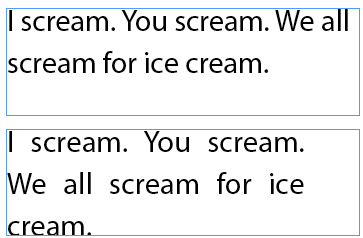
Should Adobe change the name of the “Justification” pane to “Word and Letter Spacing and Other Things That Relate to The General Composition of All Text”? Sure, but it might be hard to fit in the dialog box.
This article was last modified on December 18, 2021
This article was first published on August 23, 2007

Recommended for you

Keeping the Same Scale Size when Updating or Relinking to Images
How to tell InDesign to stop scaling images when the dimensions change
Auto-Reflowing Images in a Grid
How can you make a grid of images reflow automatically around a page when you ad...
Breaking Very Long Lines with No Hyphens
When a reader asked how to break text without hyphens, we were stumped... until...
Comments are closed.