



This InDesign tip on how to automatically restart numbered lists was sent to Tip of the Week email subscribers on August 25, 2016.

Sign up now and every week you’ll get a new tip, keyboard shortcut, and roundups of new articles, plus exclusive deals sent right to your Inbox!
Just scroll down to the bottom of this page, enter your email address, and click Go! We’ll take care of the rest. Now, on with the tip!
Tired of having to manually restart lists? Here’s a technique you may not have tried yet.
Take a look at the structure of your document. If you have a paragraph that always appears between lists (maybe a body paragraph, or a heading) you can use that paragraph to reset the counter in the background so that each numbered list automatically restarts at 1.
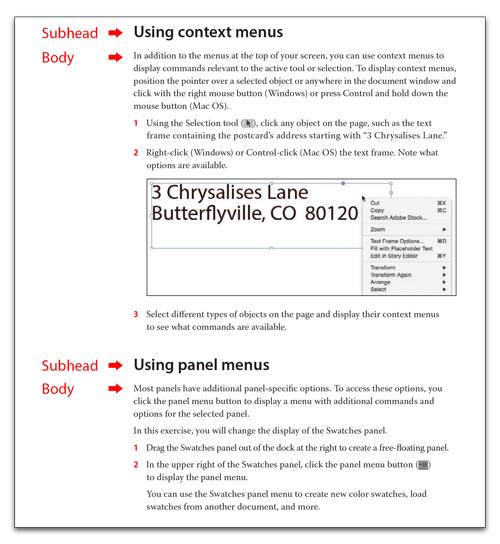
For example, take a look at the page below—there are two candidates to restart the numbering: the subhead or the body paragraphs. Both appear above each list. Before making a decision, look over the entire document to see which of these always appears between lists. If they both do, either one will work to reset the numbering in the background. In the instructions below, I chose to use the Body paragraph style to restart the list.
Here’s how:
- Set up two paragraph styles: one for the numbered lists and one to reset the counter for each new list. I’m calling mine List and Body.
- Edit the Bullets and Numbering Settings for Body. Set the following options:
• List Type: Numbers
• List [Name]: Steps
• Level: 1
• Remove the contents of the Number text field
• Mode: Start at 1
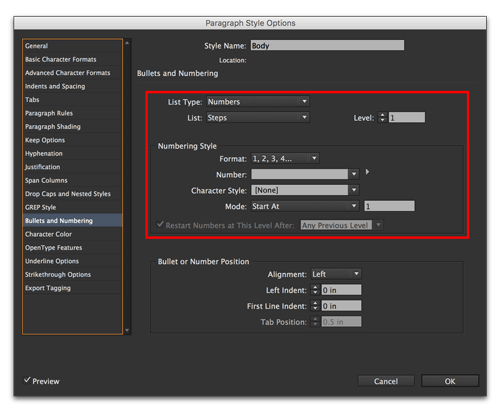
- Edit the Bullets and Numbering Settings for List. Set the following options:
• List Type: Numbers
• List [Name]: Steps
• Level: 2
• Number: ^#^t
• Mode: Continue from Previous
• Enable Restart Numbers at This Level After: Any Previous Level

This works because both paragraph styles are part of same named list (Steps) but they reflect two different levels (1 and 2). Body doesn’t show a number because the Number text box is empty. List is told to restart numbers at this level after any previous level (Body) so each time the List format is used, the numbering restarts at 1.
This article was last modified on July 25, 2019
This article was first published on August 30, 2016
Commenting is easier and faster when you're logged in!

Recommended for you
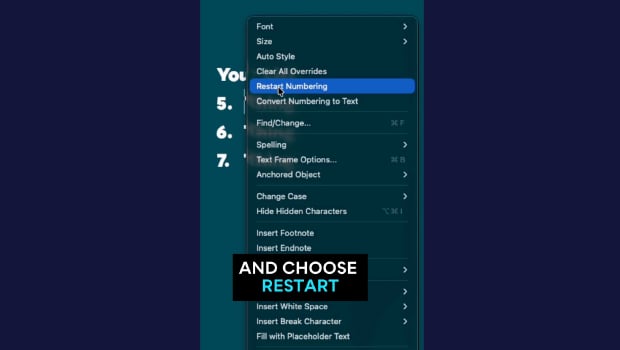
Quickly Renumber a List in InDesign
Khara Plicanic shows how to renumber an InDesign list without digging through me...

Top Tips From CreativePro Week 2019
Erica Gamet shares a dozen of the coolest tips and tricks she learned at Creativ...
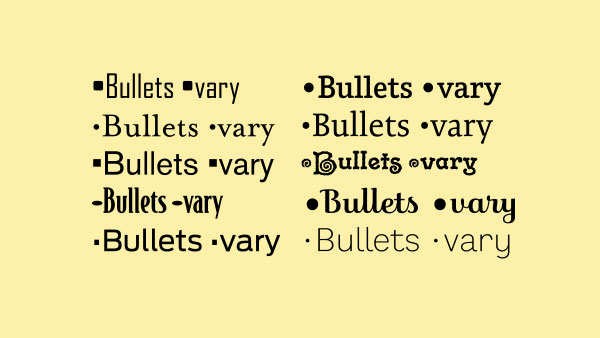
TypeTalk: The Ins and Outs of Bullets
Default bullet points aren't your only option. Follow these tips to customize yo...