



This InDesign tip on how to get more screen space was sent to Tip of the Week email subscribers on August 11, 2016.

Sign up now and every week you’ll get a new tip, keyboard shortcut, and roundups of new articles, plus exclusive deals sent right to your Inbox!
Just scroll down to the bottom of this page, enter your email address, and click Go! We’ll take care of the rest. Now, on with the tip!
If you work with InDesign on a small screen, every bit of space counts. To save a lot of room, you can drag the side of docked panels towards the edge of the screen to collapse them down to icons.
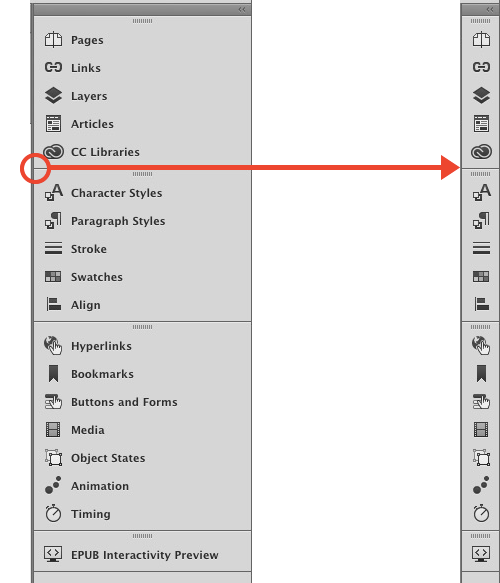
When you’re not editing text, you can press Tab to hide all panels (or Shift-Tab to leave the Control and Tools visible). Pressing Tab again brings the hidden panels back.
Or you can just move your cursor to the side of the screen where the docked panels were and they will pop back into view. As soon as you move your cursor away, the panels disappear again, leaving you with a maximum amount of horizontal screen space to view your layout.
This article was last modified on July 25, 2019
This article was first published on August 16, 2016
Commenting is easier and faster when you're logged in!

Recommended for you

Tip of the Week: Changing Case
This tip was sent to Tip of the Week email subscribers on April 9, 2015. Sign up...
Poll Results: When was the last time you exported to SWF?
The results of our poll asking if you still use Flash (SWF) and a new poll on wh...
Tip of the Week: Setting Font Preview Size
This tip was sent to Tip of the Week email subscribers on May 14, 2015. Sign up...