


Members Only

Mixing Type and Graphics

Mixing type and graphics to choose the right font for the job every time

This article appears in Issue 86 of InDesign Magazine.

According to the ’50s Sinatra hit, love and marriage go together like a horse and carriage. The same is true for type. The right type adds harmony to a layout—like drinking a chilled Sancerre alongside a meal of Dover sole. Yet despite this relationship, designers often struggle finding fonts that play nice with the graphics on a page. And who can blame them? Go to any type resource and you’ll be blinded by the number and variety of available choices. It’s dizzying. To borrow another musical oldie from Lloyd Price: type’s got personality. Let’s take Helvetica as an example. True to its Swiss pedigree, Helvetica is cool, calm, and collected (Figure 1).
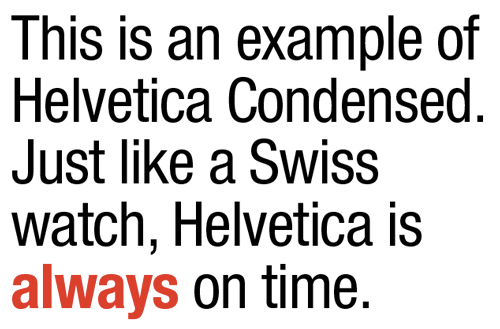
Figure 1: Helvetica Neue LT Std Condensed and Condensed Bold. I’ve tracked this type at –15 points and reduced the leading between lines to help pull it all together.

Figure 1: Helvetica Neue LT Std Condensed and Condensed Bold. I’ve tracked this type at –15 points and reduced the leading between lines to help pull it all together.

Trajan is another font that practically tells you how to use it—in grammatically correct Latin, no doubt. Unfortunately, some fonts become victims of their own success (Figure 2).
Figure 2: Trajan is a font that’s been so popular that it’s now overused as the go-to movie title font.

Figure 2: Trajan is a font that’s been so popular that it’s now overused as the go-to movie title font.

Of course, choosing the right font is only half the battle. Once you’ve chosen the font, how do you properly set it? How big is too big? How loose or tight do you kern it? And what about color? Should body text

always be black? Is Comic Sans always a no-no? What about Times Roman? Head starting to spin? If so, you’re not alone, my friend. Fortunately, finding the right font for a graphic is often easy, if you first consider how both “feel.” Often, common sense is all it takes to make a good match of text and imagery. Here, for example (Figure 3), is a recent cover of Real Simple magazine.
Figure 3: Cover of Real Simple magazine. Clean type combined with the apple image on a pure white background adds up to a layout that’s true to the magazine’s name: real and simple.

Figure 3: Cover of Real Simple magazine. Clean type combined with the apple image on a pure white background adds up to a layout that’s true to the magazine’s name: real and simple.

In this case, the name says it all. Except for the flourish used for the word The, all the type is set using Interstate Black, a clean san serif from designer Tobias Frere-Jones. Frere-Jones fans might also recognize the similarity of Interstate to Gotham, another popular san serif from the same designer. It doesn’t take an artistic genius to find any number of fonts that might work well with this magazine or the apple cover photo. Now let’s take a look at two variations of the fictitious magazine Really Really Simple to further explore this design conundrum. In Figure 4, I’ve used Minion Pro, from Adobe’s in-house type designer Robert Slimbach. Chosen by Adobe as InDesign’s default font, Minion Pro is available in more than 60 different weights and styles and is an excellent and reliable choice for body text and serious typesetting. Its x-height (the height of lowercase letters like x, u, or v from the baseline to the median) is considered medium, which gives Minion Pro a sturdy feel, particularly at smaller sizes. This serif face isn’t a terrible choice, but it doesn’t feel right when matched with the roundness of the content (and the emphasis on simplicity suggested by the title).
Figure 4: Real and simple can also add up to boring, like in this fictitious example. Apples are symmetric, type placement is symmetric, type weights and styles are too similar. Yawn.

Figure 4: Real and simple can also add up to boring, like in this fictitious example. Apples are symmetric, type placement is symmetric, type weights and styles are too similar. Yawn.

On the flip side, Figure 5 is a design nightmare that breaks many of the rules of good typesetting and good taste. Among its litany of sins are the use of script and italics for all caps, the use of too many fonts (five) on one page, and the use of “silly” type in a serious publication. Ouch.
Figure 5: This mockup is bad for other reasons. Many other reasons. Never, ever, ever set a script font in All Caps. Never.

Figure 5: This mockup is bad for other reasons. Many other reasons. Never, ever, ever set a script font in All Caps. Never.

My next example is a jacket I designed for a book about country music (Figure 6).
Figure 6: Perhaps there’s unintented irony in using fonts named Rockwell and Antique for a book about classic country music.

Figure 6: Perhaps there’s unintented irony in using fonts named Rockwell and Antique for a book about classic country music.

Here I relied on the content (country music) to steer me in the right direction. The title font (and author’s name) is in Rockwell Extra Bold. The book’s subtitle is set using Antique 3 from Wooden Type Fonts. To add a bit of texture to the title type, I converted the type to outlines and filled it with an image of aged wood. The guitar was created in Adobe Illustrator from a pixel-based stock image. Rockwell Extra Bold’s thick, chunky, slab serifs give the typeface a wood-type feeling that lends itself to a book about country music. Antique 3 is also a good match because of a slight uneven quality to the letterforms. And, perhaps even more importantly, note how well the curves in the type mirror the outline of the guitar image. Try squinting at the image to see its “essential” shapes—sometimes that can provide some insight into the typographic shapes you’re looking for. By the way, when in doubt about a font’s “authenticity,” spend some time Googling images from the period you’re trying to re-create. After researching a handful of Civil War-era posters and broadsides, I was confident that Rockwell Extra Bold and Antique 3 would be a good fit. When historical references aren’t available, just use common sense. Comic Sans in the Old West? Hmm, maybe not!

Mixing Type Successfully

If figuring out which typeface to pair with a particular image weren’t hard enough, designers must often decide how to make multiple fonts work together on a given page or screen. Here are a few rules which I’ve found helpful through the years: Limit the number of fonts to two: If you find yourself reaching for more than two (or three) different typefaces per page, chances are you’re headed for typographic trouble. Although there are always exceptions to this rule, generally and when in doubt, less is more (Figure 7).

Figure 7: In this poster I used only two fonts: Archive Antique Extended (headline, subheads) and Helvetica Neue Lt Std Bold Condensed (bullet points).

Figure 7: In this poster I used only two fonts: Archive Antique Extended (headline, subheads) and Helvetica Neue Lt Std Bold Condensed (bullet points).

Keep it in the family: You can never go wrong by staying within the same typographic family. I’ve seen (and designed) beautiful layouts with only one font family. Fonts like Helvetica Neue Lt Std or Minion Pro have so many variations of style and weight that there’s no reason to look anywhere else (Figure 8).
Figure 8: In this page from a sales booklet I designed for a Los Angeles day camp, I used only one typeface, Bulmer MT. By varying its size, style, and tracking, I was able to create variety and design cohesion all at the same time.
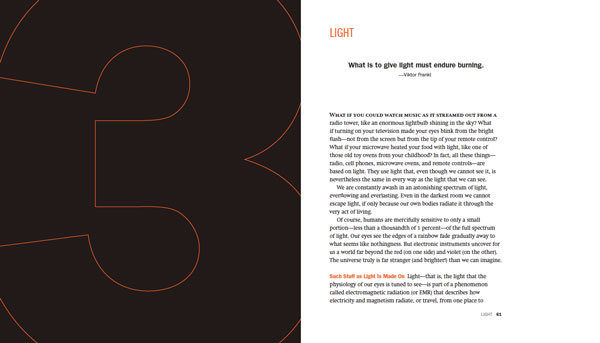
Figure 8: In this page from a sales booklet I designed for a Los Angeles day camp, I used only one typeface, Bulmer MT. By varying its size, style, and tracking, I was able to create variety and design cohesion all at the same time.

Combine a serif with a sans serif: When one font alone won’t do, try combining serif and sans serif fonts (Figure 9).
Figure 9: In this spread from David Blatner’s book Spectrums, I chose Swift for the body text and various styles of Franklin Gothic for everything else.

Figure 9: In this spread from David Blatner’s book Spectrums, I chose Swift for the body text and various styles of Franklin Gothic for everything else.

For more tips about artfully mixing fonts, I highly recommend this excellent article by Douglas Bonneville. Hopefully your typographic antennae are warmed up by now. But as we’ve seen, sometimes choosing which font not to use is easier than choosing which to use. Figure 10 is a good example.
Figure 10: The opening spread I designed for a feature article about Syrian refugees fleeing to the Greek island of Lesbos, with the headline set in the font Hermes.

Figure 10: The opening spread I designed for a feature article about Syrian refugees fleeing to the Greek island of Lesbos, with the headline set in the font Hermes.

In this magazine feature opening spread, I struggled for more than a day trying to find the right typeface to kick off this timely article about Syrians seeking refuge on the island of Lesbos. Eventually I settled on a font called Hermes, a typeface I’d never seen or used previously. Originally designed by Heinz Hoffmann in 1908, the font reflects the German grotesks that, according to Font Bureau, “were workhorses of factory printing 100 years ago. Blunt corners suggest the wear and tear of rough presswork.”

A Layout in Need of a Typeface

So how does a designer go about finding a font appropriate for the layout? The answer lies in a combination of a little bit of knowledge and a little bit of luck. For the Rewriting A Greek Tragedy article, I began my search at MyFonts.com. If you’ve never been to MyFonts.com, prepare yourself. This website is among the best places to see and try out a dizzying number of typefaces. Fortunately, the people behind MyFonts.com have done an amazing job of creating a user-friendly site that caters to all typographic whims. In my particular MyFonts.com search I used the word Greek as a starting place. I also typed in the phrase Rewriting A Greek Tragedy, so I could see how it would look when MyFonts.com finished its search. Among the many suggestions the site offered were lots and lots of typefaces that contained Greek characters, as one would expect. What I didn’t expect was stumbling onto the Hermes font, whose name is based on the Greek god of commerce (Figure 11).

Figure 11: The right font for the job is revealed with a little help from the search function at MyFonts.com.

Figure 11: The right font for the job is revealed with a little help from the search function at MyFonts.com.

Bingo!  Whether Hermes was or wasn’t an authentic Greek typeface really didn’t matter. What did matter was a tough, muscle-like quality that seemed simpatico with the gravity of the article. Even better was the realization that I already owned Hermes, as it was among the thousands of fonts I’d collected over the years. Nearly all typographic websites now allow users to type in a word or phrase to see how it would look in a chosen font. If you’re a Creative Cloud subscriber you’ll find this same feature integrated into Typekit, for example (Figure 12).
Figure 12: You can enter your own custom text to see how it looks in a variety of Typekit fonts.

Figure 12: You can enter your own custom text to see how it looks in a variety of Typekit fonts.
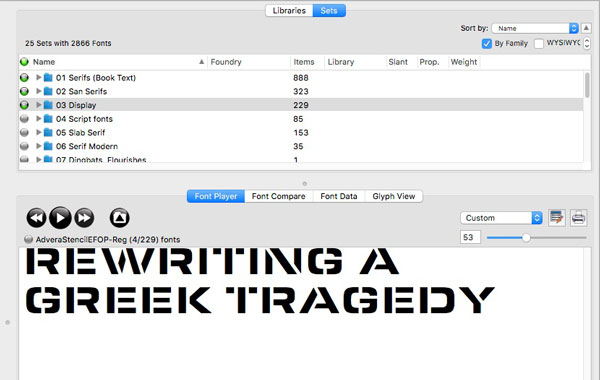
If you’re salivating at the thought of owning thousands of fonts as I do (or just having access to tons of fonts through services like Typekit), realize that with such a huge selection comes a price. What good is it if, despite such a large collection, you have no idea (beyond a few obvious choices) what you really have? Every time I need a typeface I can’t cull through 35,000 fonts. Or even 3,500 fonts. It’s not practical. What’s a designer to do? One approach is to use a powerful font management tool like FontAgent Pro. Among its features, there are four I particularly like (Figure 13), Font Player, Font Compare, Font Data, and Glyph View.
Figure 13: FontAgent Pro’s Font Player is a handy feature for quickly previewing a large number of fonts. Click the button on the right to add a font to a Font Player set that can be saved and reviewed later.

Figure 13: FontAgent Pro’s Font Player is a handy feature for quickly previewing a large number of fonts. Click the button on the right to add a font to a Font Player set that can be saved and reviewed later.

Font Player allows me to add a bunch of fonts I’m considering for a project and view them consecutively. Here I’ve selected a font set called Display that contains 229 fonts. Clicking the Play button of the Font Player allows me to step through all 229 fonts one at a time, or play them quickly in rapid succession. When evaluating fonts, my first pass is usually based on pure gut: does the font “feel” right or not? I believe you should trust your instincts. Often I don’t know exactly why a font works, but simply that it does. Achieving this level of font intuition takes time. But over time you begin to discover how each font has its own personality and voice. Again, use historical references when possible. If you’re creating a ’60s poster, go online and study the Sixties. Most of the time the right font will reveal itself without too much work. If, after locating an image with the right font, you have no idea of the name of the typeface, there are resources on the web to help identify fonts. A couple of places to try are identifont.com and whatfontis.com. Another great (and diverting) website is namethatfont.net. Here you can see examples of common brands like Mercedes Benz or McDonald’s and learn the name of the font used in its logo.

’Cause You’ve Got to Have Pers-o-nality

As you can see, choosing the right font for the job can often be approached in a systematic way. First and foremost is understanding the content and the context in which the type lives. Sometimes the answer is clear. A frilly font for a macabre murder mystery probably won’t work well (although there are exceptions!). But if we think of type as having personality, then the task of pairing the right font for the job becomes suddenly not only logical, but more manageable.

Bookmark
Please login to bookmark Close

Not a member yet?

Get unlimited access to articles and member-only resources with a CreativePro membership.

Become a Member

Comments (0)

Leave a Reply

Your email address will not be published. Required fields are marked *

Loading comments...

