



This tip was sent to Tip of the Week email subscribers on October 9, 2014.

Sign up now and every week you’ll get a new InDesign Tip of the Week and Keyboard Shortcut of the Week, along with roundups of new articles at InDesignSecrets and CreativePro, plus exclusive deals sent right to your Inbox!
Just scroll all the way down to the bottom of this page, enter your email address, and click Go! We’ll take care of the rest. Now, on with the tip!
Ever need to align numbers in a table based on their decimal points? You might wonder if such a thing is even possible, since you usually don’t have any tabs in your table. But, you can still align text based on a specific character, like a decimal point in a number. Here’s how.
First, make sure the text is left-aligned in the Paragraph Options. Now select the table cells or columns that hold the numbers.
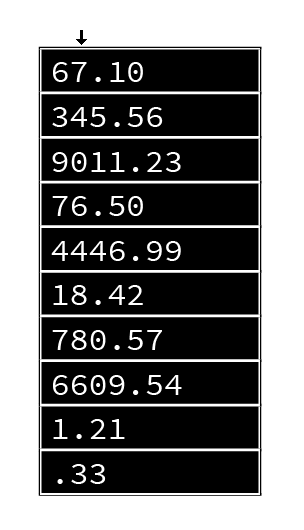
Then, even though you haven’t typed any tabs, choose Type > Tabs to open up the tab options.

Finally, choose the “align on decimal”-tab and click on the ruler to set the position.
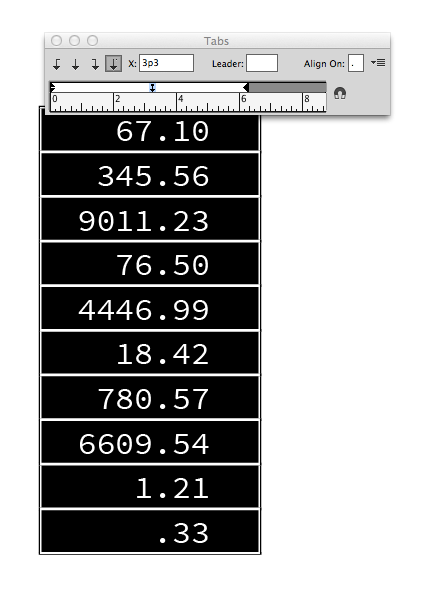
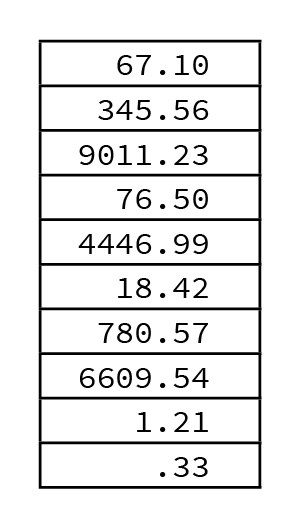
You’ll notice your numbers start aligning automatically.
This article was last modified on July 25, 2019
This article was first published on October 14, 2014
Commenting is easier and faster when you're logged in!

Recommended for you

Using Spring-Loaded Tools to Maximize Your Efficiency
Since today’s the first day of spring (apologies to our friends in the Sou...
Turning Off Recent Fonts in InDesign
InDesign’s Recent Fonts feature has been around since CS6, allowing you to quick...

Big Design
Learn techniques for creating huge layouts for banners, billboards, and other me...