



This CreativePro Tip of the Week on resetting the bounding box in Illustrator was sent to CreativeProse email subscribers on March 1, 2017.
Sign up now and every week you’ll get a new tip, plus roundups of new articles, and exclusive deals sent right to your Inbox!
Just scroll down to the bottom of this page, enter your email address, and click Submit! We’ll take care of the rest. Now, on with the tip!
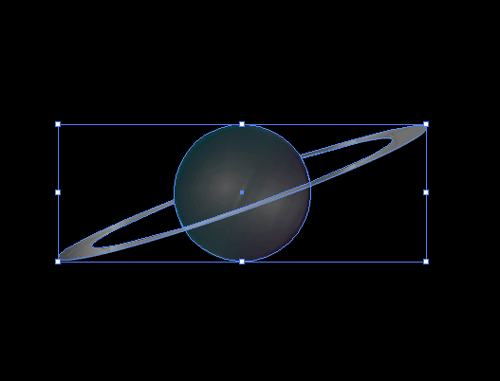
Most of the time, we take it for granted that scaling an object in Illustrator is as easy as selecting it and dragging a corner of the object’s bounding box. Hold Shift if you want to keep the original proportions, and that’s all there is to it. But if you rotate an object before scaling it, the bounding box is rotated as well, which can make it a little harder to scale in the way you want by dragging.

Fortunately, it’s easy to restore the bounding box of a rotated object to its original orientation. Just select the object and choose Object > Transform > Reset Bounding Box.

Voila! The object remains rotated, but now you have an unrotated bounding box you can use to scale it.

This article was last modified on March 6, 2017
This article was first published on March 6, 2017
Commenting is easier and faster when you're logged in!

Recommended for you

The Adobe Illustrator Summit 2022 agenda and speaker roster is here!
We’re thrilled to share the full agenda for The Adobe Illustrator Summit — the e...

Tip of the Week: Super Fast Table Editing
This tip was sent to Tip of the Week email subscribers on June 23, 2014. Sign up...

How to Build a Font in Adobe Illustrator
Learn how easy it is to build your own custom font with Illustrator and the Font...