



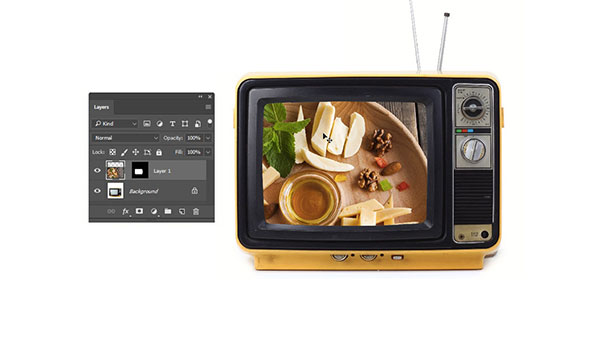
You can use Photoshop’s Paste Into command to paste one image into a specific area of a different image. Here’s how:
Start by making a selection of the area where you want the pasted pixels to appear.

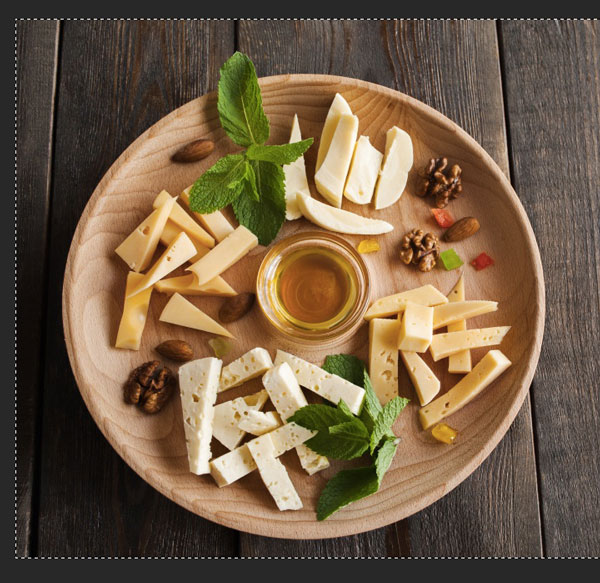
Then copy the image you want to paste.
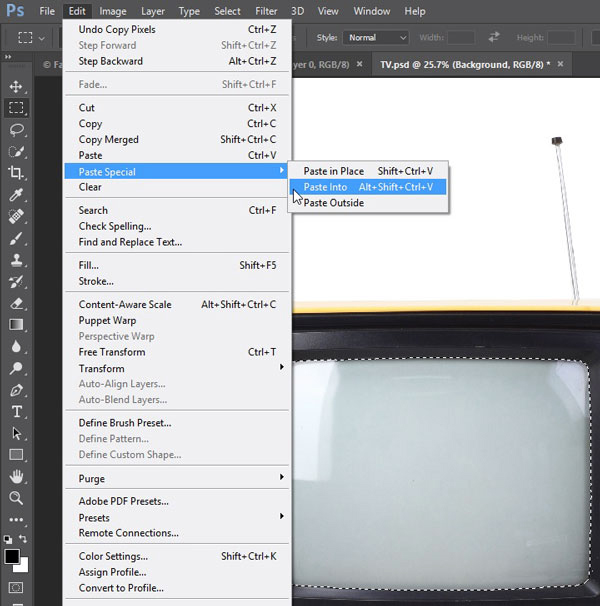
Next, choose Edit > Paste Special > Paste Into (or use the keyboard shortcut Alt+Shift+Ctrl+V for Windows or Option+Shift+Command+V for Mac).
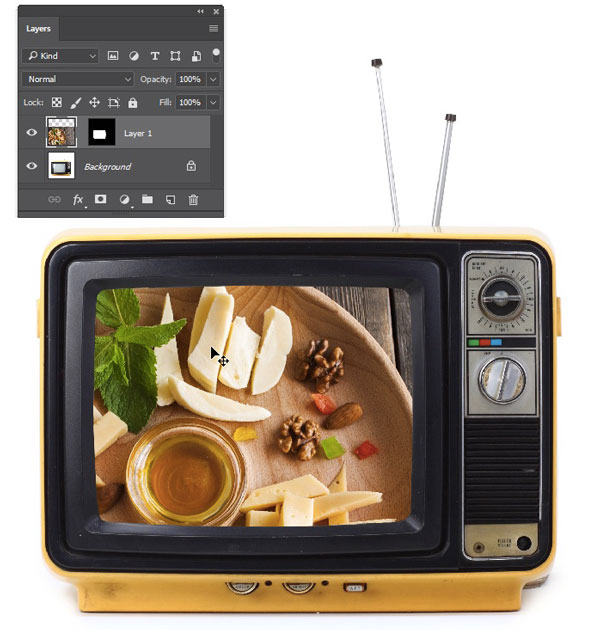
A new layer with a layer mask will be added to the image. Note that the layer and the mask are not linked at this point, so you can immediately move the pasted pixels inside the mask by dragging with the Move tool. You can also change the position of the mask itself by selecting the layer mask thumbnail in the Layers panel and then dragging with the Move tool. To lock both the mask and layer in place, make sure you have the layer thumbnail selected, then choose Lock All.
This article was last modified on April 28, 2022
This article was first published on January 16, 2017
Commenting is easier and faster when you're logged in!

Recommended for you
Classic Concert Posters Reimagined
With the tools in your design toolbox, and some inspiration from iconic artists,...
Heavy Metal Madness: Of Evil Witches and Dancing Pickles
If I was marooned on an island that celebrated only one holiday, I sure hope it...

Remove.bg: A Worthy Alternative to Photoshop’s Select and Mask
Get to know this web-based app that performs instant photo cutouts with a remark...