




At the 2016 InDesign Conference in Washington, D.C., Nigel French reminded me of a classic layout effect where an image pops out of its frame to interact with other page elements. It’s simple, effective, and can be used in all kinds of situations to add some “pop” to a page.
Begin in Photoshop, by creating a new layer for the part of the image you want to pop out of the frame.
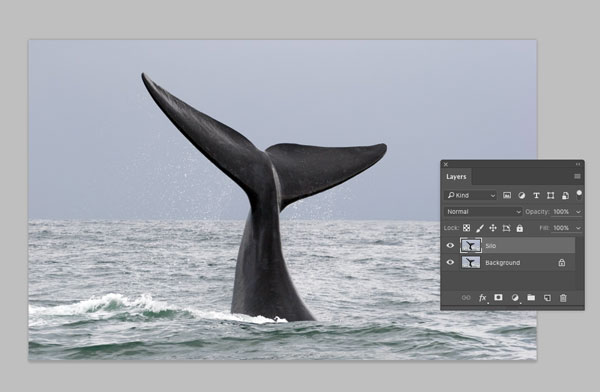
Silhouette that part of the image using whatever technique you like. In some cases, you don’t have to be very fussy since the rest of the image will be cropped using the frame in InDesign. In this example, the surface of the water will never show in the silhouetted version of the image, so I don’t care that’s not masked correctly. But I did want to preserve the drops of water coming off the whale’s tail.
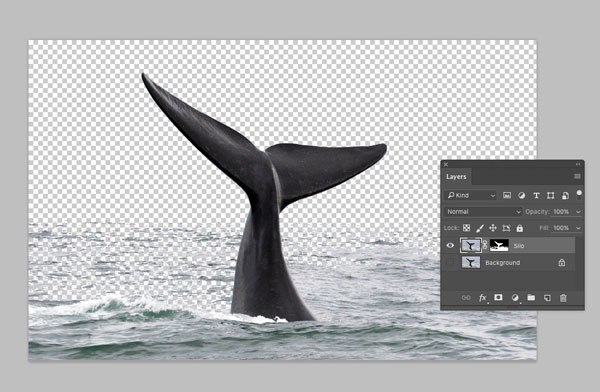
Save the layered Photoshop image with just the silhouetted layer visible, and place the image into InDesign.
Copy the image and paste it in place, so you have two stacked copies.
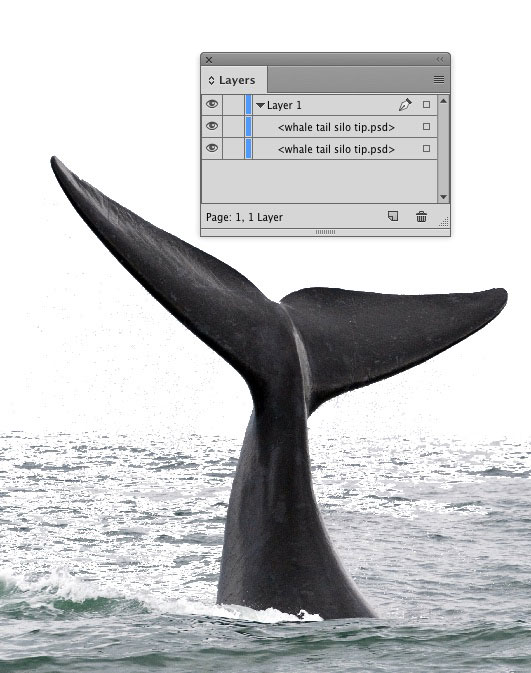
Select the top copy and choose Object > Object Layer Options. In the dialog box, turn on the visibility of the background layer.

With the Selection tool, resize the frame containing the full image to show just the un-silhouetted portion.
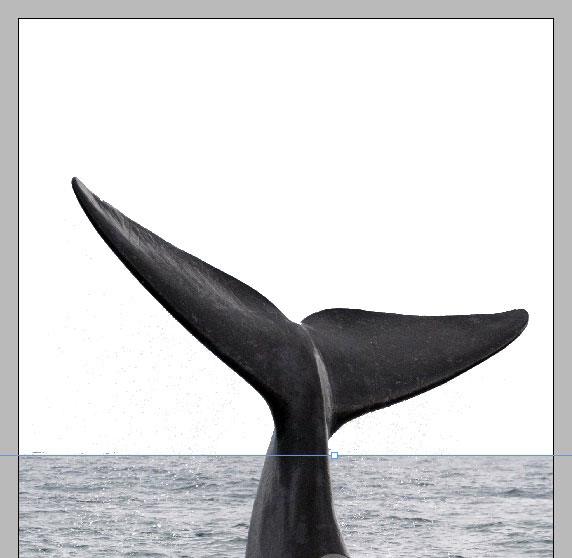
Add text and other elements to blend the silhouetted part of the image into the layout.
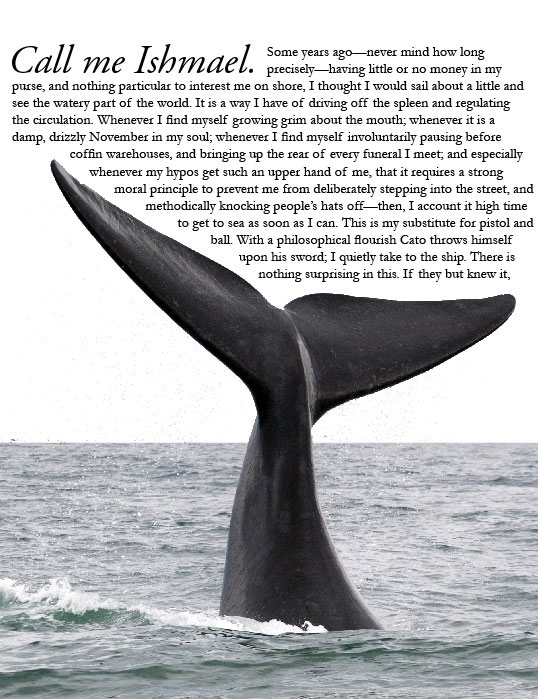
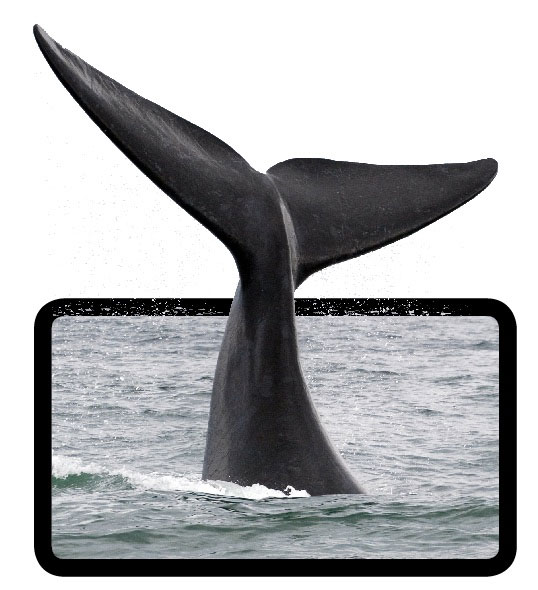
Another fun option is to put the silhouetted copy of the image on top, and add a stroke around the un-silhouetted copy. This is where small details (like the water drops in this image) can really add to the popping effect.
This article was last modified on December 7, 2016
This article was first published on December 7, 2016
Commenting is easier and faster when you're logged in!

Recommended for you

GREP Style Report
Print a report of all GREP styles defined in a document's paragraph styles (CS4...

Layout Grid Calculator for Book Page Design
Online tool helps you to calculate perfect page grids according to three differe...

CreativePro Video: Fill Images to Slides in PowerPoint
In this week’s CreativePro video, Nolan Haims demos how he fills an image to fit...