



One of the more common effects people need to create is also one of the least obvious to accomplish: Centering text along the top of a circle or ellipse. Here’s a quick way to do it:
- Make a circular frame with one of the Ellipse frame tools.
- Select the frame with the Selection tool so you can see its bounding box handles, and then switch to the Type on a Path tool (press Shift-T).
- Click an insertion point directly on the bottom handle (at the 6 o’clock mark, as it were).
- Change the paragraph alignment to centered, start typing, and voilà, it appears centered.
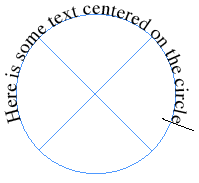
What if you want to put the text along the bottom of the circle instead of the top?
- Click on the top of the frame (12 o’clock) instead of the bottom. Now when you center the text, it will center along the bottom, but it’ll be upside down.
- After you put the text along the top, choose Type > Type on a Path > Options.
- Click the Flip checkbox.
- Choose Center from the Align pop-up menu, and Center from the To Path popup menu.
- Click OK.
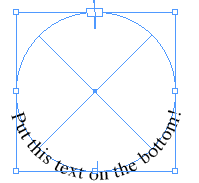
Now you can say Voilà again!
I know someone is going to ask this, so I’d better add: No, you can’t put text on both the top and bottom of a single circle — at least, not without severe and painful workarounds. If you need this, just make two circles!
This article was last modified on December 19, 2021
This article was first published on June 18, 2008
Commenting is easier and faster when you're logged in!

Recommended for you
Colorize an Image with AI in Photoshop
Use Photoshop's Neural Filters to add color to a black and white photograph with...

How to Make Multiple Graphics Flow with Text
InDesign makes it easy to insert a single graphic so it flows with text. But wha...

Introducing The Design + Marketing Summit
Join us online July 18–19 for The Design + Marketing Summit, the essential HOW-T...