




We all know how to use InDesign’s Find/Change feature to locate text in a paragraph, but how can you find paragraphs that DON’T include some specific bit of text? It sounds easy, but is actually really hard if you don’t have a simple code. (See below!)
For example, I want to delete all the paragraphs in the list below except the ones that include the word “petrichor”:
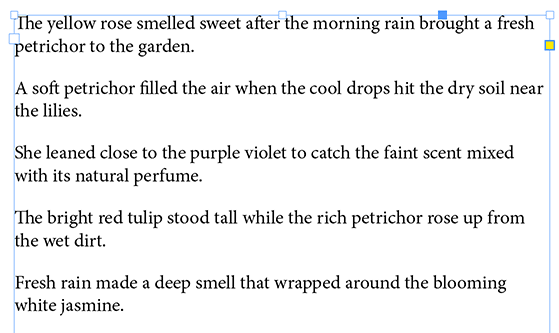
To do that, I can use the code ^(?:(?!petrichor).)+$ in the GREP tab of the Find/Change dialog box:
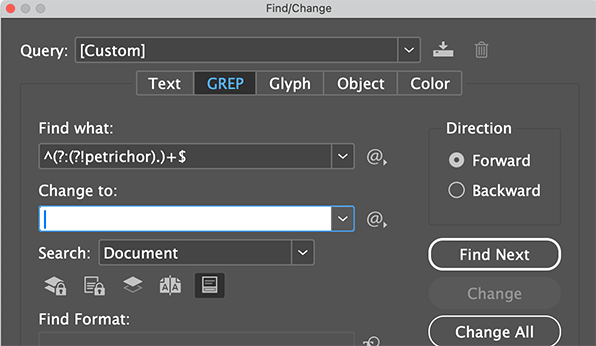
I’ll leave the Change To field blank and hit Change All, and two paragraphs disappear!
(Unfortunately, it does leave blank lines that I would then need to clean up. You could get around that by adding a \r at the end of the expression… but then this expression will skip the last paragraph of a story.)
Note that this GREP expression will skip a paragraph even if the word is inside another word. For example, it would skip paragraphs that had the word “ABCpetrichorDEF” in it.
GREP is also case sensitive, so it would skip a paragraph that has “Petrichor” in it. You can make it case-insensitive by adding (?i) at the very beginning of the expression.
This works for multiple words, too. For example, you could find any paragraph that does not include the phrase “not these words” with the code:
(?i)^(?:(?!not these words).)+$This article was last modified on July 30, 2026
This article was first published on July 29, 2026
Commenting is easier and faster when you're logged in!

Recommended for you

Formatting Code in InDesign with GREP Styles
You don't have to be a geek to love the power of GREP styles.

GREP Styles to Local Character Styles
For various reasons it can be beneficial to apply a document's GREP styles as lo...

GREP of the Month: Word Boundaries
How to target GREP searches to specific words or parts of words to avoid finding...