


Compose: Enter Characters with Diacritics and Other Special Sorts
Enter accented characters using easy-to-remember keystrokes; combine letters and accents; enter characters by their Unicode value. Script now handles some accents below in any font.
Oops, you’re not logged in!
Log in or sign up for a free account.


This script is part of the Type and Text collection. See the full collection here.
Enter characters easily by using mnemonic keys for diacritics; enter characters by their unicode value (including Plane-1 or five-digit unicode); enter certain predefined characters.
The script is not useful for typing one particular language such as German or French: for these languages, dedicated keyboards and keyboard layouts are available which makes typing those languages much easier. However, in much linguistic work, especially in typology, a wide range of characters is required that cannot be captured by a single keyboard layout. The script lets you enter all kinds of combinations of letters and diacritics, even when the combination doesn’t exist in the current font (see below for details).
The script can also be used to enter miscellaneous characters using easy-to-remember keystrokes, such tm to enter the trademark symbol and ?? for the inverted question mark.
Characters are entered at the insertion point if there is one; with any other selection (or no selection at all) the character is entered in the Find what field in the Find/Change dialog (in both the Text and the Grep tabs).
Ideally, the script is assigned to a keyboard shortcut for easy access.
Use
When run, the script shows this simplest of dialogs:
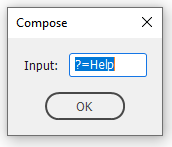
There are several possibilities.
- To enter an accented character, type the character followed by the diacritic key (sort of mnemonic). Use
@for ring; semicolon for cedilla;^for the circumflex;ufor the breve;_for the macron. To see a complete list of accent conventions, press Enter/Return with the?=helpprompt displayed, then choose 1. Example: To enter g+breve (ğ), run the script, typeguin the edit field and press Enter/Return.a@enters the a+ring (å). If the requested character is not found in the current font, the script combines the base character and the diacritic (or tries to, anyway). Using the script it is easy to enterw+tildeandq+acute. Always enter the base character first, then the diacritic. The script handles some diacritics below letters, too; see Diacritics below letters, below. - To enter a character by its unicode value, just type the four- or five-character unicode value and press Enter/Return.
- You can choose to enter just a single diacritic: type just the single (sort of mnemonic) diacritic symbol. These are the same as described in 1. To see a list of symbols, press Enter/Return at the ?=help prompt and choose option 1.
- Enter Greek characters by typing a Latin letter followed by a
g:aginserts alpha,bg, beta, etc. These keys are case-sensitive:Aggives you the capital alpha. (There is a separate script for entering Classical Greek; see here.) - A number of miscellaneous characters can be entered as well. To enter an inverted exclamation mark, enter
!!and a space;C=and a space enters the Euro symbol;L-and a space, the Sterling sign.Dhanddh(each followed by a space) enter Eth and eth;Thandthplus space, Thorn and thorn. A complete list is shown by displaying the help screen (press?=helpat the script’s prompt, then choose 4). To enter these miscellaneous characters, you must type a space at the end. - Combine two characters in a document. Place the cursor after the two characters to be combined, run the script, enter just one backslash and press Enter/Return. This is handy for combining a diacritic with a character which you need to enter separately, such as a phonetic symbol and a diacritic. Thus, to enter a schwa+tilde, enter the schwa and the tilde separately, position the cursor after the tilde, then run the script. Enter \ in the script’s input field and press Enter.
Diacritics below letters
The script handles four diacritics below letters: dot, ring, tilde, and breve. It “fakes” these accents by lowering the standard versions of these marks which normally appear above letters. But before you can use this feature you need to create a character style for each. In each character style, you specify just one feature: a negative baseline shift which moves the diacritic to just below the baseline. The script expects (either of) these character styles: underdot, underring, underbreve, and/or undertilde.
To determine the amount to shift, insert one of the diacritics, select it, and move it down until it’s at the correct vertical position. The script uses the following characters for the symbols, which are present in virtually all fonts:
- underdot: U+02D9;
- underbreve U+02D8;
- undertilde: U+02DC;
- underring: U+02DA.
Note that for the underdot, the script uses not the normal dot but the overdot (U+02D9), which is a bit smaller and better suited as underdot.
Now, to set up the character style for the underdot, determine how much the overdot needs to be lowered to look good as an underdot, then add that value to the character style. Remember to call that character style underdot. Do the same for any of the three remaining diacritics.
To enter the diacritics, use these conventional keys:
- underdot:
! - underbreve:
U - undertilde:
= - underring:
O
Thus, if the script can find in your document a character style called underdot, then typing h! in the script’s entry field produces an ḥ (h+underdot).
Interaction with GREP styles
Most of the typesetting work I do is in linguistics, and almost all of that is done in Minion. Since Adobe’s Minion lacks many phonetic and other special characters, I created these in several styles and weights in separate font files. These are applied to characters in certain Unicode ranges by a GREP style.
Now, when I use the setup described here, the script first looks if the requested character can be found in the basic font or in the font applied by the GREP style; if it’s not found, the script creates the character using the character style for lowering a diacritic. For example, if I enter h! in the script’s window, character U+1E25 is inserted at the insertion point because that character is in my phonetic font and is handled by the GREP style. But if I type z! in the script’s window, because the z+underdot is not in the font, the script inserts a plain z and manoeuvres the dot under it, using the document’s underdot character style.
A problem: diacritics below italics
The four diacritics are placed correctly below letters when using roman fonts, but in italic fonts they’re not placed correctly. I’ve not worked out yet how to deal with this without messing up the script too much. In the meantime this can be fixed with the kerning script.
As an alternative, use Marc Autret’s IndyFont script to create the italic characters as a separate font.
Version history
20 May 2020: Dealt with a InDesign bug (acquired in an early CC version) that causes a script to lose focus. Thanks to Dirk Becker for showing how to keep a script focussed.
18 June 2015: (a) The script threw an error under certain circumstances when you enter a backslash — fixed; (b) rather than using ‘?’ for a diacritic outside the known diacritic mnemonic table, the script now uses whatever character you used as a diacritic.
30 June 2012: There was a problem with the placement of diacritics under capitals when these diacritics were faked by the ‘under’ character styles. Fixed.
13 Oct. 2011: The script failed when used in an empty cell in a table. Fixed.
1 July 2011: Diacritic positioning on upper-case letters is now better, and the script is now a bit more efficient (and therefore quicker now).
23 June 2011: The script can now be used to enter characters in the Find what field in the Find/Change dialog. If there’s an insertion point in the text, the characters is entered there, otherwise the character is entered in the Find what field. The character is added at the end of whatever there is in that field. Finally, the character is added in both the Text and the Grep tabs.
22 Sept. 2010: Added some diacritics below letters (underdot, underring, tilde subscript, breve subscript). See text for details under Diacritics below letters.
10 Sept. 2010: Accents were not placed correctly on capitals if the underlying paragraph was aligned to the baseline. Fixed.
July 2010: Fixed some issues in the help screens and added a few characters.
May 2010: Fixed problem with accents on capitals.
Peter Kahrel Script Repository
Hosted as a community service, and with deep appreciation, by CreativePro.com
Scripts by Topic | Script Index
Basic Script Installation and Use
How to Modify or Configure These Scripts
Resources for Scripting and Publishing Automation
About This Repository
Contact Peter Kahrel
Note to users: You run scripts at your own risk: CreativePro and the author accept no liability for anything that may be caused by any of these scripts. Always take the necessary precautions. We encourage you to save backups and test scripts on copies of your documents.
This article was last modified on September 23, 2026
This article was first published on November 3, 2025
Commenting is easier and faster when you're logged in!

Recommended for you
Index Fixes: Multiple Indexes in an InDesign Document
InDesign documents can contain only one index. But when you need more than one i...
Update Index
When you edit an index, for example to combine entries, you can end up with un-w...