


Footnote Breakline: Set Multiple Footnotes on the Same Line
Oops, you’re not logged in!
Log in or sign up for a free account.


This script is part of the Notes collection. See the full collection here. For more information about using the scripts in this collection, see Adding and Deleting Notes: Managing Cross-References.
This script is part of the Book and Long Document Composition/Production collection. See the full collection here.
It’s not possible in InDesign to do inline footnotes, that is to say, to place two or more footnotes on the same line. But there’s a workaround, for which you don’t even need a script. To my knowledge, David Goodrich described it first in (the now-defunct) Typophile forum.
Suppose you have a text with lots of short notes. InDesign places them one after the other, each on a new line, which often results in odd so-called chimney effects:

Pages like this look better if the notes are placed on one line. To set note 2 after note 1 on the same line, do this:
- Place the cursor in note 2 and increase the note’s first-line indent until the note has moved far enough to the right.
- Select all the text of note 2; then set the selection’s leading to zero in the Character panel:
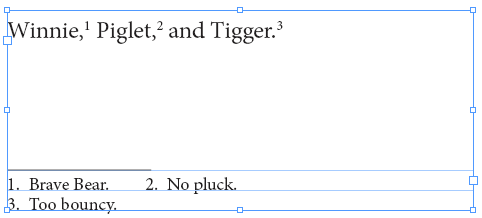
Unfortunately, InDesign CC (back in 2014 or so) introduced a most unwelcome feature: 3 points space is often added between the footnotes. The only way to get rid of that is to select the note following the space (note 3) and reduce its leading by 3. With several short notes on one line you get another space for each inlined note. Every added space is 3 points, so you may have to reduce the first not-inlined note by a multiple of 3 points. This can get hairy at some stage but a ruler too, outlined below, can make things clearer.
Note 3 can be placed after note 2 in the same way.
A drawback of this method is that everything needs to fit on one line. If you want to set a longer note as an inline note, then you need to set not the whole note to zero leading, but only its first line. An example is shown in the next screenshot:

(Note that the 3-point space is not added when the note you’re inlining is more than one line long.)
You could do this manually, too: go to note 2, increase its first-line indent, then select the whole first line and set its leading to zero. But if you change anything in note 1 you’ll end up with a mess. The remedy to that is to create a character style with just one setting, zero leading, and use it in a nested line style in the note’s paragraph. In that way, zero leading is always applied correctly.
Doing inline notes manually as outlined here is ok if you need to do it once or twice, but it gets really awkward if you have lots of notes to set as inlines. Time for a script.
The script
No need for any preparation, the script creates the two necessary styles mentioned above: (i) a paragraph style for the inline notes, which is based on paragraph style used for the seleced footnote, and (ii) a character style used in the nested line style in the paragraph style for the inlines. The paragraph style for the inlines duplicates the footnote style and adds _breakline to its name; the character style uses the footnote style’s name.
To use the script, place the cursor in the note that should be set as an inline and run the script. That’s all. (The script does not remove the added 3-point space but see below for a tool to make that easier.)
Selecting inline notes
After setting a note as an inline, you’ll find that you can’t select it. That makes sense: the note (its first line, anyway) has zero leading so there’s nothing to select. To get to an inline note, say, note 2, place the cursor in note 1, press Ctrl+End to move the cursor to the end of the note, then hit the right arrow. Now the cursor is in footnote 2 and you can edit it.
Realigning inlines
If you edit a note preceding an inline note, the space between the two notes needs to be adjusted. To do so, simply run the script again. If you had a cluster of inlines, all inlines following the one from which you start the script are adjusted, too. Suppose you started out with this situation:
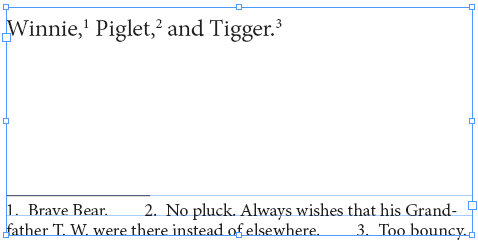
that is, a cluster of one note and two inlines. Text changes in footnotes 1 and 2 lead to the following situation:

To fix the spacing in the whole cluster, place the cursor in note 2 and run the script again. The result should look as follows:

Removing space below notes
When you do some notes as inlines but not the last one, you often end up with a situation like this one:

It’s a mess of rulers, guides, grid lines, and note ‘frame’ lines. You could make it a bit better by hiding the grid and maybe some more, but it’s easier to display a number of baselines. To place them, place the cursor in any footnote and run the attached script footnote-ruler.jsx. A block of red rules is placed, aligned with the bottom of the text frame:
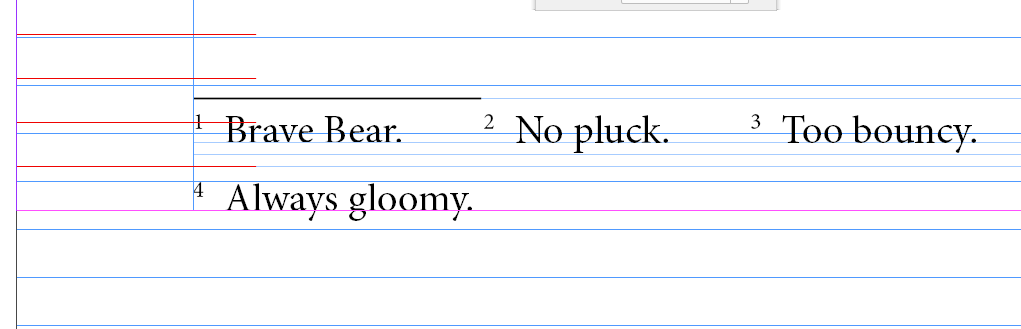
You may have to zoom in to see the two bands of 3-point space below note 1.
To remove the space, select note 4 and reduce the leading by 6 points:
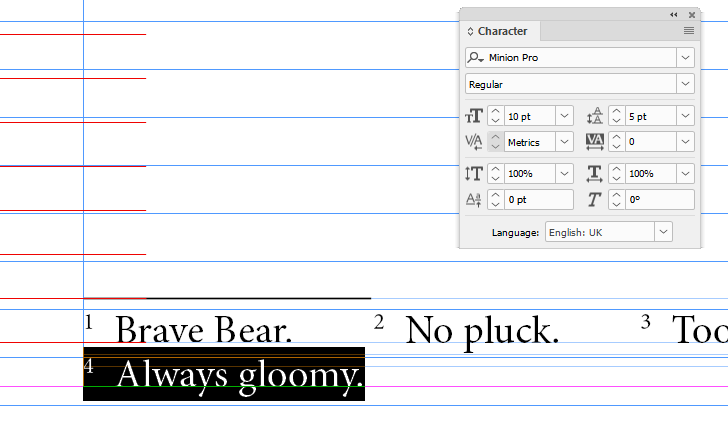
To remove the ruler block, select it and delete it.
Changing the space between inline notes
The script sets two ems between inline notes by default. To change that, edit line 5 in the script:
var number_of_ems = 2To have the script insert three ems between inline footnotes, change the above line as follows:
var number_of_ems = 3and save the script (as a text file).
For instructions about installing, configuring, and modifying these (and other) scripts, click here.
Undoing inlines
Inlining can be undone at three levels:
- to undo inlining of a single note, simply assign the standard footnote style to that note;
- to undo inlining on a single page, select the text frame that contains the notes and run the undo script, linked below;
- to undo inlining on a whole document, make no selection at all and run the undo script.
A limitation
The script doesn’t work well with tabs as separators of note number and text. Use an en-space (or any other space character) instead.
Version history
19 Dec. 2024: (a) Changed the way footnote breakline styles are handled so that more than one footnote style is recognised. This is needed in documents with parallel translations, for instance. (b) The script ignored continued footnotes; that’s fixed. (c) Clarified the problem of InDesign often adding 3 points of space after an inlined footnote, and a tool to make it easier to fix it.
27 April 2022: Some new problems in CC, fixed.
20 August 2015: The script now works in InDesign CC and later. The undo script was updated as well.
5 June 2015: Changed the inline undoer’s behaviour: to undo inlining on a single page, select the text frame on the page and run the script. To target the whole document, select nothing.
11 April 2013: (1) In documents that use the [Basic Paragraph] (or its localised name, any name that contains [ ] ), that name too is used to create styles for inlines. (2) The script broke if you try to use it on the first footnote of a story; now it warns you and stops without error. (3) The script didn’t like inches; now it tolerates them.
4 February 2011: Removed limitation that whole footnotes should fit on the remainder of the line. Added support for right-to-left texts.
May 2010: First posted.
Peter Kahrel Script Repository
Hosted as a community service, and with deep appreciation, by CreativePro.com
Scripts by Topic | Script Index
Basic Script Installation and Use
How to Modify or Configure These Scripts
Resources for Scripting and Publishing Automation
About This Repository
Contact Peter Kahrel
Note to users: You run scripts at your own risk: CreativePro and the author accept no liability for anything that may be caused by any of these scripts. Always take the necessary precautions. We encourage you to save backups and test scripts on copies of your documents.
This article was last modified on September 24, 2026
This article was first published on November 3, 2025
Commenting is easier and faster when you're logged in!

Recommended for you
Clean Up Spurious White Space
The script removes leading, trailing, and duplicate white space. Optionally chan...

Before&After Design Tip: Two Ways to Typeset a List
Design a list that bestows visible stature to the names on it
Index Fixes: CJK Topic Names Don’t Appear
Usually, when you add a topic in an InDesign index whose name starts with a non-...