



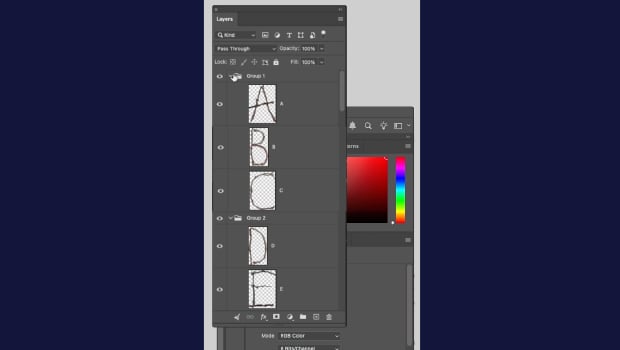
In this short Photoshop how-to video, Khara Plicanic shares an easy trick to working with layer groups. She simply presses Command/Ctrl and clicks on a folder to automatically expand or collapse all of them.
Subscribe to the CreativePro YouTube channel for more helpful design tips!
This article was last modified on June 18, 2026
This article was first published on June 18, 2026
Commenting is easier and faster when you're logged in!

Recommended for you

How to Filter and Sort Photoshop Layers
Learn how to easily organize and find your Photoshop layers.
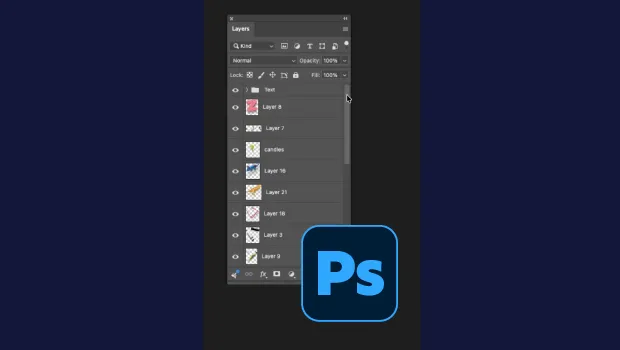
Smarter Thumbnails in Photoshop
Make Photoshop layer thumbnails clearer with one quick setting change.

Automatically Select Layers in Photoshop
Use this trick to select a layer’s content by clicking directly on the canvas, i...