



Hot on the heels of Photoshop’s revolutionary Rotate Object feature, Illustrator has weighed in with its own way of viewing objects from a variety of angles. Adobe’s in-house demos tend to use simple, basic artwork; I thought it would be interesting to see how the technology behaves with something more complicated.
The Starting Image
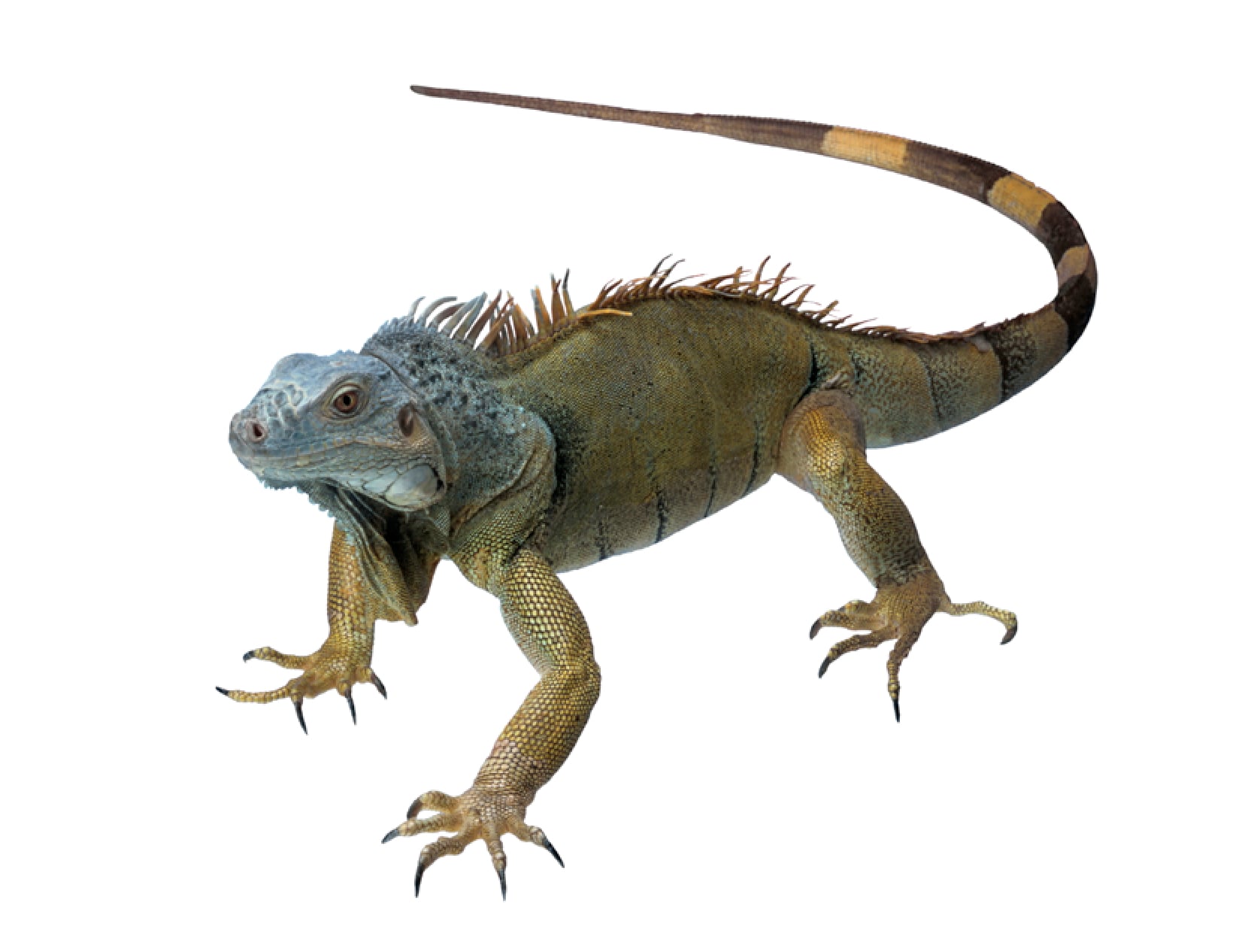
This photograph of a lizard would be an good test case. It’s already isolated on a transparent background.
Converting the Image
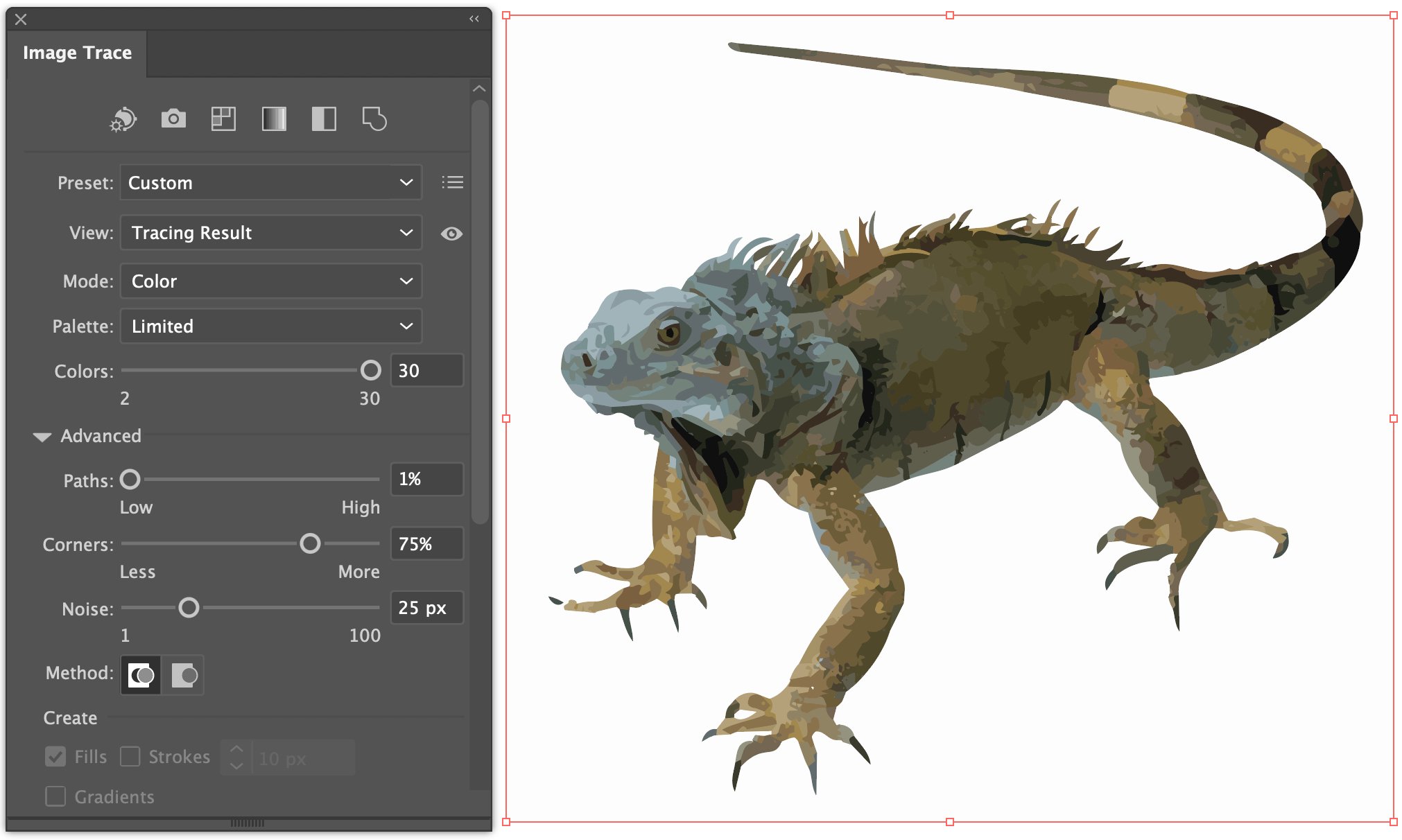
The first step is to convert the pixel image to a vector one, using Image Trace. I reduced the number of paths to the minimum to try to make the artwork less complex.
The Vector Image
After Expanding the traced image, you can clearly see all the paths that define it. Click the Turntable button on the Contextual Task Bar to start the rotation process.
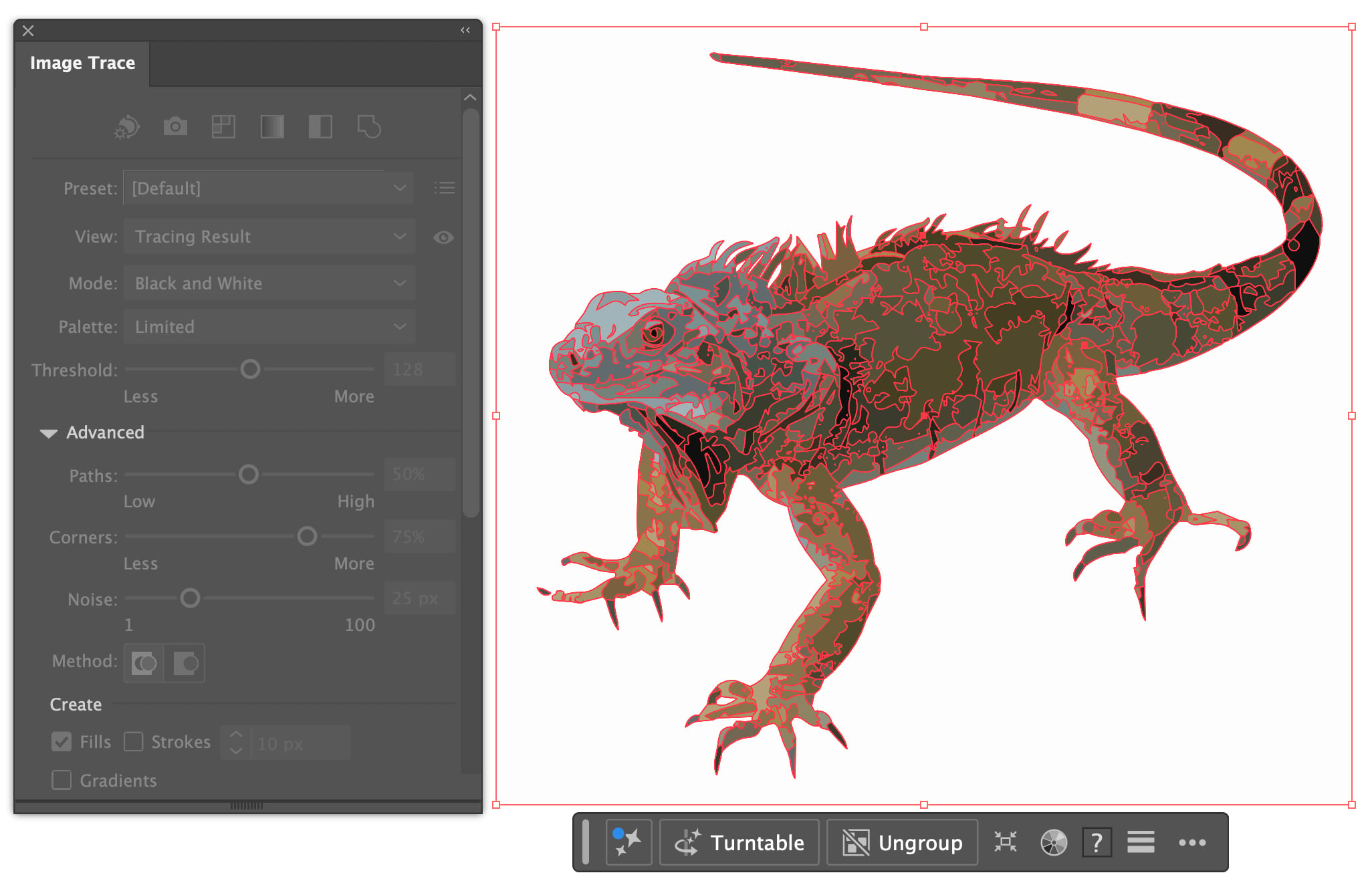
Creating the Turntable
It can take a minute or so for Illustrator to complete the operation, at the end of which you’ll see the identical image to the one you started with. The Contextual Task Bar now shows a rotation slider, between -180 and 180 degrees.
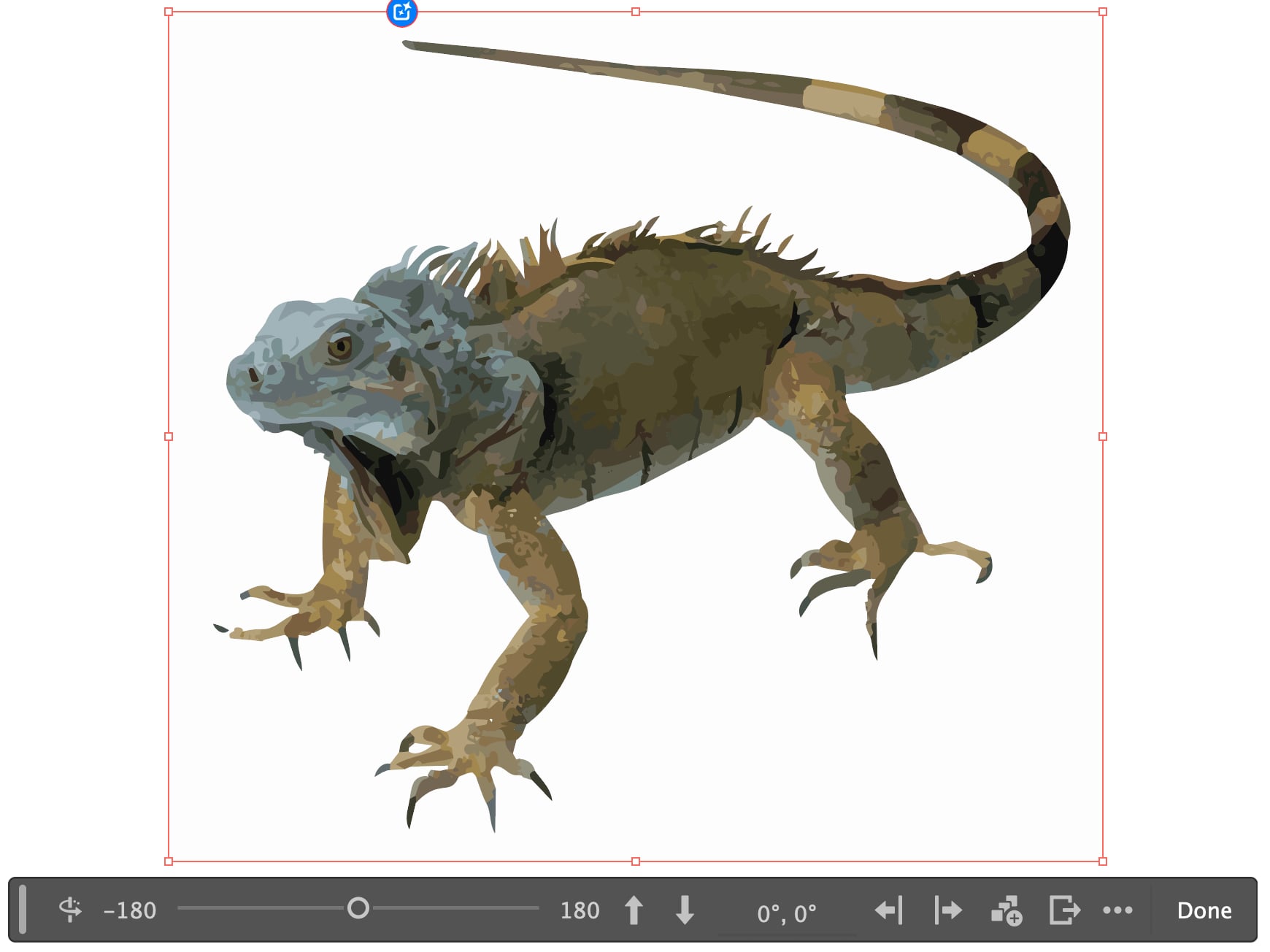
Turning the Image
Dragging the rotation slider turns the object in 15 degree increments. The result is surprisingly good: there are some vagaries, but it’s a remarkable achievement nonetheless.
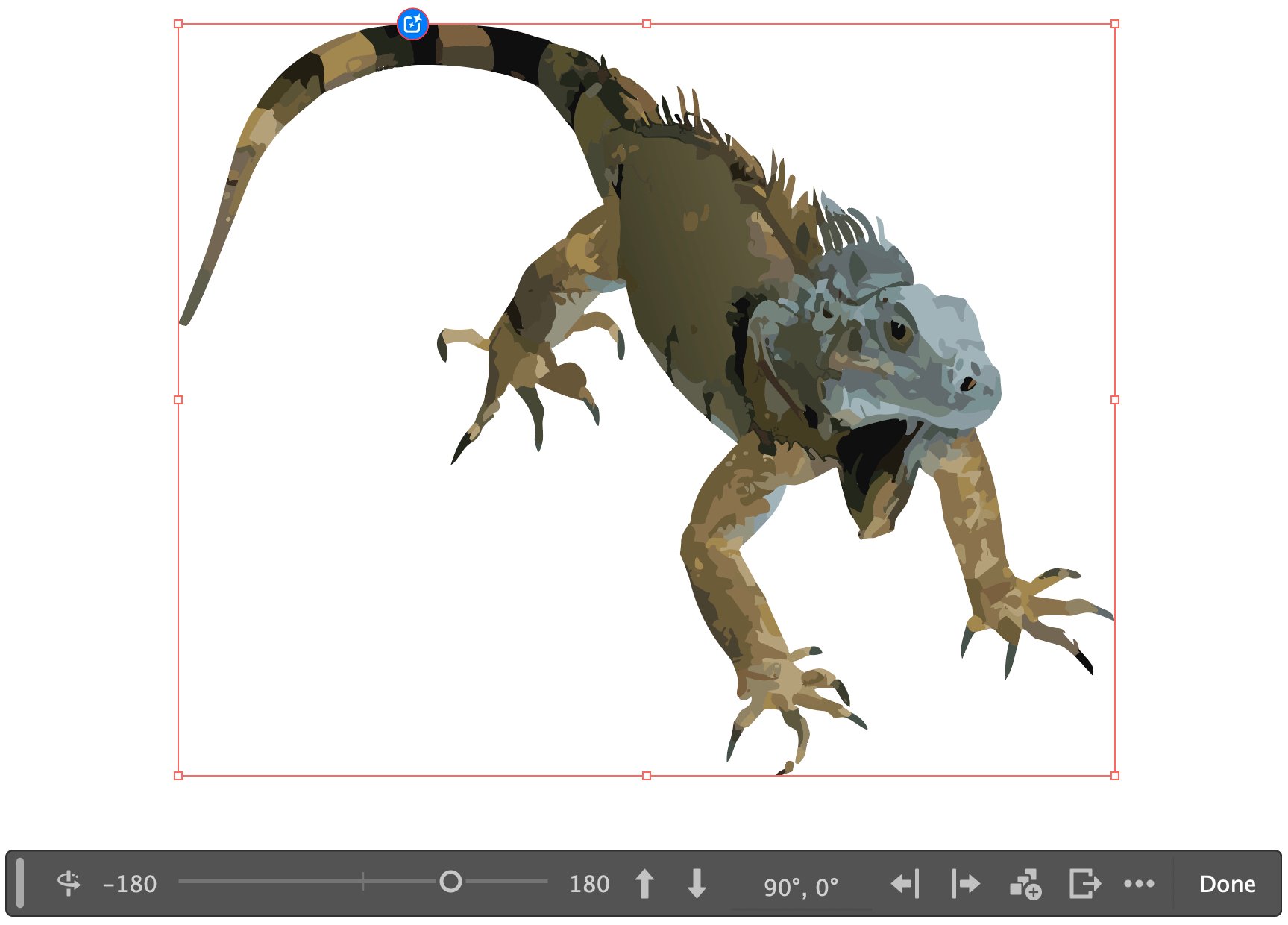
Up and Down
Two up and down buttons next to the slider allow you to rotate it 30 degrees up or down. There are no in-between values. Again, Adobe’s AI engine has correctly interpreted the image as an animal, and has produced impressive results.
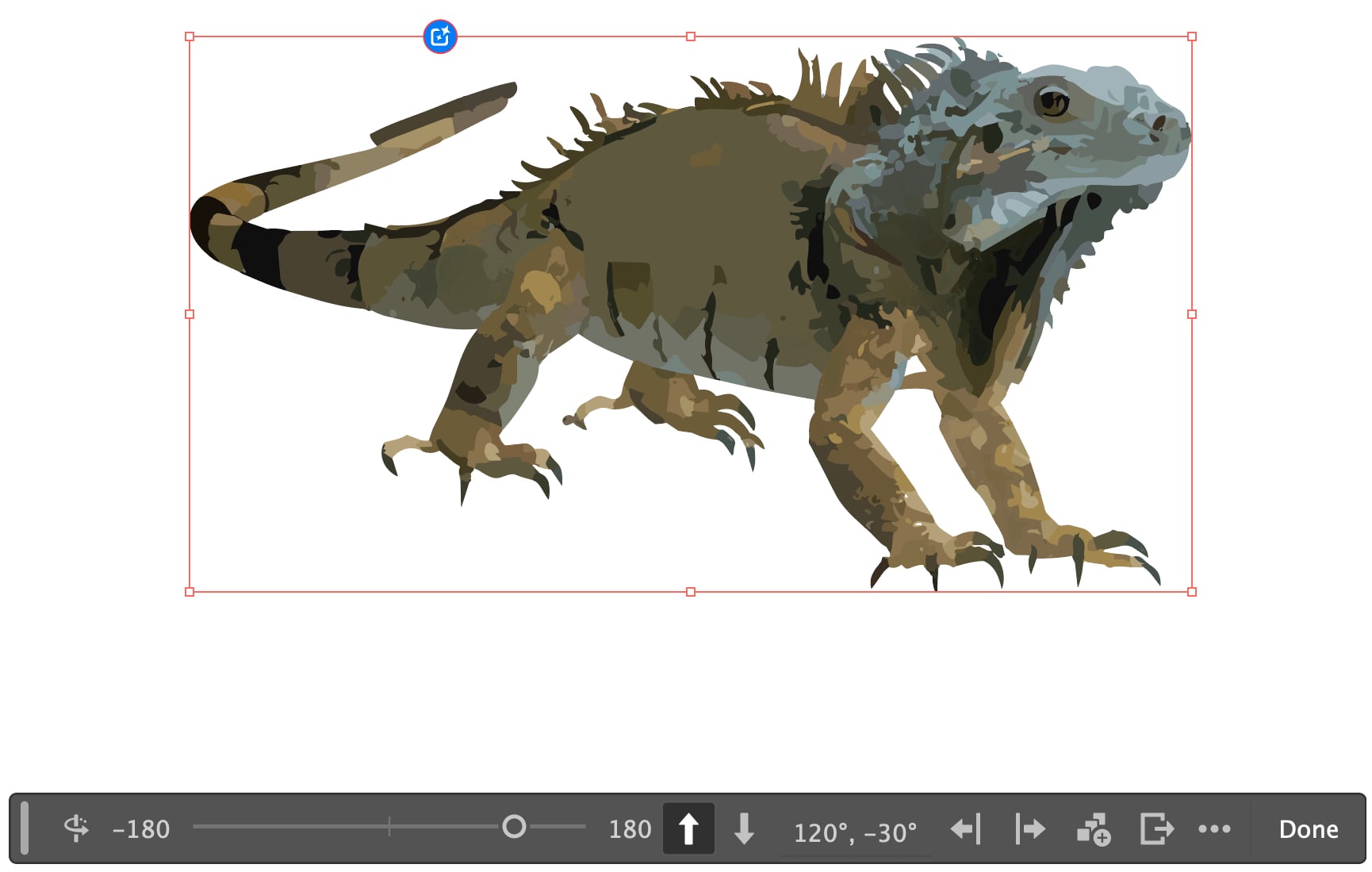
The Full Set
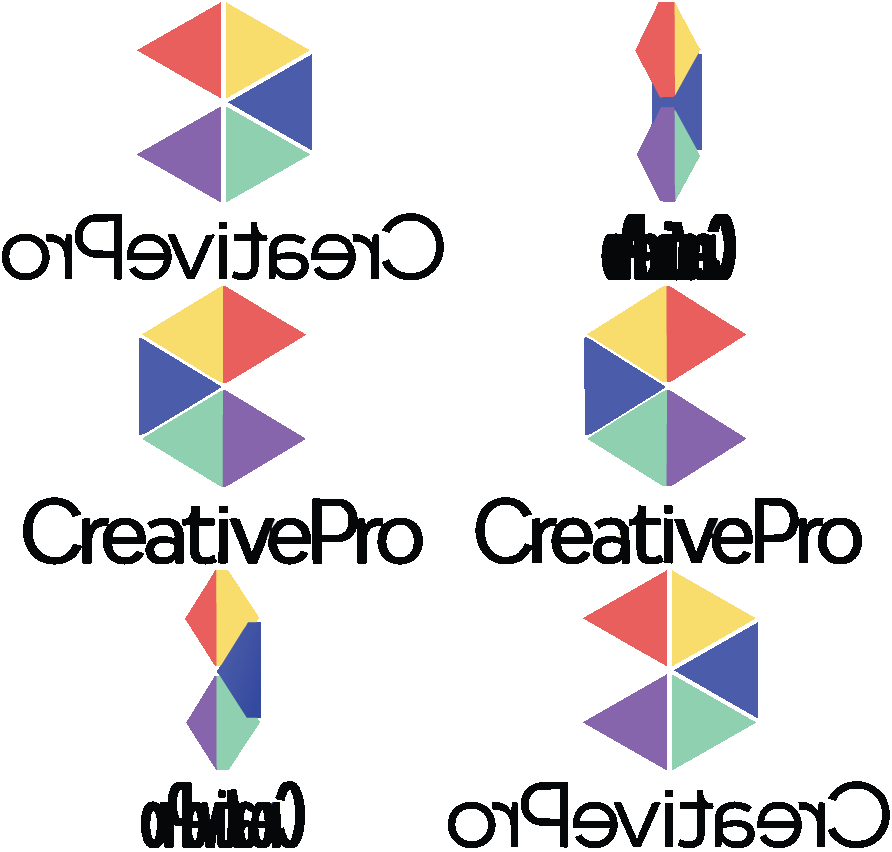
You can output all the possible rotations in three rows, one for each up/down angle. This is more for reference than anything else; you wouldn’t want to use it as finished artwork.

Working with Graphics
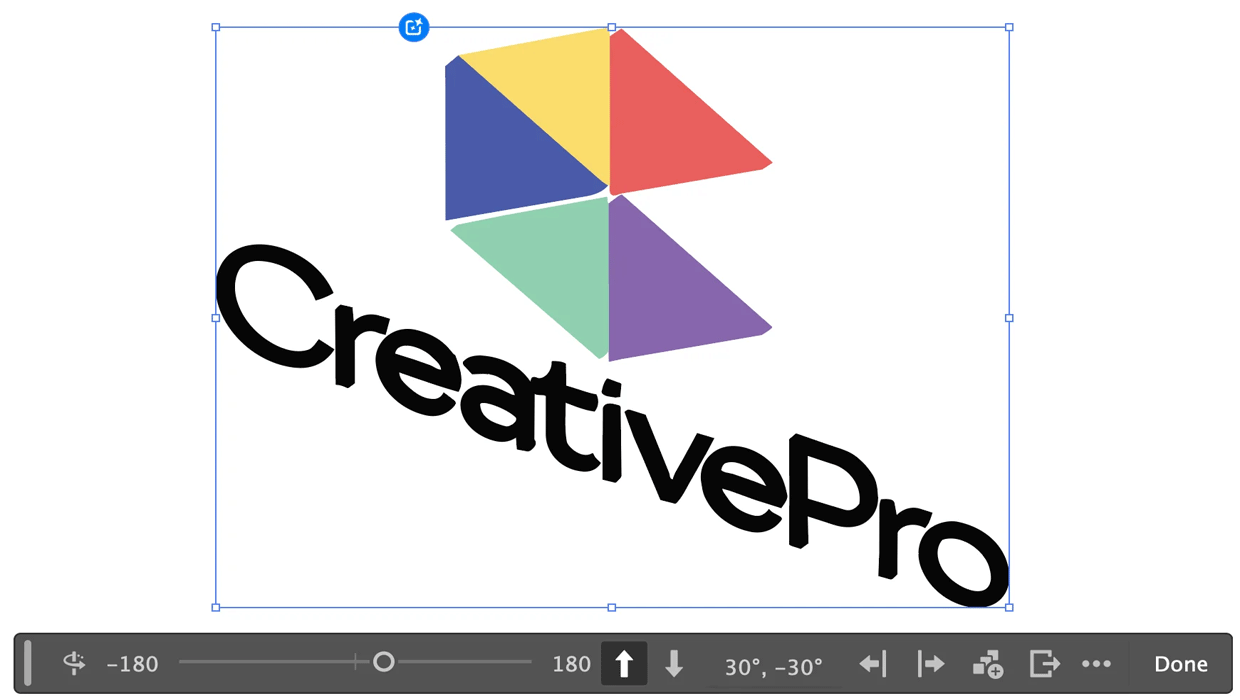
When presented with a purely graphic object, such as the CreativePro logo, Illustrator still manages to create convincing rotations. It’s not perfect: although the logo has been made three-dimensional, no shading has been applied to the sides of the triangles. For a task like this, Illustrator’s 3D tools would perform much better.
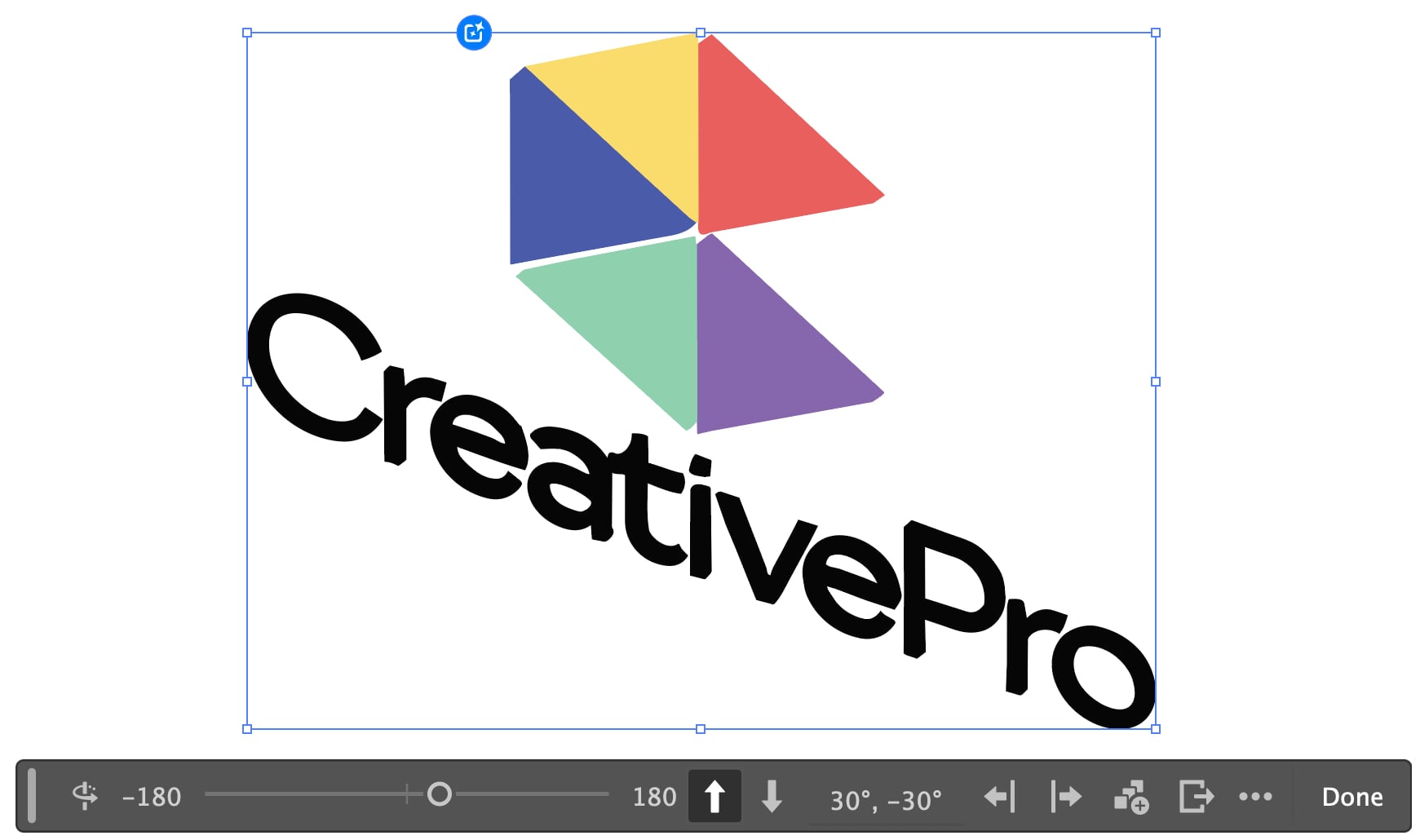
It Moves!
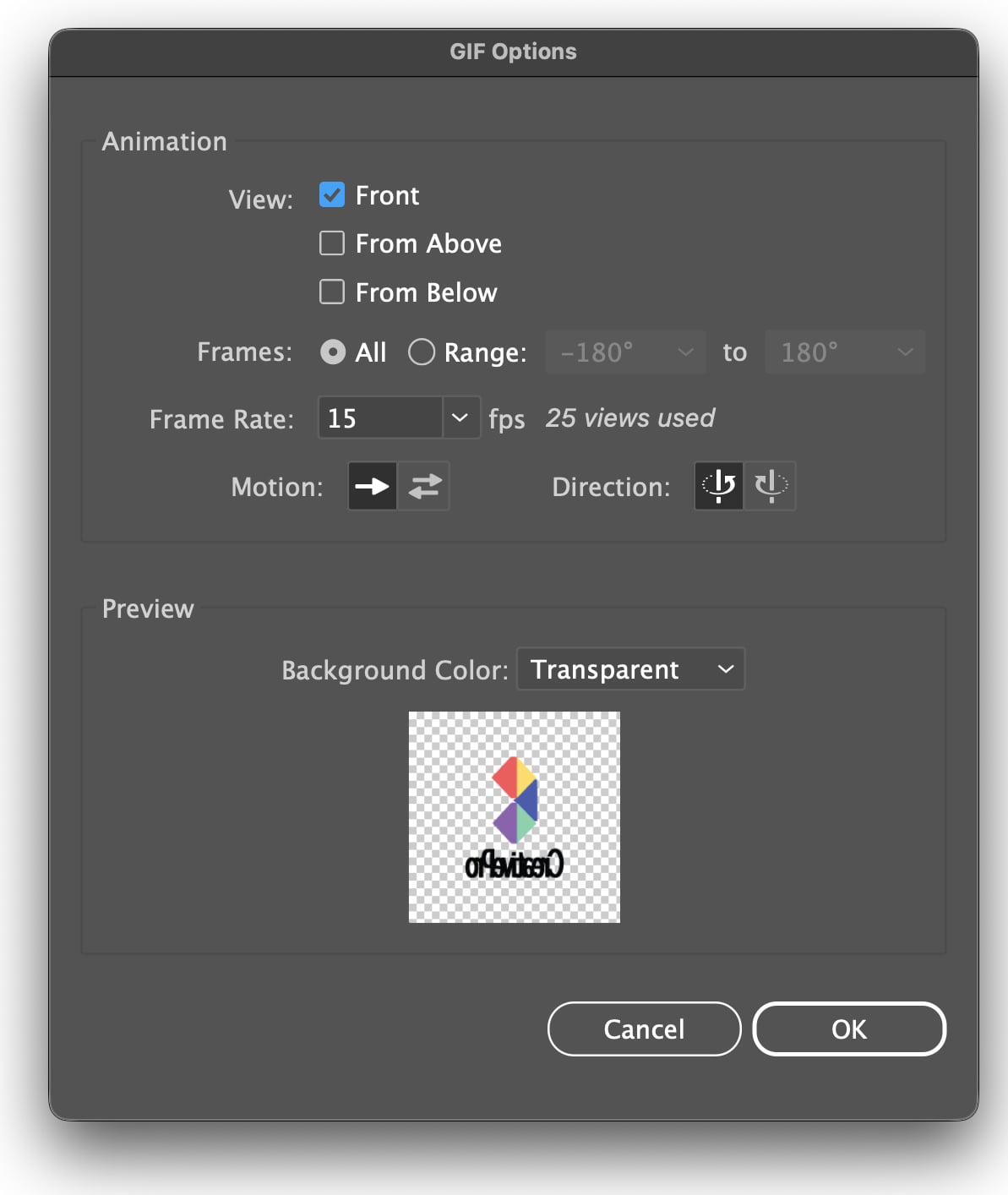
You can choose to export any Turntable-rotated object as an animated GIF file by clicking the button on the Contextual Task Bar. The dialog gives you the option of choosing the viewing angle, the speed and direction of rotation, and whether you want it to rotate just one way or back and forth. There’s probably no simpler way of creating an animated GIF of your logo.
Conclusion
After using Turntable, you can continue to rotate the object as much as you like, even after the file has been closed and reopened. There are occasional errors, which can be fixed by modifying a rotated view using standard Illustrator tools; but if you do this, the object will no longer be rotatable – so it’s worth copying the rotated object first, before you edit it.
Turntable is an interesting addition to Illustrator’s arsenal, but the limitations of its rotation angles mean it could be difficult to to get exactly the view you need to fit the task in hand, especially if you want to place it within an existing scene. And Turntable uses Generative AI credits, so be aware that experimenting with it may cost you.
This article was last modified on May 14, 2026
This article was first published on May 14, 2026
Commenting is easier and faster when you're logged in!

Recommended for you

Building a 3D Scene
When you want to recreate an iconic image with photorealism it’s time to round u...

Getting a Handle on Illustrator’s Width Tool
I love creative tools that help make me look like I have talent I might not actu...

InDesign Basics: Working With Bleeds in InDesign
Bleed is printing that extends beyond the edge of where the paper will be trimme...