




Ready to crank up your PowerPoint efficiency to 11? Customize the Quick Access Toolbar (QAT) to your liking. Here’s how.
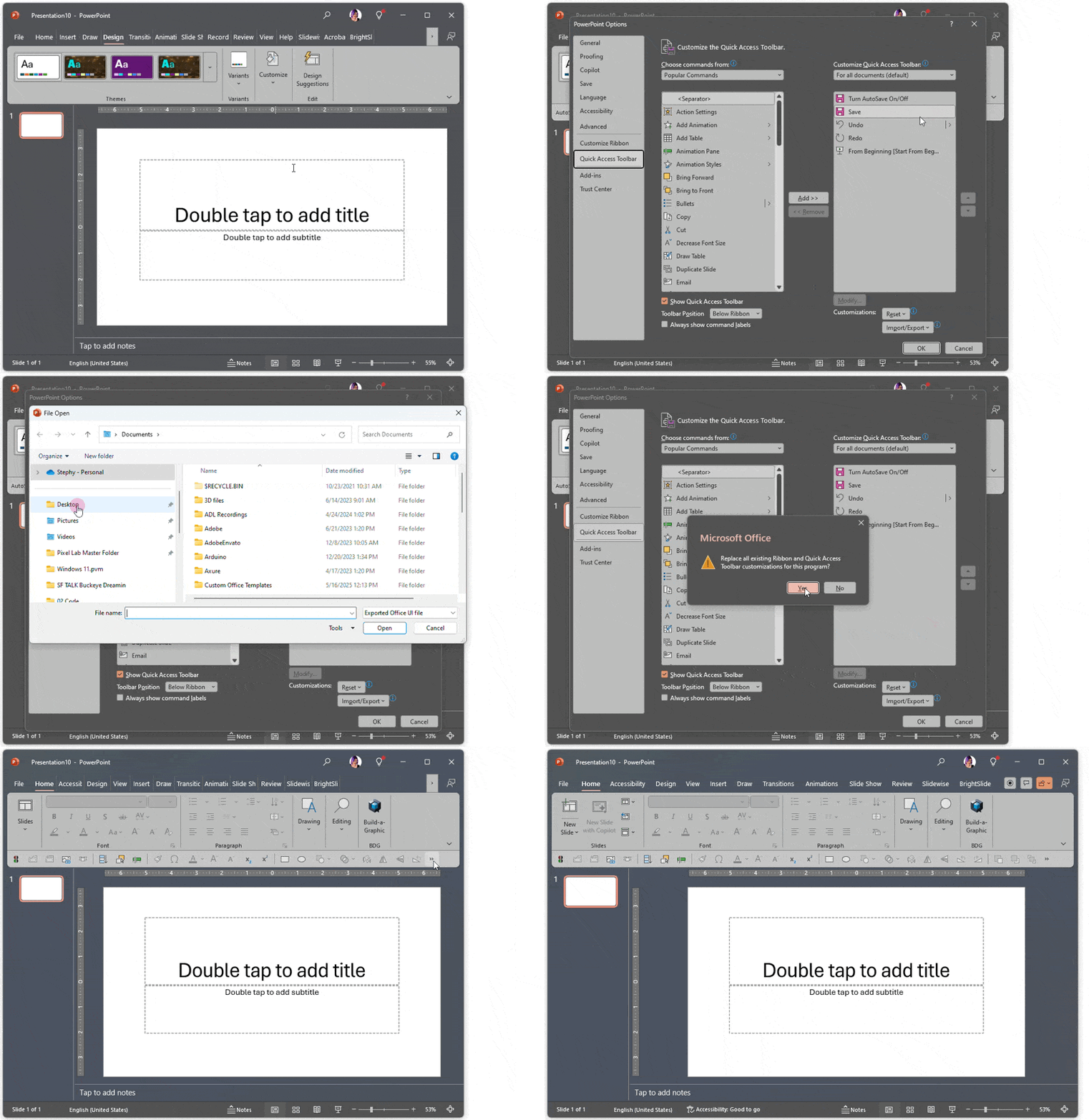
First, turn on Quick Access Toolbar (QAT). Right-click on the ribbon and choose Show Quick Access Toolbar.
Right-click again and choose Customize Quick Access Toolbar.
Remove the default QAT tools if you don’t want them there and add your most used tools.
Or, you can import my QAT that I use every day! Click here to download it.
This article was last modified on October 30, 2025
This article was first published on February 7, 2025
Commenting is easier and faster when you're logged in!

Recommended for you
How to Embed a Section Within a Slide in PowerPoint
Learn how to create non-linear structure within a PowerPoint presentation by cre...

PowerPoint How-To: Hide Onscreen Content in Slideshow Mode
See how you can have content on your PowerPoint slides that will print but not s...
Making Beautiful Bar Charts in PowerPoint
This mirrored, clustered bar chart is sure to catch your eye!