




In this InDesign how-to video, Khara Plicanic looks at how to set up and update drop shadows for objects in her document. In the Drop Shadow dialog box, she runs through the settings previewing what each looks like. After settling on the look, Khara creates an object style to easily apply the same drop shadow settings to other objects, as well as to make global updates to the look.
Subscribe to the CreativePro YouTube channel for more helpful design tips!
This article was last modified on August 29, 2025
This article was first published on August 20, 2024
Commenting is easier and faster when you're logged in!

Recommended for you
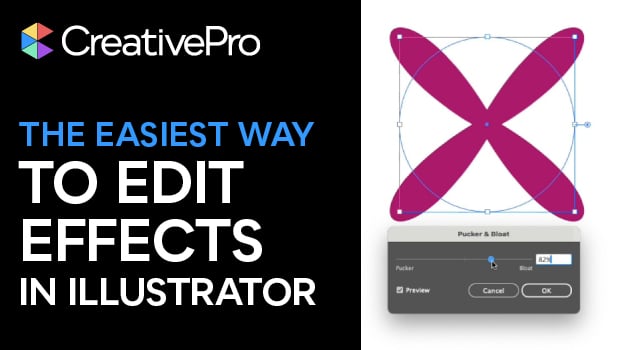
Edit Illustrator Effects in the Appearance Panel
Use Illustrator’s Appearance panel to change, add, and blend effects applied to...

InDesign Eye Candy, part 4: Pattern Swatches
Unlike Photoshop and Illustrator, InDesign doesn’t have pattern swatches t...

Creating a Neon Glow Light Style in Photoshop
It’s easy to create this glowing Layer Style, which will enable you to mak...