




In this InDesign video, Jason Hoppe shows steps you can take to make caption frames consistent, especially in relation to the images they are describing. He first demos using baseline controls to set how far the text should be from the image, then he explains the auto-size feature that lets the text frame shrink or grow to accommodate the caption text.
This video is an excerpt from Jason’s “Powerful (but rarely used) Type Controls You Should Be Using” session at The InDesign + Type Summit. Check out this and all of our events on our Events page.
Subscribe to the CreativePro YouTube channel for more helpful design tips!
This article was last modified on August 29, 2025
This article was first published on June 21, 2024
Commenting is easier and faster when you're logged in!

Recommended for you

CreativePro Week 2026 Preview: 5 Indispensable InDesign Sessions
Five sessions InDesign users can't afford to miss

Livestream Video: Batch Processing Photos in Adobe Bridge
If you're not using Bridge—you should be! Learn how to use its powerful processi...
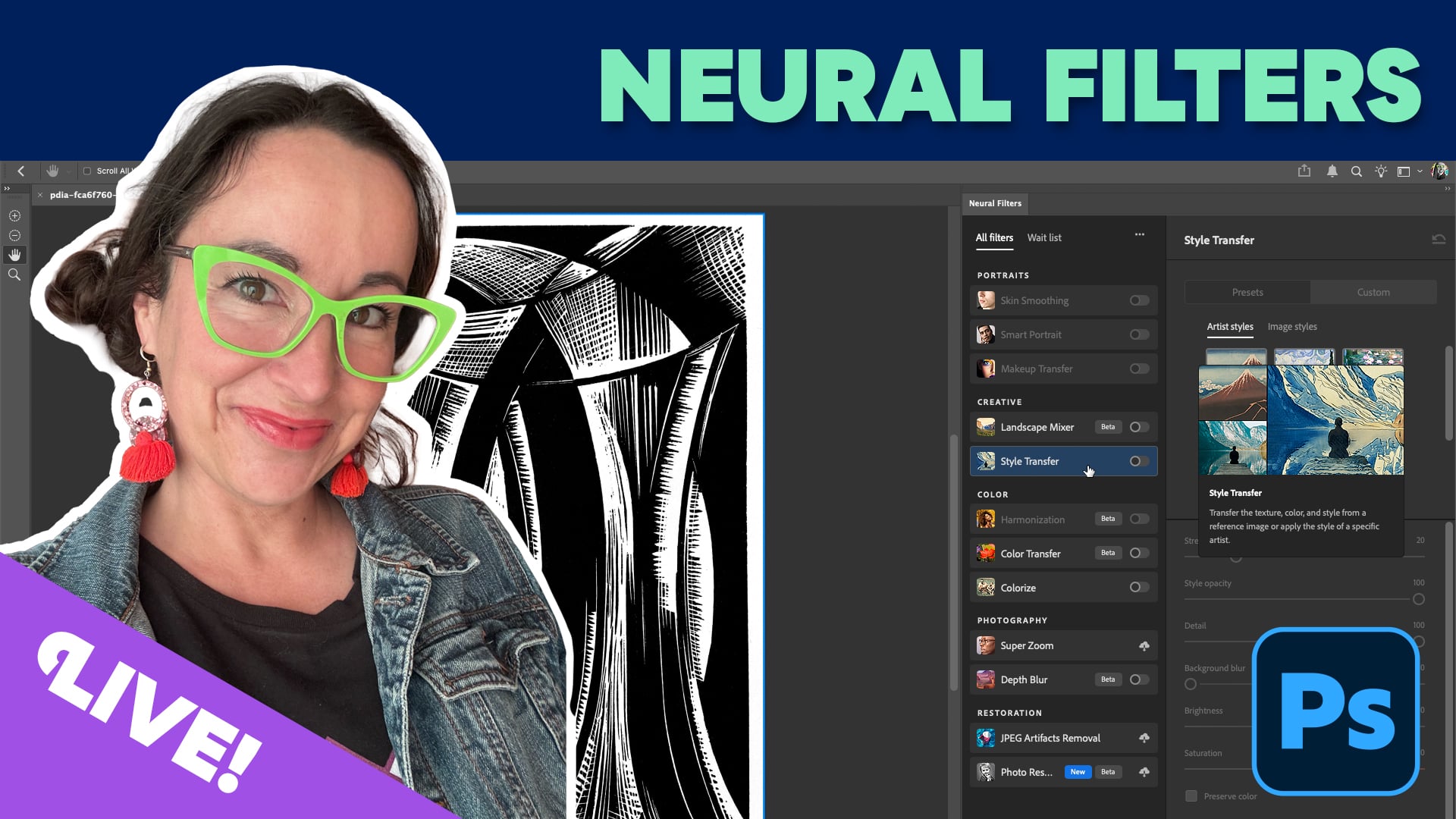
Livestream Video: Using Neural Filters for Rapid Photo Retouching
Photoshop's neural filters are yet another way to level up your Photoshop game....