




If you want to run scripts from within Adobe Illustrator, the first step is to install them in the right location.
Start by going to the Illustrator application folder. Inside, you’ll find a Presets folder, and within that, a folder for the language you’re using for the Illustrator interface. For example, en_US is US English.
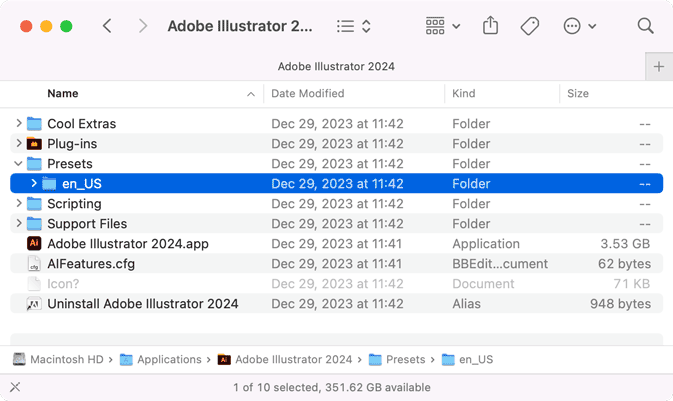
Inside that folder, you’ll find several subfolders containing items such as Actions, Brushes, Graphic Styles, and Scripts.
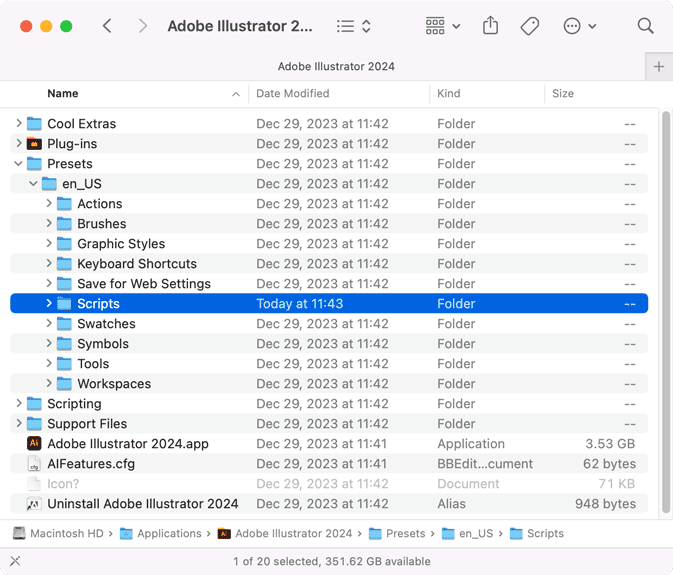
You can put the scripts you want to install directly in the Scripts folder. (Note: you may need admin access to modify the contents of the Scripts folder.) Or, you can organize your scripts into subfolders within the main Scripts folder.
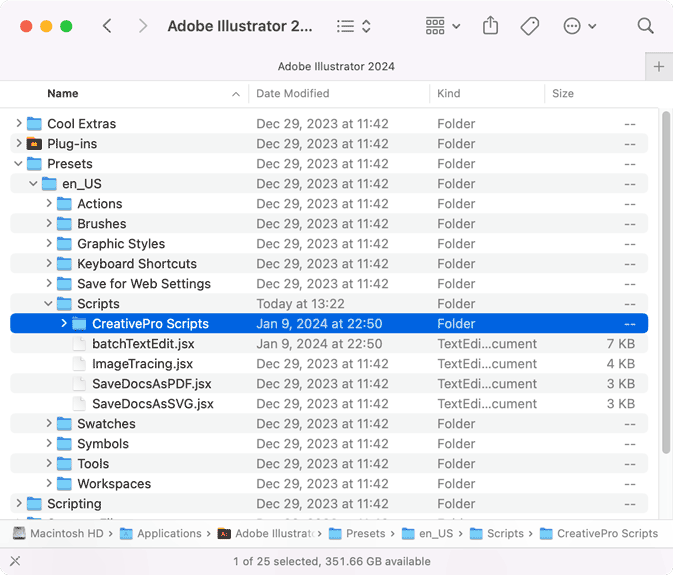
If Illustrator is running, quit and restart the program.
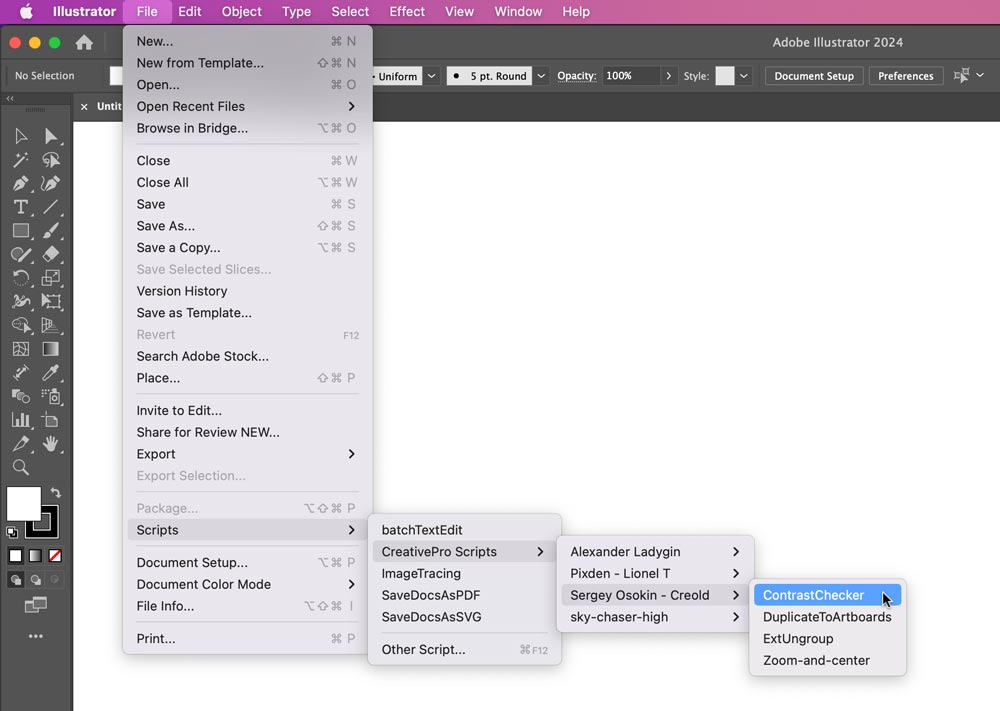
Then, you can see and run the scripts you installed by choosing File > Scripts.
This article was last modified on January 19, 2024
This article was first published on January 19, 2024
Commenting is easier and faster when you're logged in!

Recommended for you

3 Ways to Make Die Lines in Adobe Illustrator
Best practices for defining the shapes of custom die cut stickers.

Introducing The Design + Marketing Summit
Join us online July 18–19 for The Design + Marketing Summit, the essential HOW-T...
Masking Artwork in Illustrator
Create clipping and opacity masks to fill your artwork with anything