




Sometimes you just need a little fake placeholder text on your slide to test out a layout before a final design or even after a project is finished to “scrub” it of client content so it can be used in a portfolio. You can, of course, go to sites such as Lipsum.com to copy and paste your “Greek” text, but next time try using a couple of undocumented tricks built right into PowerPoint.
Lorem Ipsum
From within any text box, simply type =lorem() and then hit enter.
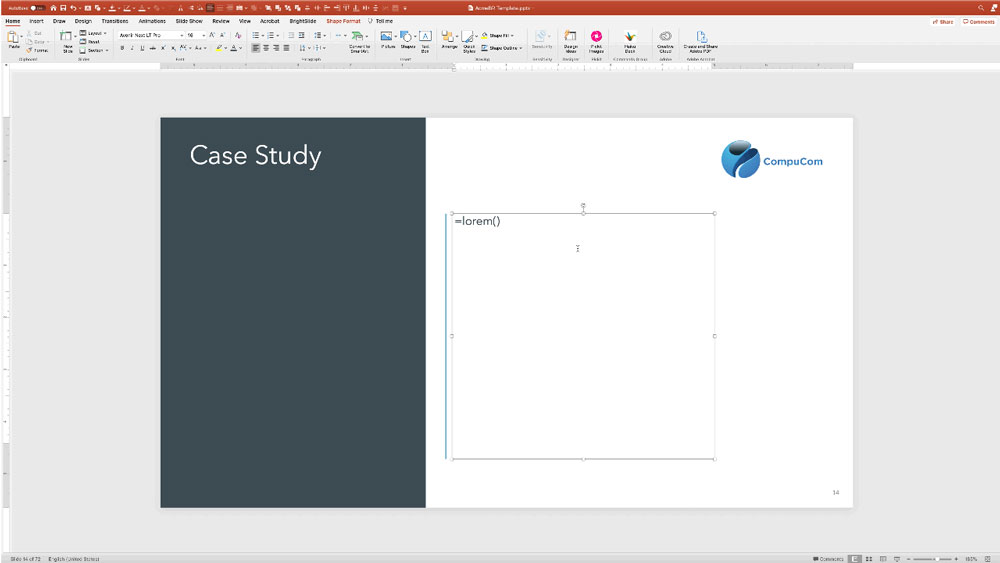
You’ll be rewarded with the first three paragraphs of the standard Lorem text.

Note that in addition to your three paragraphs, you’ll also get two empty paragraphs in between—not a typography best practice—so you may want to delete these empty paragraphs and adjust paragraph spacing.
The Quick Brown Fox
Another option is to type =rand() and hit enter which will give you three paragraphs of The quick brown fox jumps over the lazy dog.
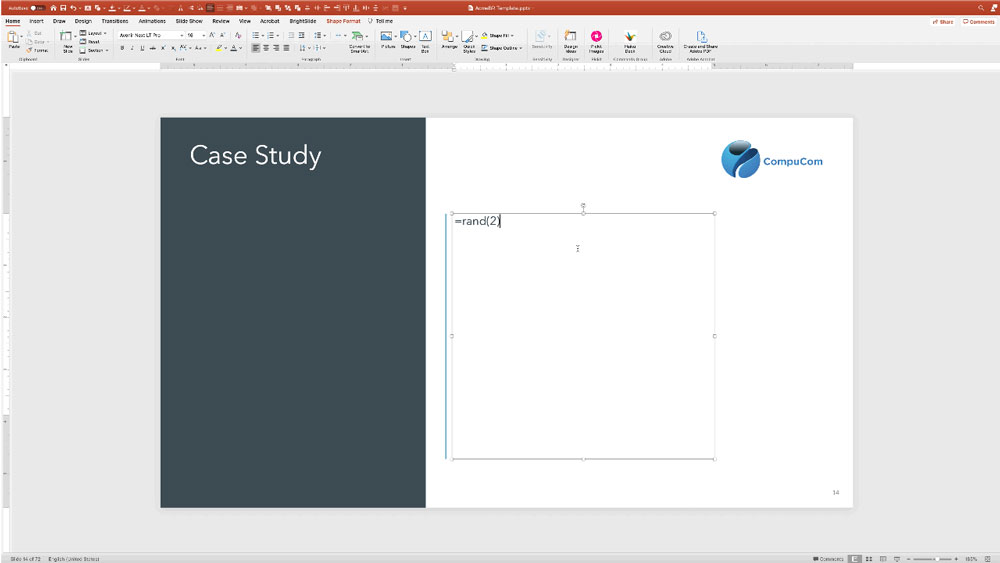
With this option, you can also enter a number in between the parentheses to specify the exact number of paragraphs, so =rand(2) will give you two paragraphs of the text.
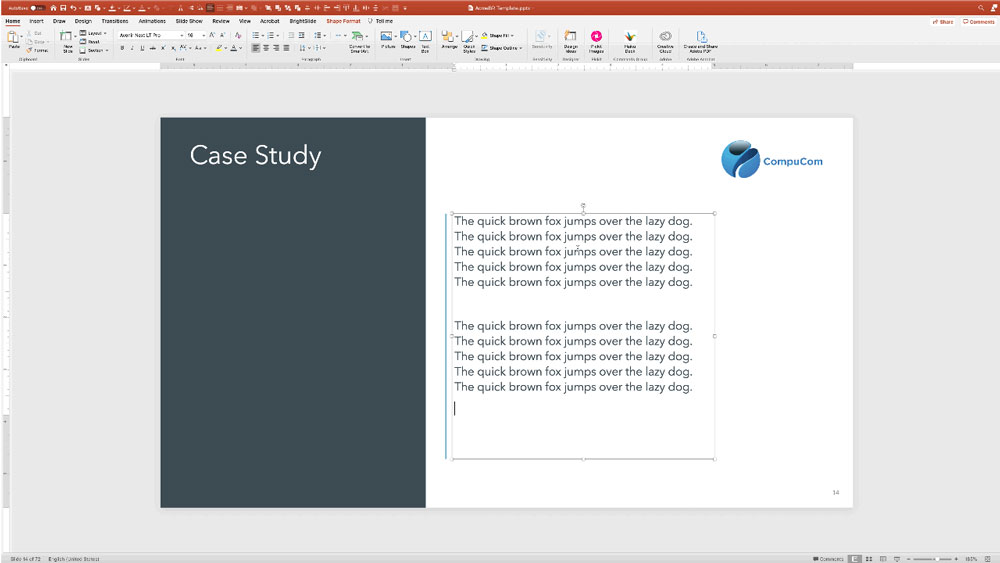
And again, you’ll get two empty paragraphs which you may want to delete.
Neo / Ipsum
For something a bit more nuanced, check out Justin Bretschneider’s Neo / Ipsum plugins for PowerPoint, Word, and Excel on the PC. With Justin’s software and just a few clicks, you can fill text boxes with the classic Lorem Ipsum text, but also more fun text styles including Comics, Hipster, Science Fiction, Sports, and even Famous Last Words. Download for free here.
This article was last modified on February 26, 2021
This article was first published on February 26, 2021
Commenting is easier and faster when you're logged in!

Recommended for you

Give Your Housekeeping Slides a Makeover
Tired of the dreaded housekeeping slide? Jody Wissing can help you spruce up you...

How to Create Alternatives to Bullet Points in PowerPoint
See how “chunking” can be a great alternative to bullet points in a presentation...

PowerPoint How-To: Create a Squiggle Effect
See how to quickly animate a squiggle within your PowerPoint presentation