




This is a story about scaling and sizing objects? InDesign CS5 introduced the ability to resize and scale multiple selected objects using the Selection tool and the Shift or Cmd+shift (Mac) or Ctrl+Shift (PC) keys.
Yes, you can also use just the Cmd (Mac) or Ctrl (PC) keys? but that wouldn’t retain aspect ratios ;)

Let’s take a quick look at how things work. Here’s a screenshot of the starting point.
Scaling multiple objects
To scale multiple selected objects proportionately, press the Cmd+Shift (Mac) or Ctrl+Shift (PC) keys, then drag one of the selection handles outward to scale up or inward to scale down.
Scale the strokes or not?
You might notice that strokes you’ve applied to objects are also scaled when you user this keyboard shortcut.

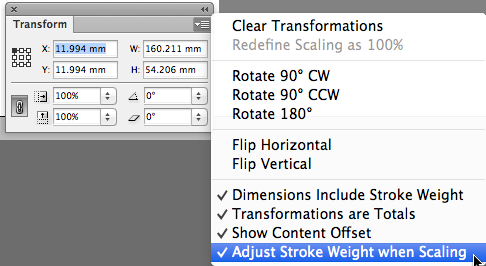
To control whether or not strokes are scaled when scaling objects, you can enable or disable the Adjust Stroke Weight when Scaling setting from the Transform panel menu, or the Control panel menu.
Sizing multiple objects
To size multiple selected objects proportionately, press the Shift key, then drag one of the selection handles outward to size up or inward to size down.

“Sizing” proportionately sizes the text frames up without changing the font size. It won’t change the stroke weight of the graphic frames as could occur when scaling. The graphic frames are also sized proportionately? But but what’s happened to the images? Well? the content has stayed behind? Hmmm… not so good right?
So let’s look at a technique that mixes scaling and resizing. A technique that allows us to select multiple objects images and text frames, and resize the text frames without changing the font size whilst “scaling” the image content.
Mixing it up
I was asked in a recent class I taught whether you could scale the images up proportionately AND resize the text frames without changing the font size. We’re lucky that with CS5 another cool new feature was introduced in InDesign called Auto-Fit.
So here’s the trick to scaling your images AND resizing your text frames.
Enable the Auto-Fit option for all of the graphic frames in your selection first. You find this setting in the Control panel, as well is in the Frame Fitting Options (Object menu).
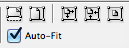
Next press the Shift key, then drag one of the selection handles outward to size up or inward to size down.

Yay? we’ve now managed to retain our stroke weights (remember we’re using the sizing shortcut? not the scaling one? the only reason the images ‘scale’ is because of the Auto-Fit setting being enabled). We’ve also managed to retain our text size, yet resize the frames proportionately at the same time ;-)
This article was last modified on December 21, 2021
This article was first published on May 23, 2012
Commenting is easier and faster when you're logged in!

Recommended for you

Before&After: Use Horizontal Image Strips to Make Your Design Stronger
This website uses a horizontal image strip that anchors the design.

Temporarily Constrain Proportions in InDesign
Lock and unlock proportions in InDesign without repeatedly clicking the chain ic...