



Since, inexplicably, not everyone who reads the blog also listens to the podcast, I thought I’d write up the quick keyboard shortcut tip I came up with in podcast #69 to help out our guest interviewee Deke McClelland and his book production crew.
They had recently completed laying out his latest book, InDesign CS3 One-on-One, in InDesign CS3 of course, and Deke had a few choice words (all hilarious) to say about certain aggravations they encountered in the process. One of these was the inability to add a keyboard shortcut to the default [None] character style in InDesign.
He wanted to do this so the people working on the book had a quick way to selectively clear out character styles that had been applied to instances of text for production purposes. Deke said he knew you could apply the [None] style with Quick Apply or via Find/Change Formatting, but he still would’ve preferred a custom keyboard shortcut for the style itself, and was annoyed that InDesign doesn’t allow it.
And that’s true. If you look at the style in the Character Style panel, you can see it’s locked (the pencil/slash icon):
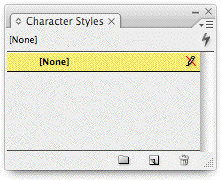
Since it’s locked, you can’t open its Style Options dialog box, where the field for entering the style’s keyboard shortcut lives. You can open the Style Options for the default paragraph style [Basic Paragraph], but not for the default character style [None].
It would make sense for Adobe to unlock the style, but “grey out” every option for the style other than the keyboard shortcut field. Until that happens, here’s the workaround you can use.
Create (MyNone)
All you need to do is duplicate the [None] style. Since you can edit any style you create on your own, add a keyboard shortcut to the duplicate. Use that shortcut instead of clicking the [None] style. The end.
I called my duplicate “(MyNone)” so it sort of looks like the default one in brackets. InDesign won’t let you add brackets around the style names you create, they’re reserved for the program.
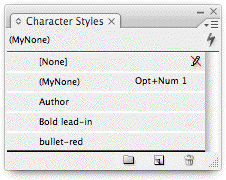
Be aware, though, that you can’t duplicate the [None] style in the normal ways — by dragging its name and dropping it on top of the Create New Style icon at the bottom of the panel, or by selecting it and choosing Duplicate from the panel’s fly-out menu.
Instead, use either of these 2 methods:
- Select some text whose character style is already set to the default [None] and then choose New Character Style from the panel’s fly-out menu (or Option/Alt-click on the New Style icon at the bottom of the panel); or
- Choose the Selection tool, deselect everything (Edit > Deselect All, or Command/Control-Shift-A) and look at your Character Styles panel. The [None] style should be highlighted. Now just create a new character style as above, and it will be based on [None] and nothing else.
In the New Character Style dialog box, name the style and give it a keyboard shortcut:
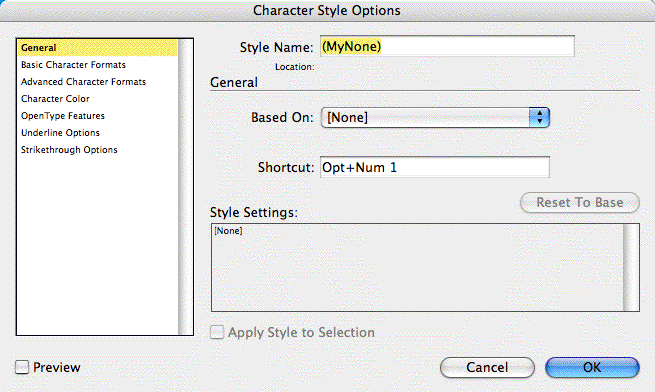
From now on, to strip out a character style that actually does something to text, you can select the text and use the keyboard shortcut for (MyNone).
When you’re done with the project you could use Find/Change Formatting to search for the character style (MyNone) and replace with [None], but that would only be necessary if you needed to clear out internal formatting codes in preparation for an XML or XHTML export. Otherwise, you could just leave it as is.
This article was last modified on December 18, 2021
This article was first published on January 13, 2008
Commenting is easier and faster when you're logged in!

Recommended for you

FedEx Kinko's Enhances Printing Software Customers Can Print to Locations Nationwide with the Click of a Mouse
FedEx Kinko’s, an operating company of FedEx Corp., is making it even easi...

InDesign & Word Styles – How well do they transfer with each other?
Moving Styles back and forth between InDesign and Word is possible, but some of...
I Didn’t Know Preview Could Do That!
Do you use Preview? It’s the bundled app that Mac OS X uses by default when you...