



In the world of special effects, a “practical” effect is one that you create “by hand” in the real world, as opposed to an effect that’s created synthetically on your computer. Auto FX DreamSuite Series One is a collection of Photoshop-compatible plug-ins that digitally fabricates many effects that print designers often have to create by hand. Folds and creases, 35mm-slide frames, pieces of scotch tape: These are examples of some of the 18 different effects included in DreamSuite Series One.
DreamSuite is available for Mac OS 9 and X, and Windows 98/NT/2000/ME or XP. You can purchase the entire package for $199 or buy individual effects off of the Auto FX Web site for $50 each. DreamSuite can install as standard Photoshop-compatible plug-ins or run in a special stand-alone mode.
A Suite of their Own
Though you can run DreamSuite as a stand-alone application, you’ll probably find it more convenient to install its plug-ins for use from within your image-editing application. Auto FX recommends at least 128 MB of RAM for DreamSuite, and this number is not to be taken lightly. DreamSuite is very RAM-intensive, and if you want to use its effects on a very large document, you’ll need all the memory you can spare.
As with any other plug-in, DreamSuite shows up in your image editor’s Filters menu. But when you select DreamSuite, the program takes over the entire screen and presents its own interface and menu system. All of DreamSuite’s filters are available from this single screen.
DreamSuite provides a large preview window and a set of tabbed panes that contain all of the parameter sliders and pop-up menus that you need to control and customize your effects. The first pane contains all of the parameters that are particular to the effect you’re using, while the other panes contain environment and rendering parameters that are universal to all of DreamSuite’s plug-ins.
Though DreamSuite’s interface is well designed, attractive, and easy-to-use, being taken completely out of your image editor’s environment can be inconvenient. If you were hoping to apply an effect to one element of an image while keeping an eye on some other, separate elements, you’re out of luck. For selecting colors or choosing sizing options, viewing the rest of your document is often essential. We’d very much like to see Auto FX minimize DreamSuite’s interface so that it more seamlessly sat alongside other tools.
Also frustrating is the lack of Undo within the DreamSuite environment. The program includes Kai’s Power Tools-like memory dots, but this is no substitute for a simple Undo feature for those times when you don’t like a parameter adjustment.
The Effects
As with any plug-in, DreamSuite performs its effect on the current selection or layer. Once you’ve entered the main DreamSuite interface, you can select the effect you’d like to apply from the Special Effects pop-up menu. After some calculation, the Preview pane will display your image with the effect’s initial settings and the specific effect control panes will appear on the left side of the window.
Adding a 35mm Frame is a good example of DreamSuite’s basic functionality. This filter does one thing, and one thing only — make your selection appear as if it’s inside a plastic 35mm frame — but it provides an extraordinary degree of control over the final effect (see figure 1). In addition to frame size and rotation, full control of frame color and texture, height of the separate frame bevels, how old, discolored and dirty the frame is, and many more parameters are provided. DreamSuite’s standard environment controls let you specify how reflective and shiny the frame is, as well as what type of reflections you want to appear on its surface (if any). Finally, the Lighting pane lets you control multiple light sources for both lighting the frame, and for creating the drop shadow that appears around and beneath the frame.
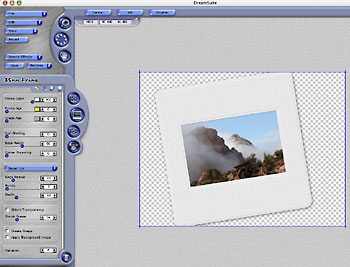 Figure 1: All of DreamSuite’s plug-in use the same, screen-filling interface. Shown here is the 35mm Frame plug-in, which placed a 35mm frame around our selection.
As with all of its filters, Auto FX has done an amazing job of quantifying and modeling the specific properties of a 35mm frame. Simply put, if there’s a very particular “35mm frame look” you want to achieve, DreamSuite’s filter should be able to make that effect, and render a photorealistic version of it for you. Similar to 35mm Frame is Instamatic, which creates a Polaroid SX 70-type border.
As you change parameters in any DreamSuite plug-in, your new image is rendered and displayed in the Preview pane. Rendering speed was acceptable on our 400 MHz G4 Powerbook, but not incredibly fast. If you’re working on a very large image, things can be frustratingly slow, but most users will probably want this filter for small images and selections. Fortunately, you can interrupt DreamSuite’s rendering. That means you don’t have to wait for it to finish before you change a parameter, making it easy to quickly tweak a bunch of parameters and see a finished rendered preview. DreamSuite’s performance overall is good, but launching the plug-in is too slow, sometimes taking up to a minute to present its initial interface.
Chisel lets you create complex bevels around any object (see figure 2). Much more than the simple “beveled edge” that people use to create buttons for Web pages, Chisel lets you create sophisticated “hammered edge” bevel effects that can vary over the length of a surface and that are rendered with complex reflections, finishes, and shadows. With Chisel, you can quickly take a simple flat shape and turn it into a more compelling 3D object.
 Figure 2: This complex graphic was created from a simple Webdings character using the Chisel effect.
Dimension X is something of a hyped-up version of Chisel. Providing similar beveling effects, Dimension X adds more complex shading and light sources, as well as transparency and custom texture maps.
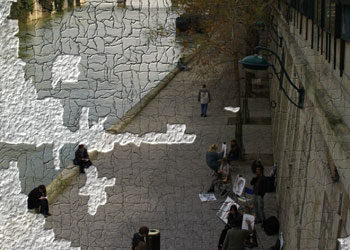
Although Adobe Photoshop ships with a Craquelure filter for simulating the cracked look of aged paint, Adobe’s filter doesn’t compare to DreamSuite’s Crackle. Producing two cracked effects — one that looks like flaking paint and another that looks like cracked, dried mud — Crackle provides a fine degree of control over the characteristics of its cracks, as well as the ability to remove some parts of an image altogether, to reveal the “canvas” lying below.
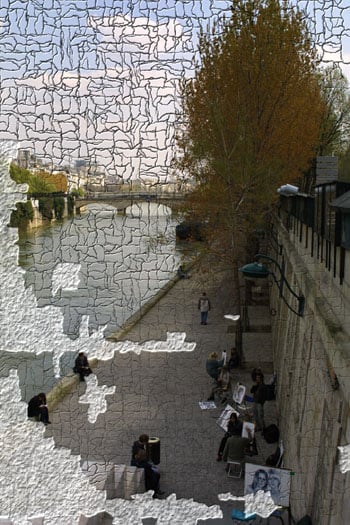 Figure 3: In addition to adding many types of cracks to an image, Crackle also lets you paint in flakes that reveal the underlying, mottled canvas.
This article was last modified on December 14, 2022
This article was first published on November 19, 2002
Commenting is easier and faster when you're logged in!

Recommended for you

Photoshop Fun: Dolphin in a Glass
You might think it’s hard enough to swallow a whole dolphin. But the real...

Layer Tennis Returns Today!
As far as I’m concerned, Coudal Partner’s Layer Tennis justifies the...
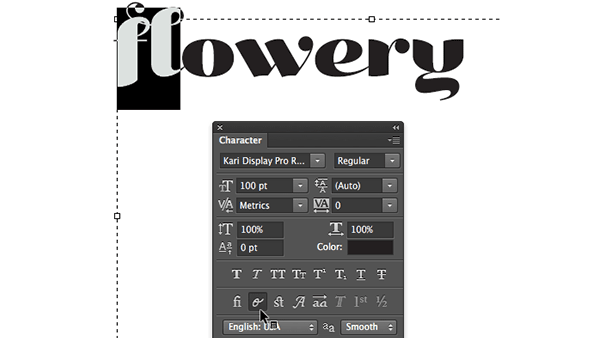
Photoshop Quick Tip: Applying OpenType Alternates
As Ilene Strizver wrote in a recent TypeTalk, you can use alternate characters i...