




This InDesign tip on using the Story Editor when designing with text was sent to Tip of the Week email subscribers on April 27, 2017.

Sign up now and every week you’ll get a new tip, keyboard shortcut, and roundups of new articles, plus exclusive deals sent right to your Inbox!
Just scroll down to the bottom of this page, enter your email address, and click Go! We’ll take care of the rest. Now, on with the tip!
Ever need to apply a highlighter effect to text?
There are several ways to do it, including the use of paragraph and character styles.
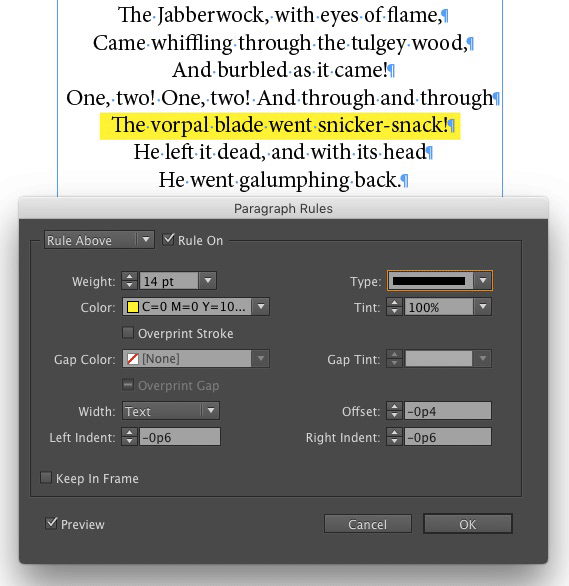
Highlighting with paragraph rules
If all the text is in a single-line paragraph, you can use a paragraph rule.
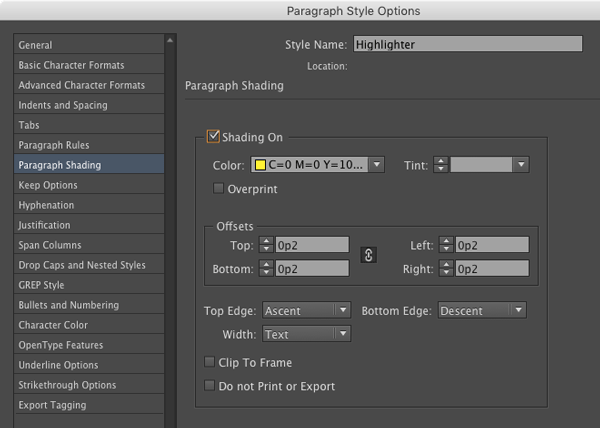
Highlighting with paragraph shading
If you have more than one line of text to highlight (and you’re using InDesign CC), you can use paragraph shading.
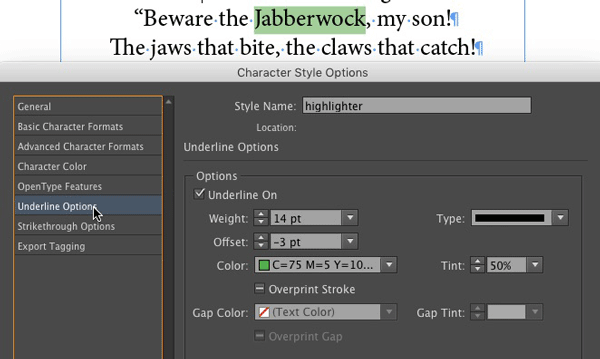
Highlighting with character styles
And if you want to highlight a range of characters within a paragraph, use a character style that applies custom underlining.
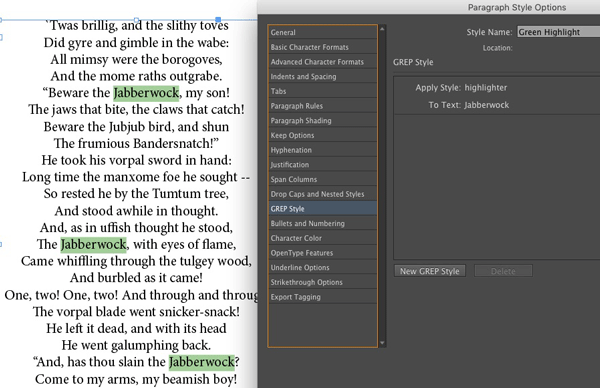
The cool thing about using character styles is that you can also incorporate them in a nested style or GREP style to apply highlighting automatically.
This article was last modified on July 25, 2019
This article was first published on May 2, 2017
Commenting is easier and faster when you're logged in!

Recommended for you
How to Be a Better Graphic Designer: Sweat the Details
Nigel French reminds us how much the little things matter in design.

Index Topics from Styles or Conditions
Create topics and page references in InDesign documents using InDesign's index f...

Conditional Styling Rules for InDesign
With this plug-in you can define conditions for automatically applying paragraph...