



4. Use status updates for short, punchy messages that keep you on your fans’ radar.
Just like your personal profile, your Page lets you post brief, timely announcements — known as status updates — about what you’re up to a
nd what’s on your mind. Status updates appear on your Page’s Wall, up at the top of your Page just under the name, and — most importantly — on the Home pages of anyone who’s opted to view your content there.
This makes status updates a perfect medium for broadcasting whatever news you have to share, as well as staying on your audience’s radar and encouraging them to make regular visits to your Page. You might use status updates to post funny quips, share interesting quotations as food for thought, or offer your take on the latest developments in your field or industry. And you can use your status update as a pointer to draw attention to other kinds of content you’ve posted — a “hey, check this out” message when you upload a video or a new album of photos, or create a brand-new Event.
In fact, there are so many creative ways to use status updates that I won’t even try to list them all. But know that your friends and fans will applaud you for experimenting with the medium, since that’s part of the fun of Facebook.
Figure 12: Composing and posting a status update works the same for a Page as it does for a personal profile.
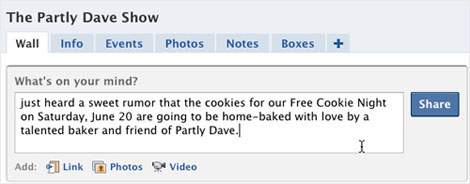
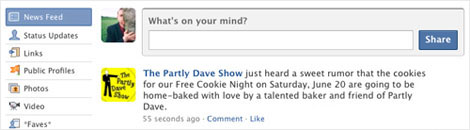
Figure 13: After posting, the status update appears in the News Feed on the Home pages for fans of your Page.
5. If what you’d like to say is too long for a status update, use the Notes feature.
Status updates do have some limitations. They’re meant to be brief, so there’s a restriction on how many characters you can type in the status update field (although it’s noticeably more generous than Twitter’s limit of 140 characters per tweet). But if you’ve got something you’d like to say that’s too long for a status update, fear not: Facebook has you covered with the Notes feature.
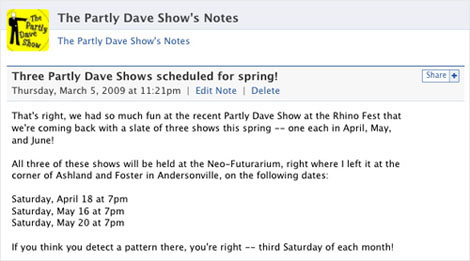
Figure 14: Writing a Note allows you room to share your news and thoughts in a little more detail than a status update.
Many people are familiar with Facebook Notes as the vehicle for the infamous “25 Random Things About Me” fad that raged across Facebook for a while. But you can use Notes for all kinds of valuable purposes.
For instance, you can use Notes to post journal-style entries about projects you’re currently working on or events in the planning stage, which may whet interest and build anticipation for the final product.
You can also use Notes to editorialize or opine; ask questions that spur conversations; or seek useful input that can help you create a stronger version of whatever you’re working on. When I was working on the “Applications and Other Add-Ons” chapter of Facebook Me! I wrote a Note asking my friends to tell me about their favorite Facebook apps. I received a number of useful suggestions as a result.
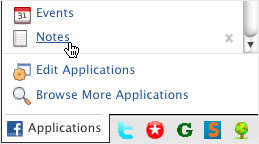
To create a new Note, just click the Notes link in Facebook’s pop-up Applications menu. That’ll take you to the home page for the Notes application, where you can write your own Notes as well as read the ones your friends have posted recently.
Figure 15: Click the Notes link in the Applications menu.
6. Use Events to draw attention to time-sensitive happenings, build enthusiasm about them, and track your potential attendance.
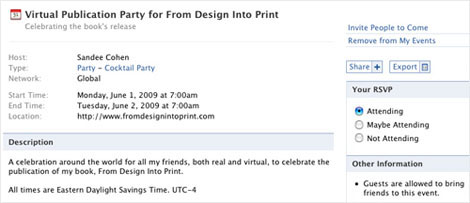
If you’ve ever used Evite, you’ll be familiar with the basic concept of Facebook Events, which let you create an invitation page for a show, party, exhibition, meeting, or other calendar items. Posting public Events on Facebook helps you reach not only the people on your invitation list, but potentially their friends, and friends of friends, as well — thanks to the magical ripple effect I mentioned earlier.
Figure 16: CreativePro author Sandee Cohen created a Facebook Event to promote the online book release party for her new book From Design Into Print.
Also remember that you can use Events to promote not only performances, get-togethers, and meetings in the physical world, but also TV and radio appearances, scheduled chat room meetings, or anything else with a start and end time you’d like your audience to be aware of.
The other great advantage of Facebook Events is that they give you some advance data on how many people are likely to actually turn out for your shindig. Although you can’t be absolutely sure that all of the people who RSVP will really show up — and in fact you’re wise to assume that only a percentage will, since schedules can be unpredictable despite the best of intentions — it does at least show you how many people are aware of your happening and feeling enthusiastic enough to declare their interest by clicking the Yes or the Maybe button. Having something on which to base an attendance estimate can come in handy if you need to finalize an order for refreshments, or you’re simply wondering whether the word has gotten around that you’ll be rolling out the red carpet.
7. Use photos and videos to show off your projects in an eye-catching and entertaining way.
Engaging people on a visual level is always a good strategy. So posting photos and videos on Facebook is an ideal way to showcase your talents. And because of the way Facebook’s news feeds push photos and videos out to the Home pages of your Facebook friends and fans, you can use them as an effective tool to grab attention for projects, performances, and events of all kinds.
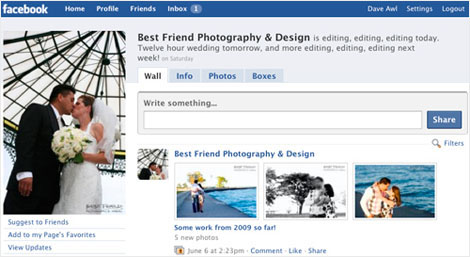
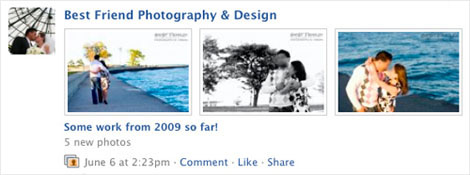
Figure 17: When you post photos to your Page, a photo story like the one above appears on your Wall as well as the News Feeds of your Page’s fans.
You might post samples of your finished work to show it off, or post works in progress to get quick feedback and input from your Facebook audience. Because every photo or video you post on Facebook gets its own comment thread, they’re a great way to spur discussion.
Facebook videos can be employed in all sorts of creative ways as well. You can use Facebook to video blog, posting regular spoken messages on your Page. You might post short interviews with clients or collaborators, or you might consider creating a “making of” video showing your artistic process at work. The possibilities are just south of limitless.
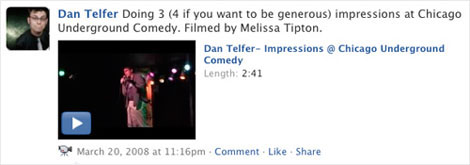
Figure 18: An example of a video story that you can watch right on the Page by clicking the embedded player.
By the way, a word about that Terms of Use kerfuffle I mentioned way back at the beginning of this article. Said kerfuffling erupted earlier this year when Facebook updated its
terms of use to note that it would retain its right to distribute content you’ve uploaded even if you choose to terminate your account. A fire-starting post at the Consumerist blog interpreted this as, “Facebook’s New Terms Of Service: ‘We Can Do Anything We Want With Your Content. Forever.'”
In response, Facebook quickly clarified that it wasn’t intending to use its members’ content in any nefarious ways (such as selling your original photographs for profit). Instead, it wanted to stress that if (to give a hypothetical example) you send another member an Inbox message with a photo attached, that message will remain in the other member’s Inbox after you leave Facebook. In other words, you can’t assume that all traces of your content will be magically wiped from the Facebook system just because you leave. Facebook also emphasized that any license you grant to Facebook is subject to your Facebook privacy settings.
These assurances did little to assuage the massive outcry that sprang up around the Internet over what pretty much everyone (including, eventually, Facebook itself) agreed was some overly broad language in the Terms of Use update. Facebook wound up creating a process for its users to give input on a revised Terms of Use document, and out of that process created a new Statement of Rights and Responsibilities, which was submitted to Facebook members for a vote.
The Statement, which was adopted as Facebook’s governing document following the vote, emphatically states that “you own all of the content and information you post on Facebook,” and says that for any content covered by Intellectual Property rights (such as photos or videos), the license that you grant to Facebook
… ends when you delete your IP content or your account (except to the extent your content has been shared with others, and they have not deleted it).
Thus ended the kerfuffle, for the most part. But all this leads us back to an important caveat: Remember that anytime you post something online, you’re giving up a little bit of control over it. There’s always the chance that others might grab your images or content and post them elsewhere, or repurpose them — with or without your permission and with or without credit, depending on how ethical they are.
The opportunity to reach a wider audience for your work usually makes that risk worth taking. But you should pick and choose the work you post online with those considerations in mind. If you have content you’re hoping to sell for money, you might want to post only an excerpt or sample (such as the first few minutes of a longer video), or consider watermarking photos and other images.
8. Direct attention to content posted elsewhere (YouTube, blogs, etc.) by using the Links feature.
Facebook excels as a medium for sharing Web links. When you post a URL to Facebook, it doesn’t appear solely as a Web address. If it’s a link to an article or blog post, Facebook lets you choose a picture and a text excerpt to accompany it; if it’s a video, Facebook will if possible embed a video player directly on the page. This makes it easy to keep your Page populated with fresh, engaging content.
Figure 19: An example of a link posted to CreativePro’s own Facebook Page, pointing fans to information posted on the main site.
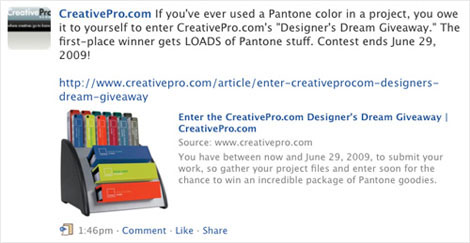
And just as with status updates, when you post a link to your Page, it will appear on the Home pages of your Page’s fans (as long as they haven’t chosen to opt out of seeing your content there). If your fans click the Like link, it could show up in the Highlights column as well.
If you post content elsewhere on the Web, such as a video on YouTube, a new entry on your blog, or a new podcast on your Web site, be sure to post the link to your Facebook Page so your fans see it either in the News Feed, or when they visit your Page.
You can also configure the Notes application for your Page to automatically import new posts from your external blog to your Page in the form of Notes — which may be easier than posting the link to your Page manually each time you update your blog.
9. Use Groups to network with fellow fans, professionals, and other peers.
Although Pages are superior to Groups if you’re looking to communicate with your own base of fans, customers, and supporters, Groups have their uses, too. Facebook Groups are a great way to connect on a peer-to-peer basis with fellow professionals, people you went to school or worked with in the past, or fellow fans and enthusiasts of whatever you’re into. You might start a Group devoted to a specific issue or concern, and use it to meet like-minded Facebookers, some of whom might eventually find their way to back to your Page.
To peruse the available Groups on Facebook, or start new ones, just click the word Groups in the pop-up Applications menu.
10. Keep your Pages, Groups, Events, and other content active to generate interest and discussion.
Once you’ve created a Page, a Group, or an Event on Facebook, don’t just let it sit there. You can help it get seen by as many folks as possibly by keeping it active. Add content to its page, write on its Wall, and use the Share button to post it to your own Profile.
Figure 20: Look for the Share button on the page for any content you’ve created or uploaded — clicking it will allow you to easily post the content to your own profile, or send a message to friends that includes a direct link.

If someone comments on something you’ve posted, be sure to reply to keep the conversational ball rolling. Remember that items with many comments are more likely to show up in the Highlights column, as well as generate stories on other people’s Walls — so it’s in your interest to keep the discussion alive.
11. Consider experimenting with the paid ads.
All of the tools I’ve discussed above are available for free on Facebook. But if you’re willing to invest a little capital in the game, you can also experiment with bought-and-paid for advertising options.
Facebook makes it easy to advertise the Groups, Pages, and Events you’ve built on Facebook, targeting the people and Networks most likely to be interested in what you’re doing.
Figure 21: An example of a Facebook ad encouraging you to create a Facebook ad for your Page. That makes my brain hurt a little.
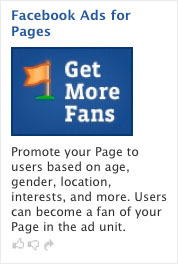
And you don’t have to risk any more coin than your piggybank can handle: Facebook lets you set a maximum budget for each ad, on a pay-per-click basis. To explore the possibilities, just click the word Advertising in the footer of any Facebook page.
12. Don’t be pushy — be engaging.
Now that we’ve looked at the tools Facebook has to offer, it’s time to circle back to the point I made in the beginning: The best way to put those tools to work is use them to showcase your creativity and the personality of your work. Try to make sure that every Facebook post you make has some entertainment value — a new piece of information, a look at your work, or a useful or a
musing link you just found.
Be careful of overkill. Posting too much content in a short space of time, or posting the same messages over and over again can make you seem like you’re hogging the Facebook conversation and nagging people with too many shoulder-taps. If you go that route, you could wind up alienating people and encouraging them to tune you out.
Here’s one great way to gauge the effectiveness of your Facebook promotions: the Insights feature. As the admin of a Facebook Page, Facebook gives you access to detailed traffic statistics that let you see how many people are stopping by your Page, what they’re looking at, and how many new fans your Page is attracting. Even better, you can see this info plotted on a graph over time, showing day-to-day response patterns.
Figure 22: An example of the Insights graph set to show the number of people viewing a Page over a specific seven-day period.
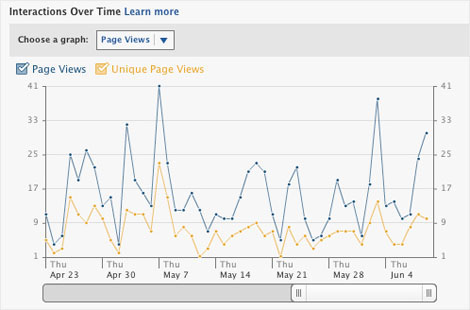
This means that after you (for example) post a photograph, create an Event, or make an announcement via status update, you can follow up a few days later to see how much of a splash you made.
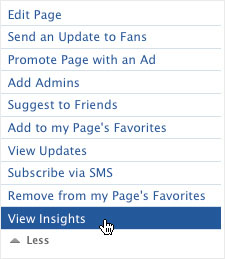
To access your Page’s Insights, go to your Page and click the View Insights link.
Figure 23: The View Insights link in the list of admin links for a Page. You might need to expand the list of links by clicking More before it’s visible.
Bottom line: Shoot for quality over quantity in your Facebook promotions. Make it your business to post information and content that’s appealing enough that other people want to share it with their friends. Then you can go play a round of Scrabble, or take a silly quiz, while Facebook’s News Feeds carry your message to the outer edges of your social network, and beyond.
This article was last modified on December 14, 2022
This article was first published on July 1, 2009
Commenting is easier and faster when you're logged in!

Recommended for you

Scanning Around With Gene: Small. Noisy. Underpowered. Beloved.
In recent advertising, Volkswagen has brought back a vintage Beetle to serve as...
New Mohawk Logo Designed by Pentagram
The 81-year-old paper company Mohawk unveiled a new logo that it says will let i...

The Sign Painters
It’s easy to take for granted that the existence of digital tools for creating g...