




Tired of searching through the huge glyph sets of OpenType fonts for just a few obscure glyphs that you often need? Ever wonder if you could create a library of your favorite glyphs and use it across multiple machines? Yes you can! It’s easy to create, edit, and share custom sets of your most often needed glyphs in InDesign.
Here’s how it works…
Open the Glyphs Panel by choosing Type > Glyphs or by pressing Option+Shift+F11 (Mac) Alt+Shift+F11 (Windows).
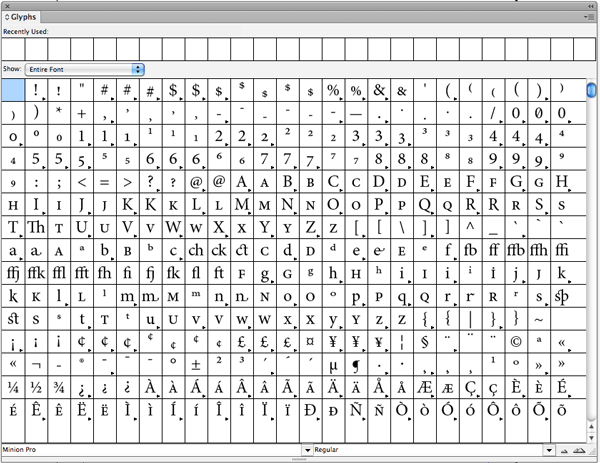
Go to the panel menu and select “New Glyph Set…”

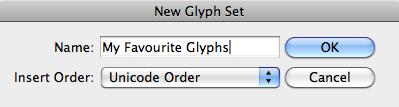
Give a name to your new glyph set, like “My Favourite Glyphs” and click OK.
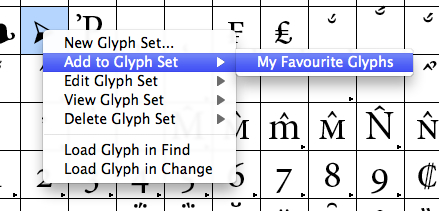
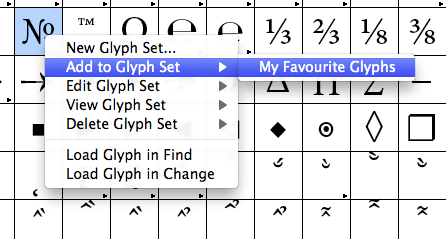
Now start adding your first commonly used glyph by right-clicking on it and selecting “Add to Glyph Set,” and then select the name of your personalized glyph set.
You can also add the glyph from the Alternate Section of a particular glyph.
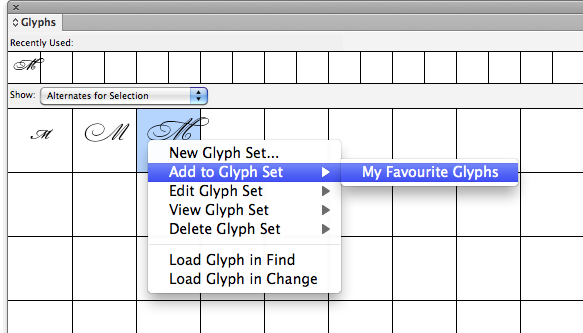
Keep on adding as many glyphs as you want to your personalized glyph set. You can also add the glyphs from other font styles as well. This way you can choose multiple glyphs from various fonts and keep them at one place.

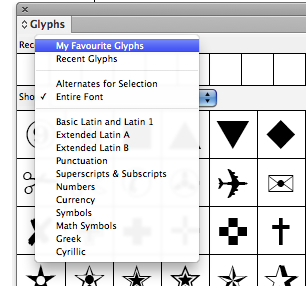
You can check your glyphs library by clicking on the Show drop-down list and select your Glyph-Set. In this case “My Favourite Glyphs”

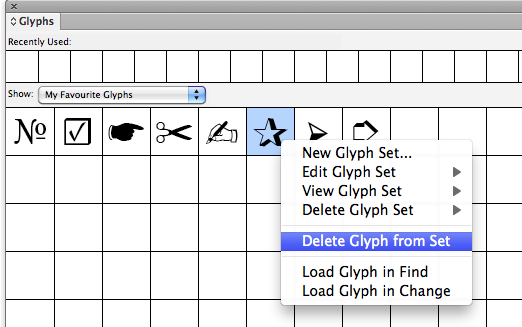
If you further decide to delete any particular glyph from your personalized glyph set, just right-click on the glyph and select “Delete Glyph from Set”.
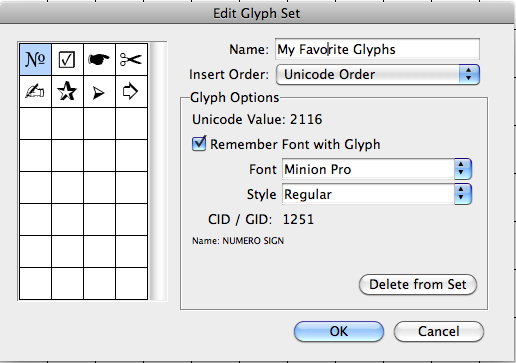
You can also edit the properties of your glyph set. Go to the panel menu, choose “Edit Glyph Set” and then your personalized glyph set.
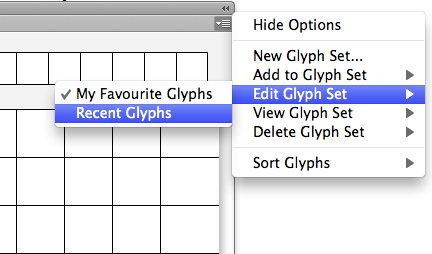
In the dialog box, you can rename your glyph set, change the options for a specific glyph, and delete glyphs that you no longer want in the set.
Custom glyph sets are stored in files that are saved in the Glyphs Sets folder, a sub-folder of the Presets folder. Once you are done creating and editing your glyph set, you can save a copy of this file as a backup or share it with others.
InDesign stores custom glyph set files in the following locations:
Mac OS
Users\[username]\Library\Preferences\Adobe InDesign\[Version]\[Language]\Glyph Sets
Windows XP
Documents and Settings\[username]\Application Data\Adobe\InDesign\[Version]\[Language]\Glyph Sets
Windows Vista and Windows 7
Users\[username]\AppData\Roaming\Adobe\InDesign\[Version]\[Language]\Glyph Sets
This article was last modified on July 25, 2019
This article was first published on February 12, 2015
Commenting is easier and faster when you're logged in!

Recommended for you

CreativePro Video: Glyphs and Text Alternates
In this week’s CreativePro video, Nigel French explains how text alternates can...

The Interrobang Is 60?!
A look at the history and usage of the obscure mashup of an exclamation point an...

Add Variety with Glyphs and Text Alternates in InDesign
Learn how to find and activate type alternates in InDesign to add variety to you...