



SS wrote:
My company just upgraded our font library to the OpenType versions. We have found a puzzlement with ITC Zapf Dingbats Std. In InDesign, if you select that as your font and start typing, you get the “unrecognizable font” pink boxes with x’s inside. But if you switch over the glyph palette, you can double click on any of the characters from Zapf STD and they will show up. We’ve tried on the PC and the Mac, in different versions of InDesign, to make the Zapf STD type work, but no joy.
Sometimes it’s two steps forward, one step back. There’s no doubt that OpenType fonts are better in many, many ways (same font for both platforms, huge character set, “intelligent” character substitution, and so on). But with every gain there is a loss.
In this case, it has to do with “encoding” — which is a fancy way of saying “what key you get when you press a button.” Adobe’s OpenType fonts are encoded based on Unicode values, and the OpenType pi fonts (such as Zapf Dingbats, Sonata, Carta, Universal Pi, and others) are encoded in such a way that the characters in the font are not actually mapped to most of the keys on the keyboard.
For example, in the PostScript Type 1 version of Zapf Dingbats, you can get a solid square by typing “n” (which I’ve done a bazillion times, making little bullets). If you type “n” and set it to Zapf Dingbats Std (the OpenType version), you get a pink rectangle that means “this character doesn’t equate to diddly squat in this font.”
So what is to be done? How can you get your cool dingbats? Well, you can use InDesign’s Glyphs panel (Type > Glyphs), the Windows Character Map, or the Mac OS Character Palette. These options show you every character in any font; just double-click on the character to grab it.
If you already have many instances of a character that you want converted, you could also use the Glyphs tab of the Find/Change dialog box. For example, in my bullet example, I might type a bold “n” wherever I want a bullet and then set up the Find/Change dialog box like this:
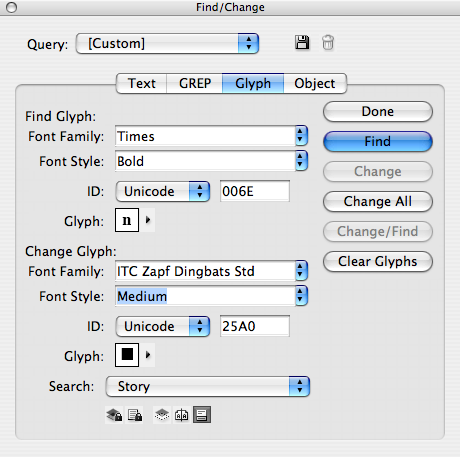
By the way, I figured out what Unicode values to type in the ID fields by hovering my cursor over that character in the Glyphs panel. When I press Change All, the bold “n” characters are converted for me.
But ultimately, for many of us, I think the best solution is just to keep a copy of the PostScript Type 1 font (or TrueType version) around to use. Sigh.
I asked Thomas Phinney (type evangelist extraordinnaire at Adobe) about this, and he pointed me to this very helpful PDF file on the issue.
This article was last modified on December 18, 2021
This article was first published on December 20, 2007
Commenting is easier and faster when you're logged in!

Recommended for you

InDesign’s Evil Evil Color Picker
MSK wrote:I have noticed, if you choose an object that has been set to a value o...
Field Guide to Composition Highlighting
Have you ever opened an InDesign document and wondered, geez, why am I seeing al...
Making a Custom Character in a Font
TK wrote:I have a client whose design agency has come up with a product that mak...